







Select
FTC
Efficient App laurels

7 Best Calendar Apps in 2026

Updated Mar 31, 2026

See how our top 6 picks compare across the 7 calendar apps we evaluated.

Explore what each does best, where it falls short, and why it earned a spot on our 2026 list.

Alex Bass Headshot
Alex Bass
Andra Vomir Headshot
Andra Vomir

    Best Calendar Apps at a Glance

    7 apps and 4 deals
  1. Notion Calendar
    Notion Calendar

    A beautiful, minimal free calendar built on Google Calendar

    A beautiful, minimal free calendar built on Google Calendar
  2. Motion
    Motion

    Best AI calendar that schedules tasks around meetings

    Best AI calendar that schedules tasks around meetings
  3. Superhuman Mail
    Superhuman Mail

    Best calendar for those already using Superhuman Mail

    Best calendar for those already using Superhuman Mail
  4. Google Calendar
    Google Calendar

    Best calendar foundation for individuals and teams

    Best calendar foundation for individuals and teams
  5. Morgen Calendar
    Morgen Calendar

    Best calendar with basic AI task management

    Best calendar with basic AI task management
  6. Vimcal
    Vimcal

    Built for Executive Assistants

    Built for Executive Assistants
  7. Fantastical
    Fantastical

    For MacOS + iOS only

    For MacOS + iOS only
    Notable Mentions
  1. Sunsama
    Sunsama
    Daily Planner

    Best pen and paper alternative

    Best pen and paper alternative
  2. Outlook
    Outlook
    Email

    Best for those using Microsoft 365

    Best for those using Microsoft 365
  3. Routine
    Routine
    Daily Planner

    Free daily planner

    Free daily planner
  4. Akiflow
    Akiflow
    Daily Planner

    Best for task consolidation from third party apps

    Best for task consolidation from third party apps
  5. Reclaim AI
    Reclaim AI
    Time Management

    Tries to protect your time

    Tries to protect your time

Best Calendar App: Who Wins?

Types of Calendar Apps

Types of Calendar Apps

When it comes to calendar apps, the first question is what are you actually missing? You're probably using Google Calendar or Outlook, but since you landed on this page, you're looking for something more.

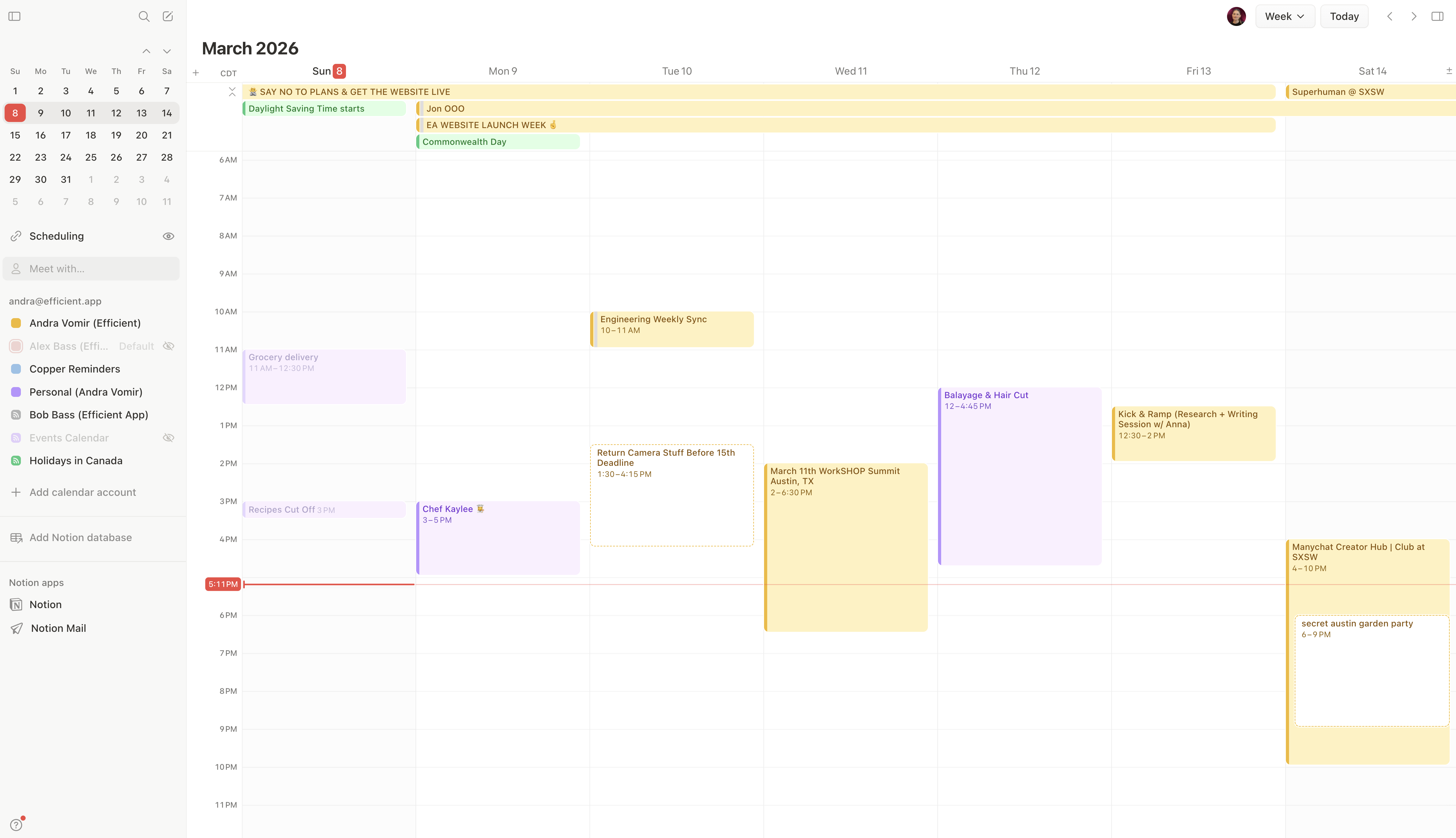
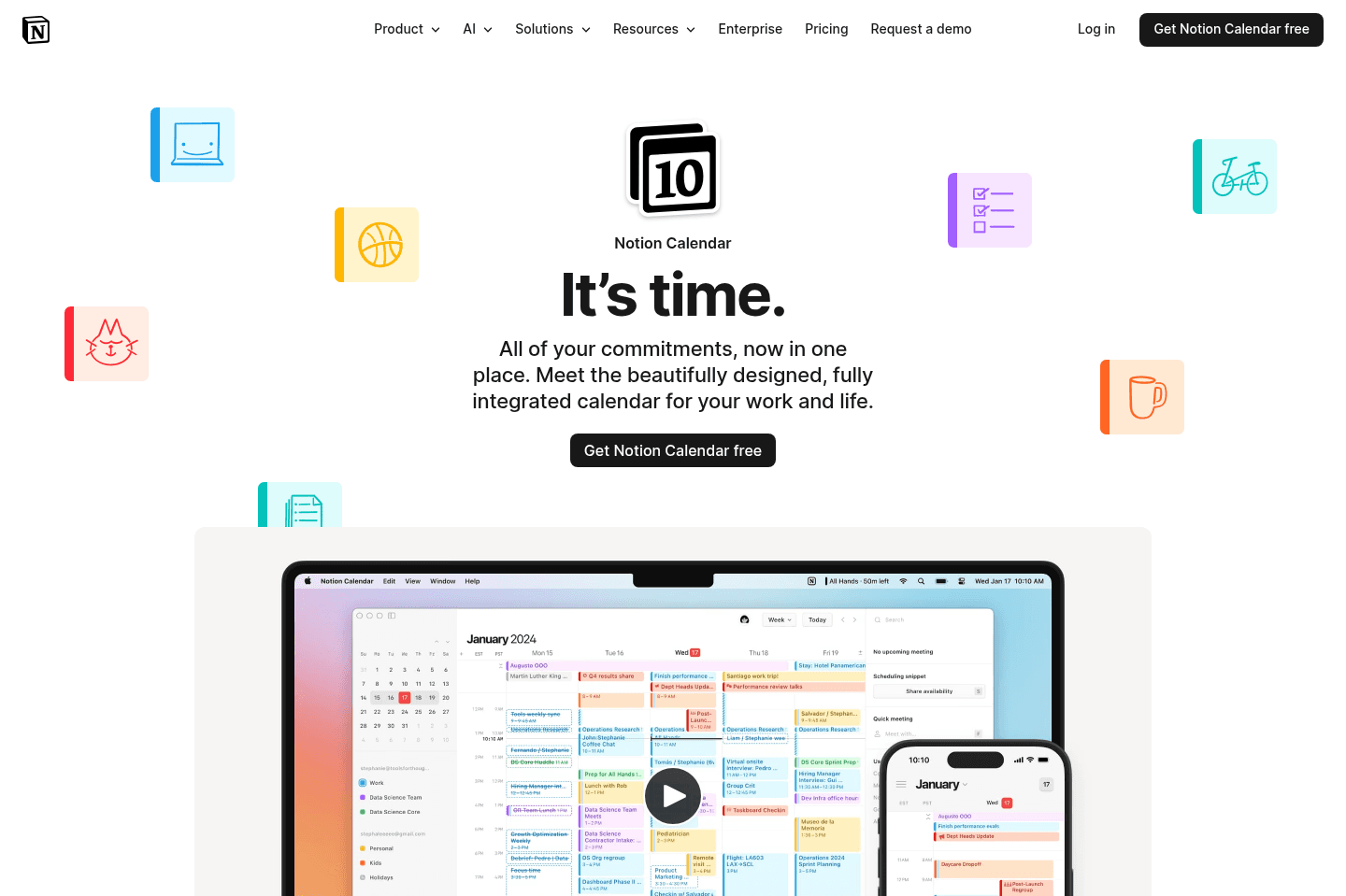
The first upgrade you may be considering is just a more beautifully designed calendar with a better user experience. That's where we recommend Notion Calendar.

With Notion Calendar, you're getting the same features as you'd expect from your basic calendar, but with a more intentional design. It's minimal and less cluttered. I have it pinned in my browser just because it's pretty to look at when I need to.

It's also free, so it's a no-brainer if aesthetics matter to you. They really do matter to me. When a tool has too many buttons, things start feeling clunky, and I notice I get this low-grade internal frustration!

AI Calendar App

AI Calendar App

Then there's a different type of calendar entirely, one that uses AI to help you manage your meetings and tasks. This is where I personally live 90% of the time.

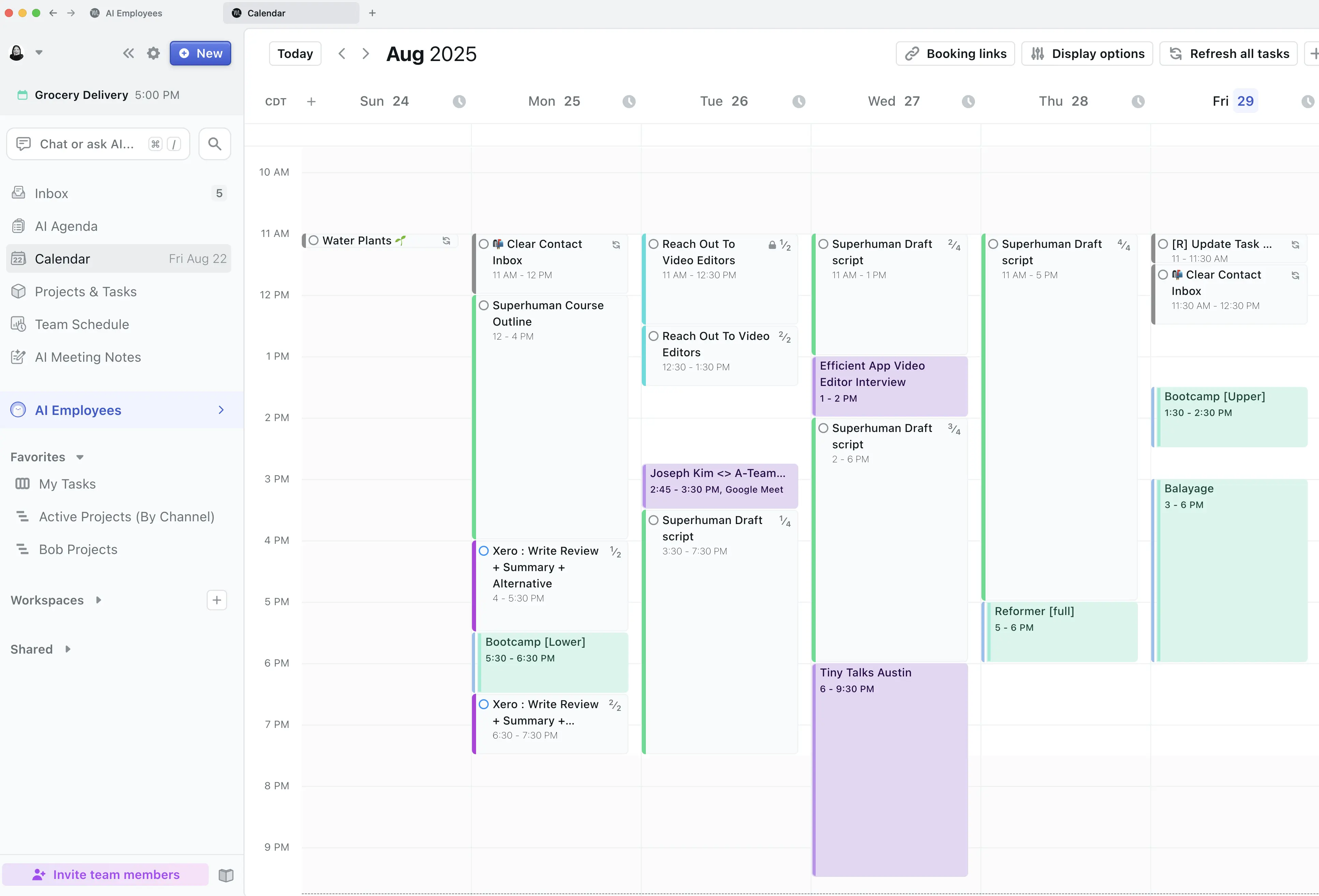
I use Motion App as my main calendar because I'm not just viewing my schedule, I'm planning projects, scheduling entire YouTube production content (scripting, shooting, reviewing edits), and managing work across the team. It's closer to a project management tool than just calendar management if you use all the features.

If you like the idea of managing your work on your calendar, then Motion is something you should consider (Morgen Calendar is also a way more barebones version of Motion, if Motion sounds like too much for you). I often recommend Motion to my professional, super busy friends.

By the way, if you already use a project management software, but you like the idea of scheduling tasks on your calendar, then you can also consider one of these best daily planner apps we covered.

Email Calendar App

Email Calendar App

If you live in your inbox and most of your meeting and event scheduling happens from email, the option is to use Superhuman Mail as they have a pretty amazing calendar built in right into the inbox (I use this when I'm in my inbox!).

One keyboard shortcut pulls it up, and you can share a booking link with anyone directly from your emails without ever leaving.

It also has a pretty amazing AI Assistant that I use on my phone or computer with Wispr Flow to dictate the event I want it to create, like "schedule meeting with Alex from 7:30 pm for one hour to review YouTube script over shawarma dinner" and it will automatically create the event without me needing to touch any drop downs to select the time (my least favorite part of creating any calendar event).

The only con is that the calendar is currently embedded into the email app and they don't currently have a standalone calendar app (as soon as they do, it might just take the number one spot for the best calendar, as I love the minimal design, and it's incredibly fast to load).

Mobile Calendar App

Mobile Calendar App

Right now, on my mobile phone I use Vimcal, because they have a free tier for iOS and because they have natural language processing when it comes to event creation (and because it's my job to evaluate tools). That said, the natural language processing only seems to work 20-30% of the time.

If Superhuman releases a stand-alone mobile calendar app, I'll be switching over.

I realize I just shared that I am using a ton of calendar apps, but remember my job is to test tools. My recommendation for you is pick the one that will add the most value to your life (whether it's just looking at a more beautifully designed calendar, or helping you get work done, or helping you schedule faster from your inbox).

Everything else in the calendar space? Honestly, not much worth saying.
Best Calendar Apps Ranked & Reviewed

Watch our full breakdown of the top calendar apps, how they performed in testing, and what makes each one worth considering

Recorded by our expert reviewers
Alex
and
Andra
Independent, hands-on testing.Learn more

How We Evaluate Calendar Apps

We score each calendar app across fast event capture, purposeful design, smart features, scheduling, AI assistance, and hands-on expert evaluation

  • Fast Event Capture
    Create, edit, and join meetings fast without digging through menus.
  • Purposeful Design
    Clutter-free interface that makes your schedule easy to see and manage.
  • Smart Features
    Smart scheduling features like timezones, travel time, and automatic buffer time between meetings.
  • Scheduling
    Does the app provide efficient scheduling links to reduce back-and-forth?
  • AI Assistance
    Does AI help you plan your day?
  • Expert Evaluation
    Curated by
    Alex
    and
    Andra
    , our rankings reflect in-depth testing, industry insights, and hands-on experience.
1
Notion Calendar

Notion Calendar

A beautiful, minimal free calendar built on Google Calendar

A beautiful, minimal free calendar built on Google Calendar

Notion Calendar is an aesthetically pleasing calendar for iOS, and we'd recommend using it if all you want is a free calendar that is better than Google Calendar (not available yet for Outlook).

With that, we'd say skip the whole "add your Notion database items to your calendar" bit. Despite the hype, managing your tasks in Notion is messy as it's not a task manager. If you're interested in time blocking tasks, try one of these daily planners instead.‍

Notion Calendar
Go to Notion Calendar site

What is Notion Calendar?

What is Notion Calendar?

Notion acquired a company called Cron and then re-named it Notion Calendar. We loved Cron and when the acquisition happened, we had some mixed emotions...

It was very much a 5 stages of grief situation, it was a great calendar, obviously built by people who obsess over UX, so it was hard to think that Notion was going to make a ton of changes. We actually ended up deleting it for well over a year.

But over a year later, we were pleased to see that Notion kept most of it the same. They did start to plug their own products within the calendar, adding in subtle pushes to integrate your calendar with Notion and Notion Mail, which we're not huge fans of. But that aside, the calendar itself is arguably the most thoughtfully designed calendar app on the market.

Notion Calendar Interface

It's not really that the Notion Calendar does anything revolutionary, it's not going to suddenly make you more productive or help you manage your time. It just has… excellent design.

It’s fast. It’s minimal. It feels like someone was picky about the details. For most people, Google Calendar is more than enough. But if you're just looking for a free, user-friendly calendar to replace Google Calendar, it's an easy recommendation!

Pros and Cons

Pros and Cons

Pros

Pros
  • The most thoughtfully designed calendar UI available
  • Extremely fast and responsive
  • Excellent keyboard shortcuts
  • Smooth multi-timezone support
  • Smart natural language event creation

Cons

Cons
  • Constant subtle push toward Notion ecosystem
  • No natural language event creation

Key Features

Key Features

Thoughtful UI Design

Thoughtful UI Design

Every interaction feels intentional. You could be dragging events, resizing blocks, or even switching views and still experience the same visually polished interface.

The design team definitely obsessed over micro-interactions. With most calendars prioritizing functionality, it's really refreshing to see one that also values design!

Flexible Multi-Day Views

Flexible Multi-Day Views

Something calendars don't always get right is the level of customization. Too much customization and it starts to feel overwhelming. Too little and it feels restrictive. Notion calendar found that Goldilocks zone, and it's easy to see with things like the multi-day view.
It's as easy as pressing a number on your keyboard (1–9), and it instantly customizes how many days you see, with one press.

You can horizontally scroll through time, which makes it feel like you’re navigating an ongoing timeline, so really it's the little things that change how the app feels.

Edit Shared Events

Edit Shared Events

Like every third-party calendar built on Google, it inherits API constraints.

For example:
If someone else owns an event, you often can’t directly modify it, even if they’ve granted permission.

Most calendar apps just stop there and say, "Not our problem."

But Notion Calendar dug deeper. They created a clever workaround that allows you to temporarily hide your own calendar and directly adjust the shared calendar instead. It’s not perfect, but it’s a thoughtful layer most competitors either didn't think to implement or just didn't feel like adding.

They’re pushing the API as far as it can go, and to us, that speaks volumes.

Keyboard Shortcuts

Keyboard Shortcuts

For power users, this is where the app really shines.

Press C to create an event.
Press T to jump back to today.
Use natural language like “8 weeks” and jump directly to that date.

It makes for a seriously straightforward, fast experience that helps you to just get it done.

Pricing

Pricing
  • Free: Best for individuals & students wanting a clean, usable calendar.
  • Paid: Best for Notion users who want to unlock advanced database features and team functionality.
Subscribe for updates

Get the latest rankings and insights on top Calendar apps—delivered to your inbox. Stay ahead with our expert picks and updates.

2
Motion

Motion

Best AI calendar that schedules tasks around meetings

Best AI calendar that schedules tasks around meetings

Motion is the most innovative AI-powered project management tool for individuals and teams who want to fully embrace AI to get work done.

It uses AI to take all of your team's projects, tasks, priorities, deadlines, and dependencies to build the perfect day for you and your team, time blocking tasks right on your calendar. They also have AI Docs, & an AI Note Taker, helping you get work done faster.

We've been using it for 5 years and is core to how we manage our time and projects!

Motion
Go to Motion site

What is Motion?

What is Motion?

Motion is one of the best calendars out there...but saying it's just a calendar doesn't quite give it justice. It's a full-fledged project management tool with a calendar at the core. Where other tools require multiple integrations to manage tasks, scheduling, and team coordination, Motion brings everything into one place.

There's a reason we've been using it since 2021. Motion uses AI auto-scheduling to act like a personal assistant. It takes your tasks, automatically places them onto your calendar, and continuously adjusts your schedule if you don’t complete something or miss a time block. It helps you show up each day knowing exactly what to work on next.

Motion Calendar

Motion is designed for busy individuals, professionals, and teams who want a comprehensive system to manage both time and tasks more effectively.

Pros and Cons

Pros and Cons

Pros

Pros
  • Rearranges tasks dynamically if you miss or don’t complete them
  • Time-blocks your day neatly to boost productivity
  • Takes team schedules and work capacity into account
  • Warns you if deadlines may be missed due to availability constraints

Cons

Cons
  • Not ideal if you prefer to manually plan every detail of your day
  • Lacks strong natural language input features
  • Might be overkill if you are truly looking for just a calendar

Key Features

Key Features

Task AI Auto-Scheduling

Task AI Auto-Scheduling

Motion automatically takes your tasks and places them into available time slots on your calendar. If something doesn’t get done, it intelligently reschedules it, making it feel like you have a built-in assistant helping manage your workload.

It's the smartest calendar on this list by a long shot.

No Missed Deadlines

No Missed Deadlines

If you have 5 hours of meetings in a day, and 8 hours of work to get done...how will you fit everything in? Likely, you can't. So you're constantly running around "feeling behind" wondering why nothing gets done. Motion brings that to the surface. Create a project or task, set the deadline, and Motion will tell you instantly if you're at risk of missing your deadline. This all happens right within the calendar.

It works the same way if you're a part of a team. Motion takes into account team members’ schedules, personal tasks, and project workloads. If someone doesn’t have the availability to complete something on time, it flags potential issues early so you can adjust.

Scheduling Protection

Scheduling Protection

Motion has smart scheduling controls within the calendar. Simply toggle-on any option below and your schedule will readjust.

  • Start tasks later: Delays the AI scheduler from placing tasks earlier in the day
  • Stop tasks early: Pushes remaining tasks to later time slots or future days
  • Block out hours: Creates protected time so Motion will not schedule tasks there
  • Block out whole day: Marks the entire day unavailable for scheduling

Mobile App

Mobile App

Motion's calendar and task management works on iOS and Android, allowing you to add tasks on the go and allow Motion's AI to adjust your schedule and plan your day for you.

Pricing

Pricing

Motions prices range from $19 to $34 per month (Individual to Team plans), and the Calendar is included within that broader system.

Supercut
Supercut
Featured

Video messaging that moves work forward

3
Superhuman Mail

Superhuman Mail

Best calendar for those already using Superhuman Mail

Best calendar for those already using Superhuman Mail

Superhuman Mail is the best email client on the market. It's wildly fast, minimal (not bloated with features), and helps individuals and teams triage through emails most efficiently. We've been using it for 6+ years and can't ever imagine going back to regular email.

Claim the Superhuman free trial for 30 days free, which is more than enough time to see if it fits your workflow.

Superhuman Mail
Go to Superhuman Mail site

What is Superhuman Mail?

What is Superhuman Mail?

Superhuman Mail has a calendar that's built right inside the email app. It’s not a standalone "best calendar app" competitor, but if you live in your inbox and are constantly checking your calendar for scheduling, this Superhuman Mail + calendar combo is chefs kiss!

Let me tell you why:

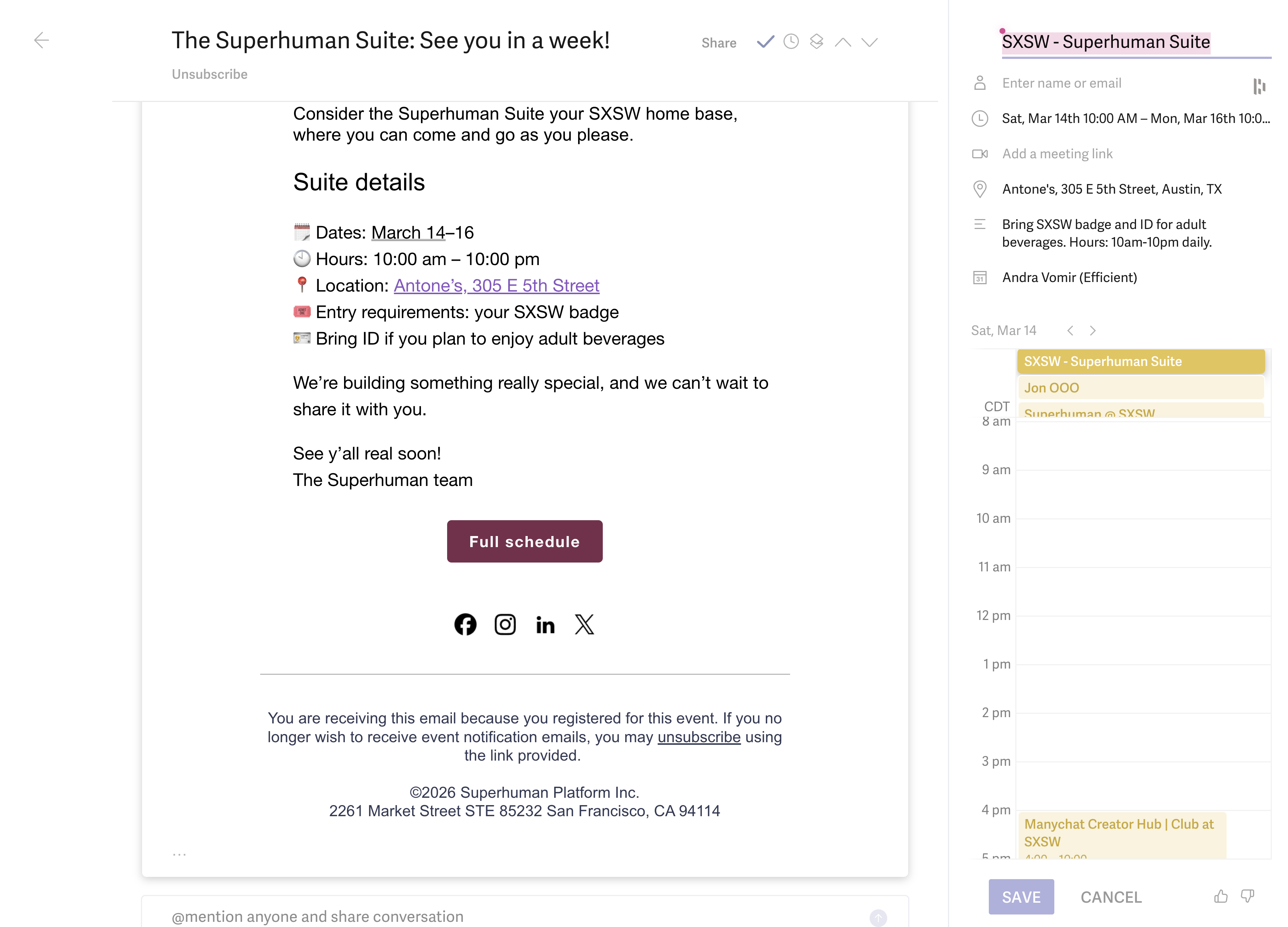
If you've ever gotten an email that's missing an "add to calendar" button and let out a deep sigh, knowing you have to now stop what you're doing, and take the time to add an event to your calendar, then get this: inside Superhuman Mail, simply hit the letter b while in the email, and it will automatically take the information from the email to populate a calendar event.

Superhuman Mail Calendar Event Creation

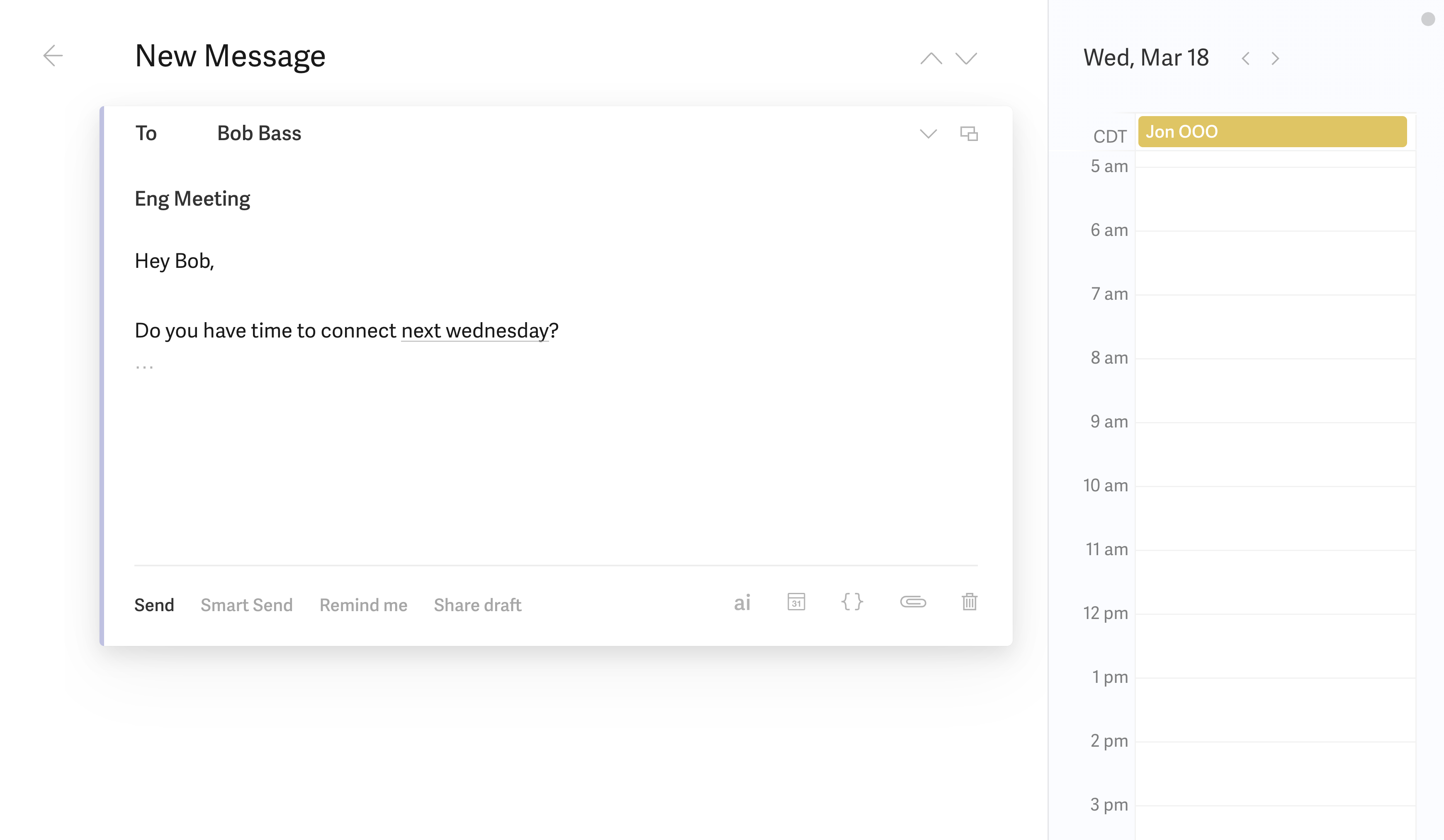
More than that, type in a date within an email like "Next Tuesday" and Superhuman Mail will automatically pop out your calendar on the right hand side. Or just hit a keyboard shortcut to view your entire calendar.

Superhuman Mail Calendar

And of course, you'll want to use Superhuman Mail's meeting scheduler with the calendar to quickly book meetings too. And you never even have to leave your email for this type of admin.

Heads up that Superhuman Mail does require a subscription, and it doesn’t make sense to sign up just to use their Calendar feature own, but if you want generally more email + calendar productivity it's absolutely worth it (you can try Superhuman Mail for free for a month if you're curious).

Pros and Cons

Pros and Cons

Pros

Pros
  • Instant calendar access directly from your inbox
  • Super fast keyboard shortcuts
  • Natural language detection inside emails
  • AI assistant can create full events via voice or text
  • Fully functional calendar (not just a scheduling overlay)
  • Works well even if only one person on a team uses it

Cons

Cons
  • Requires Superhuman Mail subscription
  • Embedded in Superhuman Mail app (not standalone)
  • Natural language requires specificity (“two Fridays from now” vs. Friday 12th)

Key Features

Key Features

Instant Calendar Access

Instant Calendar Access

We've all felt that mental friction of "ugh, now I need to check my calendar." But when you can just press 2, and your full calendar appears, or 0, and it opens in a side panel, that friction disappears. You never have to worry about breaking your flow by stopping to check your calendar, and that means a lot when you're strapped for time.

It's classic Superhuman Mail to focus on speed through shortcuts.

Natural Language

Natural Language

When you type something like: "Can you meet on Friday?" Your Friday agenda automatically appears on the left hand side. If you type an exact date like "March 17," it jumps directly to that day. It’s super helpful when you know the date you’re aiming for.

It’s not perfect with vague phrases like "two Fridays from now," but when you’re specific, it makes scheduling inside email feel light and fast.

AI Event Creation

AI Event Creation

Superhuman Mail’s AI assistant can create events from a simple voice or text instruction: "Schedule a meeting with Alex tomorrow from 3 to 5 PM." It figures out the date, the time, the attendee, and prepares your invite, and all that's left is to hit save.

If you’re someone who feels fatigue from manually creating events (opening calendar → selecting date → adding time → inviting attendees), this removes most of that friction. It genuinely feels like telling an assistant what to do.

On desktop, it’s extremely smooth. On mobile, it takes a couple extra taps, but the functionality's still there.

App Pricing

App Pricing
  • Monthly Subscription: $30/mo
  • Annual Plan: $300/year
4
Google Calendar

Google Calendar

Best calendar foundation for individuals and teams

Best calendar foundation for individuals and teams

Google Calendar is the core foundation for all the best calendar and daily planners on the market. If you're a business, you should be using Google Calendar. Although we recommend using a tool on top of it for a better user experience.

Google Calendar
Go to Google Calendar site

What is Google Calendar?

What is Google Calendar?

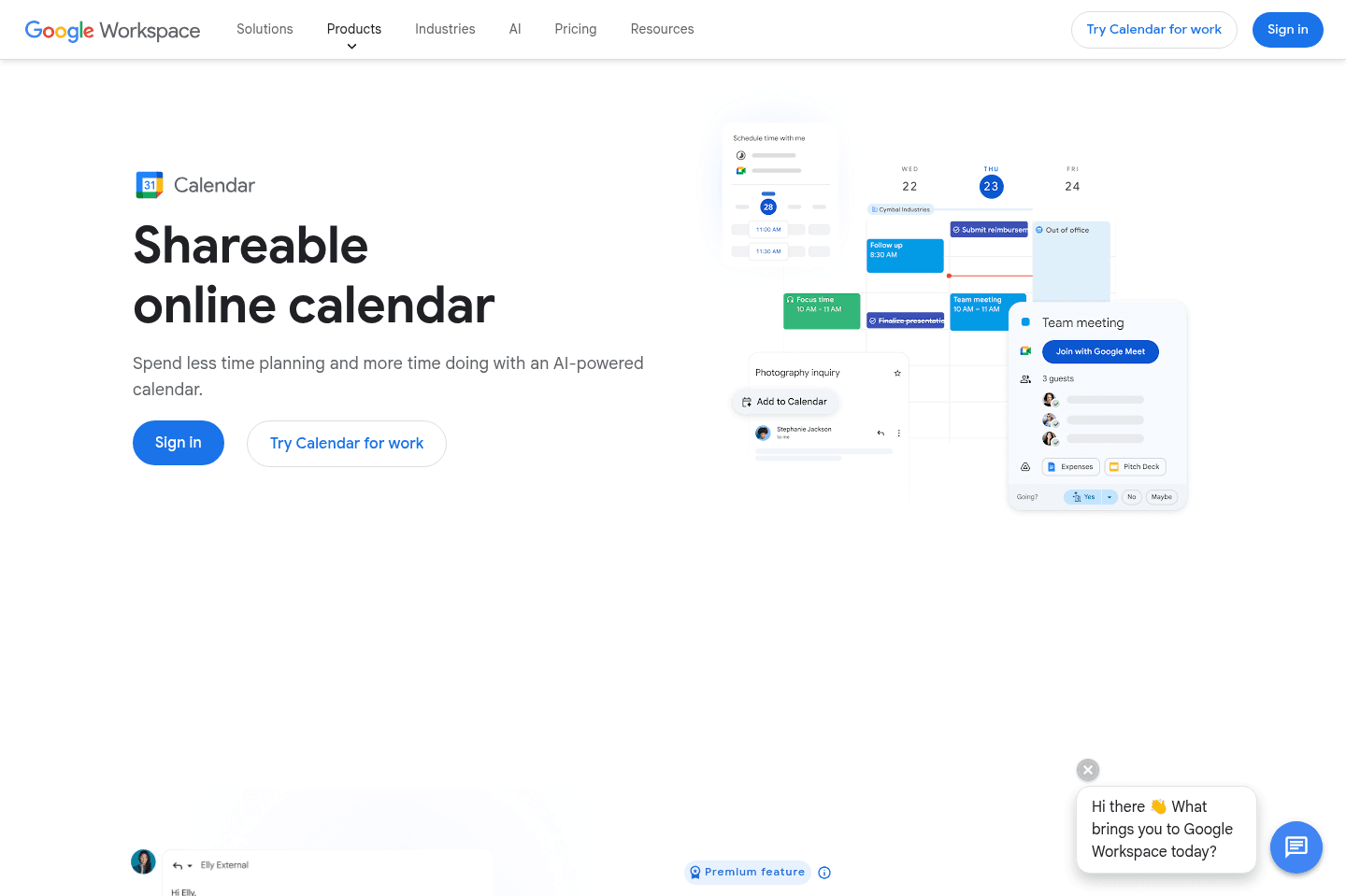
Google Calendar is the official calendar app that comes with your Google account (along with Google Workspace and Gmail). You can schedule events, set task reminders, and share your calendar with others, all the stuff you'd expect from a calendar.

For most people, Google Calendar is more than enough. But the truth of the matter is, it’s built for the masses, which means the interface is cluttered and it's less thoughtfully designed than newer purpose built calendar apps. It has looked the same for the past 6+ years, but it's because they are building the web app, Android app, and iOS app for billions of users. With that, they can't be that innovative without upsetting tons of their users. Move one button and the whole world is up in arms.

Its biggest strength is being the universal backbone of some of the best calendar apps and best daily planner apps on the market.

Pros and Cons

Pros and Cons

Pros

Pros
  • Works on desktop, iOS, and Android
  • Deep integration with Gmail and Google Workspace
  • Allows multiple calendars in one place
  • Serves as the backbone for most third-party calendar apps
  • Excellent mobile app experience

Cons

Cons
  • UI feels built for the masses (can feel cluttered)

Key Features

Key Features

Universal Calendar

Universal Calendar

Many calendar apps on this list rely on Google Calendar as a foundation for syncing, permissions, and event management. If you upgrade to another calendar app later, you'll still be using Google Calendar underneath.

While Google Calendar is a great foundation, it's not the nicest-looking calendar app out there.

Google Ecosystem

Google Ecosystem

Google Calendar is the most feature-rich calendar you can get, and they've done a great job of integrating natively with Gmail, Google Meet, and Google Workspace. So that means it's easy to create events directly from emails, gaining it some productivity points. You can also attach Meet links automatically and share calendars across teams, essentially locking you into their ecosystem.

Mobile App

Mobile App

Google Calendar’s mobile app is one of the best free calendars. It almost seems like they put more care and effort into the mobile app because the UI is very clean and responsive compared to desktop or web.

App Pricing

App Pricing
  • Free: For those who have created a Google account
  • Included in Google Workspace plans (Business Starter, Standard, Plus, Enterprise — pricing varies by tier)
Supercut
Supercut
Featured

Video messaging that moves work forward

5
Morgen Calendar

Morgen Calendar

Best calendar with basic AI task management

Best calendar with basic AI task management

With Morgen Calendar, you will get a better experience than Google Calendar/Outlook.

It feels faster and has a better design, and you also have the ability to add barebones tasks to Morgen. So if you're just starting to dip your toes into the daily planning calendar space, Morgen is worth giving a shot.

If you're more serious about daily planning, make sure to also read about the best daily planners available on the market that are more designed for true task and project management at the core.

Morgen Calendar
Go to Morgen Calendar site

What is Morgen Calendar?

What is Morgen Calendar?

Morgen Calendar is another replacement for your basic calendar (Google Calendar, Outlook, or even Apple's iCloud calendar). You can connect whatever email you’re using and manage everything from one clean interface. You get events, time blocking with tasks, and cross-account visibility all in one place.

It's a standard calendar with some AI features sprinkled here and there, but it's not groundbreaking. It's a bit tough to recommend where Morgen Calendar stands as there are so many stand out calendars already on this list (e.g. Notion Calendar which is free, or Motion if you want the most automated calendar).

If you've tried Motion and didn't like it because it had too much AI assisted scheduling, but still want basic tasks scheduled on your calendar, then Morgen Calendar could be the app you end up loving. Just make sure to buy it on the annual tier as monthly, the pricing just doesn't make sense.

Pros and Cons

Pros and Cons

Pros

Pros
  • Built-in scheduling/booking links
  • Good replacement for Google Calendar, Outlook, iCloud calendar
  • Connects multiple calendar providers in one place

Cons

Cons
  • AI scheduling is limited
  • Not a full project/task management system
  • Doesn’t automatically reschedule unfinished tasks

Key Features

Key Features

Multi-Calendar Hub

Multi-Calendar Hub

Morgen lets you connect multiple calendar accounts from email clients like Google, Outlook, Apple, and others. Then, it lets you view them in one place at the same time.

If you're juggling work and personal calendars (or multiple businesses or kids' calendars) then the clean layout of Morgen's multi-calendar hub is refreshing. There's no need to log in and out of all your accounts or constantly toggle between browser tabs. It actually feels smooth and gives you a great at-a-glance experience that saves you a bit of time.

Task & Time Blocking

Task & Time Blocking

You can create tasks and drag them directly onto your calendar to block time. The user experience is quite smooth.

There is an AI-assisted scheduling feature that suggests time slots for your tasks based on availability, but it’s more of a "helpful suggestion" than full automation. If you change a task duration, it won’t dynamically reflow your entire day the way Motion would. You’re still manually planning, but now you have some guidance.

If you’re looking for light structure, but you don't want to give up full control to AI, then Morgen Calendar is something you should consider.

Pricing

Pricing
  • Monthly: $30/mo per user. In our opinion, this is far too expensive compared to the other daily planners available.
  • Yearly: $15/mo per user (billed annually). This pricing is much more reasonable.
6
Vimcal

Vimcal

Built for Executive Assistants

Built for Executive Assistants

Vimcal markets itself as "the calendar for people with too many meetings (iOS only).

With that, the main problem they are trying to solve is helping folks schedule meetings more efficiently.

While we agree that Vimcal is the fastest calendar we tried, there are other calendars that do way more (e.g. task management in addition to scheduling). So we'd recommend Vimcal if, and only if, scheduling meetings faster is single thing you wish you could do more of.

Vimcal
Go to Vimcal site

What is Vimcal?

What is Vimcal?

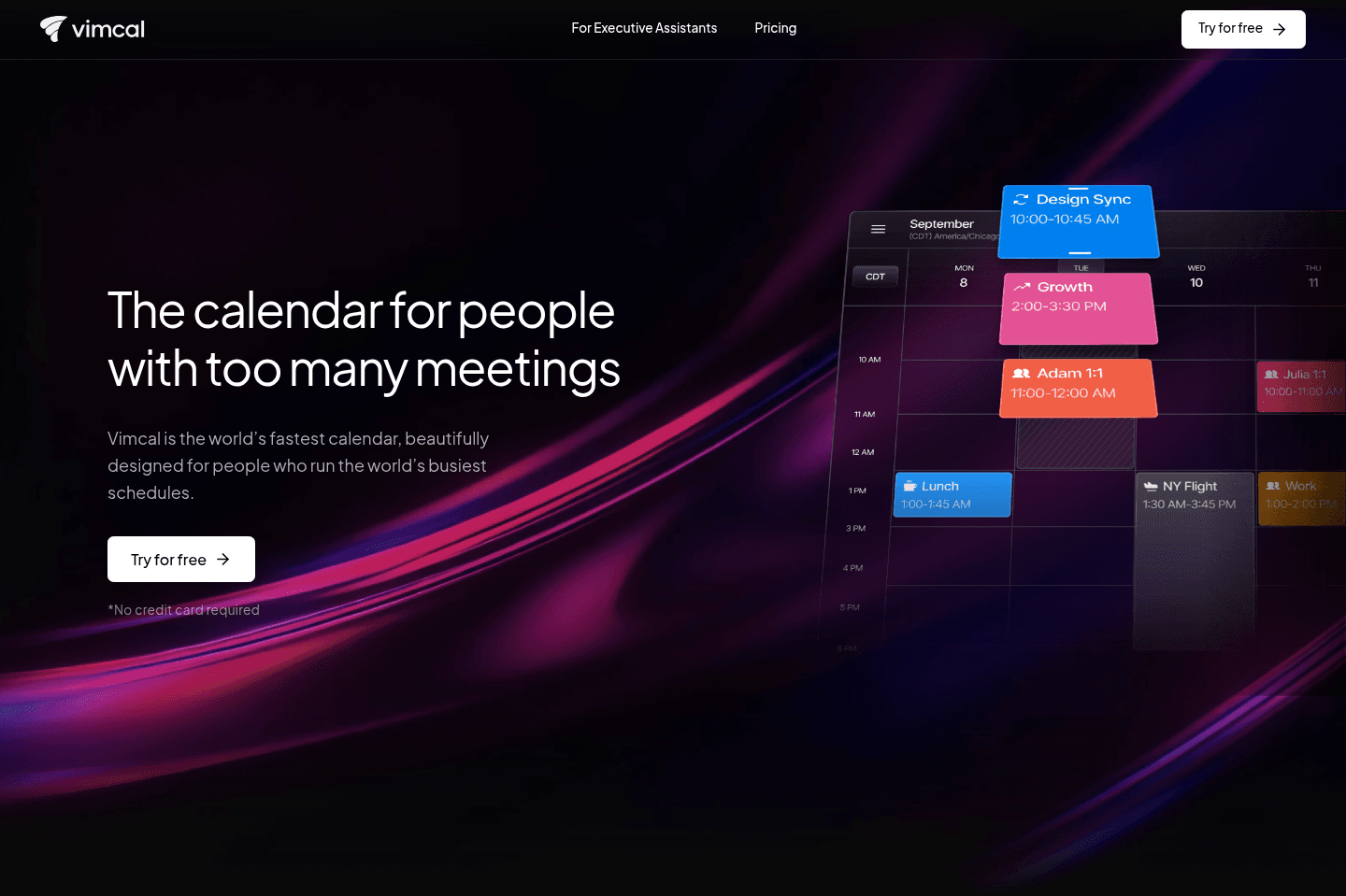
Vimcal markets itself as "the calendar for people with too many meetings." It’s an iOS-focused calendar aimed at helping heavy schedulers, mainly executive assistants, coordinate complex meetings more efficiently.

We initially loved the idea of Vimcal, as they are trying to portray themselves as the "Superhuman of calendar," and we love Superhuman Mail. The thing is, they missed the mark on what actually makes Superhuman Mail special in our eyes.

Vimcal confuses "productivity" with having keyboard shortcuts for everything (talking about every single UI component). This is at the cost of simplicity, making Vimcal feel quite a bit more overwhelming and over-engineered than it needs to be.

Where Vimcal has tried to differentiate themselves is becoming a calendar + scheduler for EAs in one (e.g. helping EAs coordinate meetings across timezones with 5-10+ participants). We've covered their scheduling capabilities on our best scheduler list.

Pros and Cons

Pros and Cons

Pros

Pros
  • Natural language event creation
  • Free iOS calendar app
  • Better design than Google Calendar

Cons

Cons
  • iOS-only (no Android support)
  • iOS app can feel laggy/buggy
  • Over-engineered interface with too many shortcuts

Key Features

Key Features

Natural Language Event Creation

Natural Language Event Creation

You can type things like “Coffee tomorrow with Alex,” and Vimcal will try to parse the event details and pull contacts from your phone.

This is one of the main reasons I downloaded it on my phone, since most calendar apps don't have this feature.

When it works, it works and feels delightful. But an annoyingly, it doesn't always work.

For example, saying "meeting Alex for coffee" doesn't work, but if I write "meeting with Alex for coffee" then it does. These little details make it quite frustrating to use, because I expect it to work, and when it doesn't and I'm left cleaning up the calendar event it just starts to make me wonder why I'm even using it in the first place.

Timezones

Timezones

Vimcal makes scheduling across time zones easy with its "Time Travel" view.

Instead of doing mental math to convert times, you can shift the calendar across time zones and see what time it is for someone else and where your work hours overlap.

It also highlights shared availability windows, so you can quickly find meeting times that work for everyone. You can also switch between multiple time zones directly in the calendar.

Free iOS App

Free iOS App

Vimcal is free on iOS, but you need to upgrade to use it on desktop. This is their "lead magnet" which we'd say is quite smart.

Pricing

Pricing
  • Free (iOS Only): Free forever. Best for individuals who only need a simple personal calendar on iPhone.
  • iOS & Desktop: $20/mo per user ($200/yr or $16.67/mo billed yearly). Best for founders, executives, and professionals who schedule frequently and want booking links, polls, team scheduling, and desktop apps.
  • Enterprise: Unlisted. Includes dedicated support, SAML SSO, and advanced security controls for teams and organizations.
  • Vimcal EA: $70/mo per user ($750/yr or $62.50/mo billed yearly). Best for executive assistants scheduling on behalf of executives with advanced delegation, calendar holds, and scheduling analytics.
Supercut
Supercut
Featured

Video messaging that moves work forward

7
Fantastical

Fantastical

For MacOS + iOS only

For MacOS + iOS only

Not recommended for professional use

Fantastical is more of a personal/family calendar app. But even for personal use, we'd probably skip on Fantastical as there are more modern calendar apps that we'd recommend checking out first, like Morgen Calendar, Routine, and Amie.

For professionals or teams looking for a better calendar, check out Motion (Our Top Pick 🌟), Sunsama, or Akiflow. These tools are much more powerful calendars and will help you manage your time, meetings, tasks and, workload

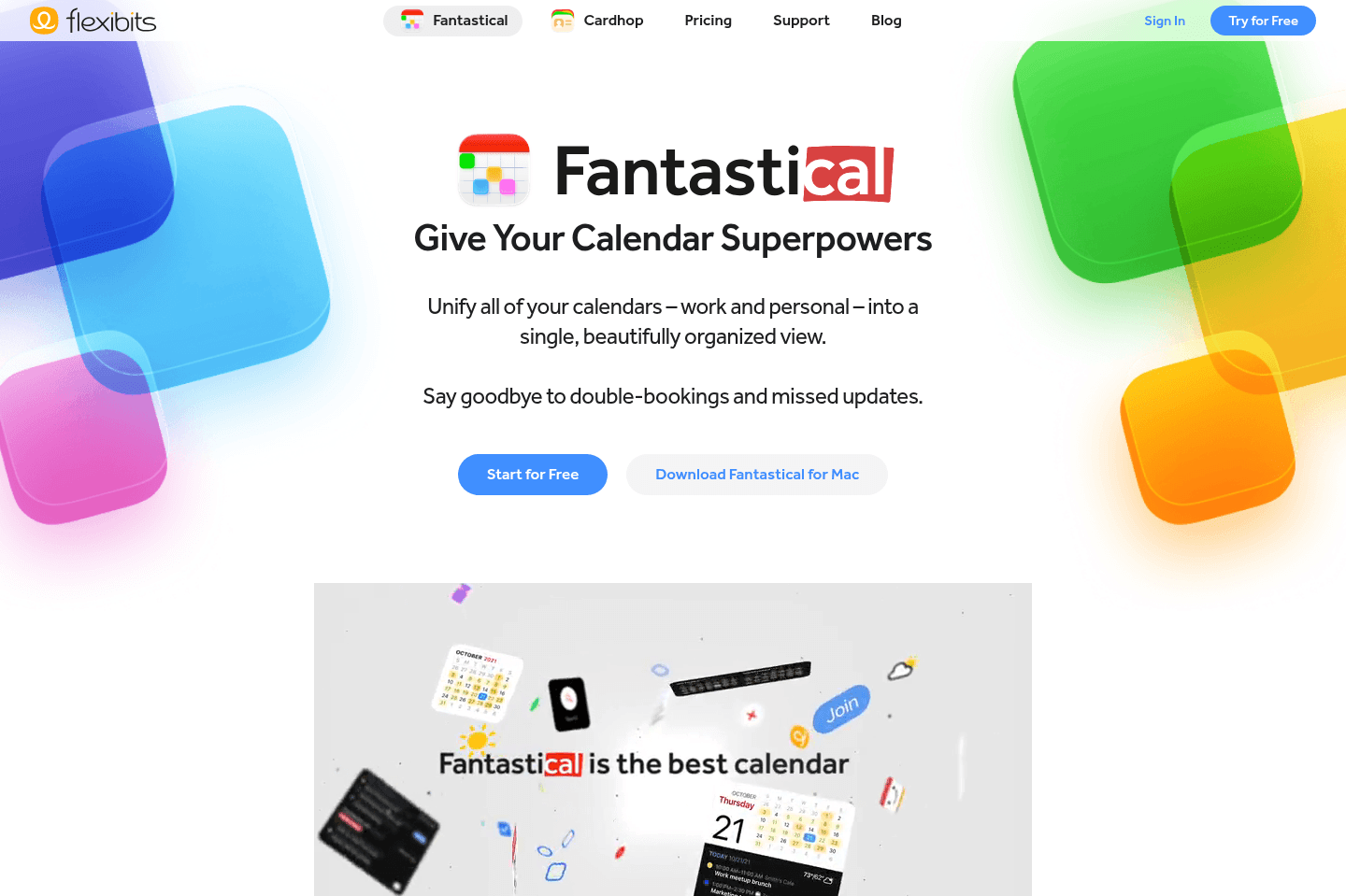
Fantastical
Go to Fantastical site

What is Fantastical?

What is Fantastical?

Fantastical is a calendar app only for MacOS and iOS users (Android users, skip this review and check out Notion Calendar, Morgen, or our favorite: Motion instead). It became popular early on for being the first to do natural language event creation, which for a long time made Fantastical stand out.

Today, Fantastical is best suited for individuals or families who are deep in the Apple ecosystem and want an Apple-native calendar experience. It's not a calendar we'd recommend for professional use or teams, as there are far better, more powerful, and modern calendars on the market. But we know people who love it for it's fast keyword shortcuts and usable mini-calendar features.

The biggest limitation is that Fantastical feels dated. It does all the basic features like event creation and light task management, but there are other features that seem out of place and unnecessary.

Pros and Cons

Pros and Cons

Pros

Pros
  • Apple-native (macOS and iOS)
  • Clean, familiar interface for Apple users
  • Supports iCloud, Google, Microsoft, and Exchange

Cons

Cons
  • Apple-only (no Android support)
  • Not recommended for professional teams
  • Feels outdated compared to modern alternatives

Key Features

Key Features

Natural Language

Natural Language

Fantastical built its name on natural language, and it still does this really well.

It's as simple as typing something like, "Meeting with Stephanie at Starbucks in Stone Oak on Wednesday at 10 for two hours,"and it understands the title, location, date, time, and duration without you clicking through all the drop downs.

It's not a full AI assistant that’s going to reschedule your life, but for quickly adding events throughout the day, it's fast and reliable.

Keyboard Shortcuts

Keyboard Shortcuts

For those who love a good keyboard shortcut you'll be happy to know that Fantastical has a few.

A favorite being that with a few clicks on your keyboard you instantly open a small calendar overlay on your Mac.

From that mini view, you can:

  • Switch between month, week, or list views
  • Toggle between different calendar sets (personal, business, finance, etc.)
  • Quickly peek into the future
  • Check availability without breaking your workflow

There's also smart behavior in a week view that helps you jump to today. The calendar shifts so that today is always on the far left. Most apps lock you into a static Sunday–Saturday grid, so "today" keeps moving visually.

All these seemingly little details add up to a pretty big reduction in mental friction.

Meetings

Meetings

Like more calendars, when someone books time with you using Fantastical’s "Openings" feature, the app can automatically attach a Google Meet, Zoom, Microsoft Teams, or Webex link to the event. It lets you choose your preferred provider inside your meeting template.

Overall, it's convenient and removes extra steps, but again, most calendars offer similar functionality, so while it’s helpful, it’s not a reason to switch altogether.

Pricing

Pricing
  • Free: Available with limited functionality
  • Individual/Team:
  • 14 day trial, then $4.75 per month billed annually
  • 14 day trial, then $6.99 per month billed monthly.

8
Reclaim AI

Reclaim AI

Tries to protect your time

Tries to protect your time

Reclaim AI helps people on large corporate teams who get pulled into constant internal meetings protect their time for focus work and personal habits by automatically scheduling breaks, focus blocks, and internal meetings on top of Google Calendar.

The truth of the matter is we tried it, but didn't see the appeal. We think there are much better options available for managing your time.

Reclaim AI
Go to Reclaim AI site

What is Reclaim.ai?

What is Reclaim.ai?

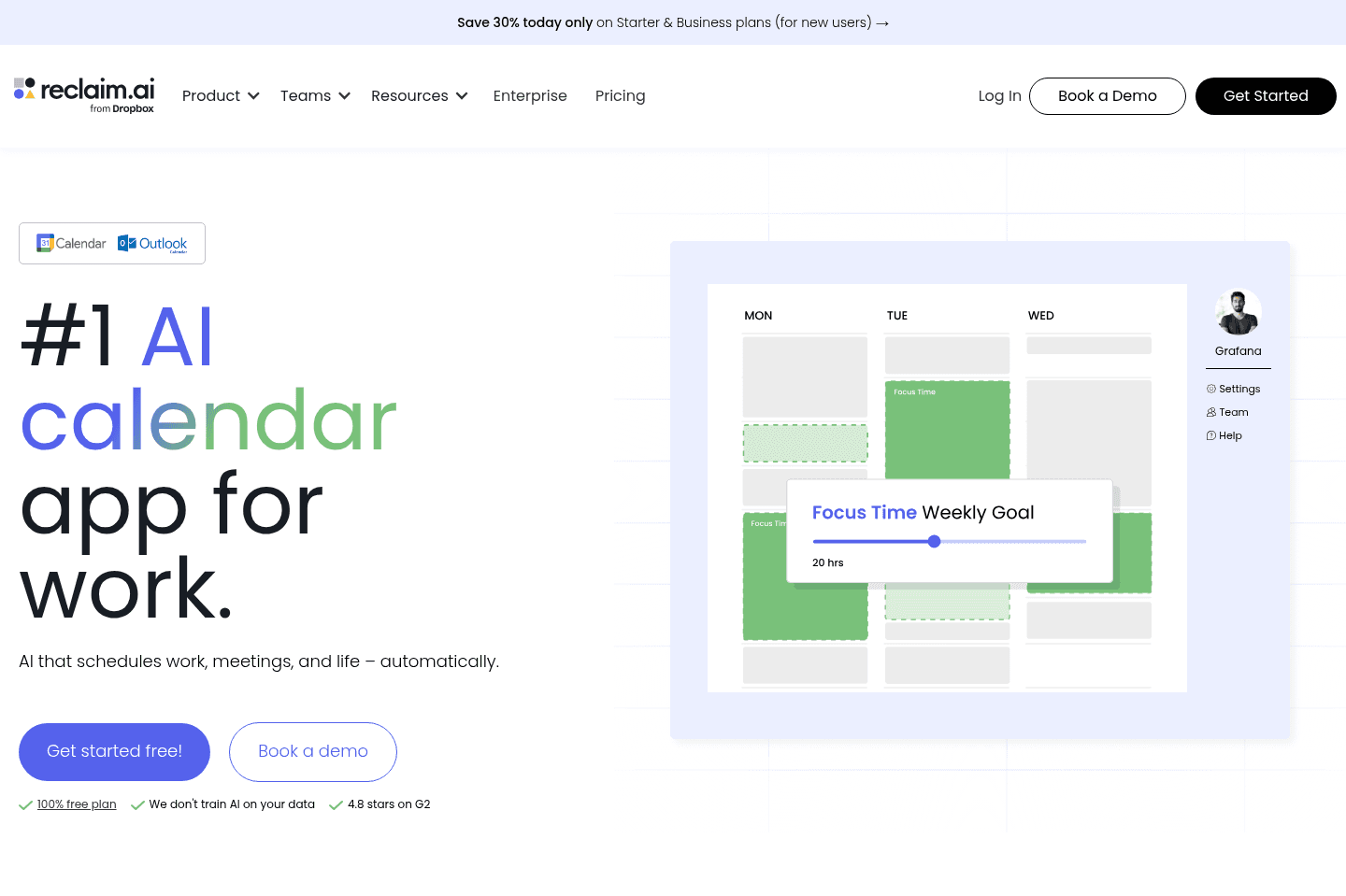
Reclaim started as a Google Calendar add-on. Its primary purpose was to “reclaim” your time by automatically blocking space for things like lunch or focus work. Since being acquired by Dropbox, they’ve tried to position it more like a standalone calendar. But in our opinion, it still isn't great even as a primary calendar.

Reclaim works best for individual contributors inside larger organizations. For example, if you're in corporate and your calendar is constantly getting hijacked by meetings, or you're a manager running lots of one-on-ones and want those automatically scheduled.

In a more niche way, Reclaim could also work for someone who wants lightweight auto-scheduling of tasks pulled in from tools like Asana or ClickUp, plus smart recurring habits like "protect focus time" or "schedule lunch between 12–2."

We do feel like it's a bit dated and slower than modern AI scheduling tools which is why it didn't make our best list.

Something else we find frankly annoying is that so many of the useful features are paywalled if you're not on the right tier and you get a ton of pop-ups asking you to upgrade.

Lastly, some tools are only of value if your entire team is using Reclaim, which isn't always realistic and maybe even impossible if IT teams aren't okay with Reclaim's 3rd party permission requirement for security reasons.

Pros and Cons

Pros and Cons

Pros

Pros
  • Protects focus time with recurring "habits"
  • Automatically schedules one-on-ones for managers
  • Integrates with project management tools for task auto-scheduling

Cons

Cons
  • Not a true standalone calendar (still dependent on Google Calendar)
  • Slower, slightly outdated UX compared to modern competitors
  • “Find Time” only works if teammates also use Reclaim
  • Flexible meetings require third-party permissions (can raise IT concerns)
  • Does not account for team dependencies or workload like Motion does

Key Features

Key Features

Smart Habits & Focus Time Blocking

Smart Habits & Focus Time Blocking

Reclaim is great for creating habits. Smart recurring blocks protect your time for things like:

  • Lunch
  • Workouts
  • Deep work
  • Meditation
  • Other recurring routines.

You just define a time range, for example, "between 12–2 PM," and Reclaim finds space within that window and dynamically reschedules if conflicts arise.

Smart One-on-Ones

Smart One-on-Ones

When a lot of Reclaim feels tedious at times, we can actually see this feature working well for a specific set of people... Managers.

Managers can automatically schedule recurring one-on-ones with direct reports, and Reclaim will continuously adjust those meetings as calendars shift.

There is a bit of a caveat because this works best in larger teams where multiple people are fully opted into the system.

Pricing

Pricing
  • Light: Free plan (limited functionality). Best for individuals experimenting with habit blocking.
  • Starter: $10/mo per user. Best for small teams needing more meeting capabilities.
  • Business: $15/mo per user. Best for large teams looking for unlimited access.
Supercut
Supercut
Featured

Video messaging that moves work forward

Our Final Verdict

1
Notion Calendar

Notion Calendar

A beautiful, minimal free calendar built on Google Calendar

A beautiful, minimal free calendar built on Google Calendar

Which Calendar App Wins?

Which Calendar App Wins?

Right now, Notion Calendar is our top pick in the calendar category as if you're landing on this page, you're probably looking for something basic. Notion Calendar fits that bill. It was previously called Cron, built by a very talented team, then acquired by Notion and they kept most of it the same (to our surprise and delight).

But if a more powerful calendar is enticing to you, I recommend you scroll back up to look at the other options as there are some goodies on this list!

Worth trying
Apps worth trying
These calendar-adjacent apps prioritize another category at their core, but their calendar features are strong enough that you should still consider them.
  1. Cal.com
    Cal.com
    Scheduler

    Best overall scheduler

    Best overall scheduler
  2. Calendly
    Calendly
    Scheduler

    Legacy scheduling tool

    Legacy scheduling tool
  3. SavvyCal
    SavvyCal
    Scheduler

    Best for personalized scheduling

    Best for personalized scheduling
  4. Chili Piper
    Chili Piper
    Scheduler

    For enterprise teams deeply living in enterprise software

    For enterprise teams deeply living in enterprise software
  5. TidyCal
    TidyCal
    Scheduler

    One-time payment scheduler

    One-time payment scheduler
Discover More Efficient Apps Lists

Explore the best apps across different categories and find the perfect tools to stay productive.

Superhuman Mail
Missive
Notion Mail
Spark
Gmail
Tatem
Hey
Outlook
Skiff
Email

9 apps and 0 deals

Motion
Linear
Asana
Monday
ClickUp
Wrike
Trello
Jira
Shortcut
Project Management

9 apps and 0 deals

Browse Categories