






Select
FTC
Efficient App laurels

11 Best Productivity Tools in 2026

Updated Mar 11, 2026

See how our top 11 picks compare across the 11 productivity tools we evaluated.

Explore what each does best, where it falls short, and why it earned a spot on our 2026 list.

Alex Bass Headshot
Alex Bass
Andra Vomir Headshot
Andra Vomir

    Best Productivity Tools at a Glance

    11 apps and 10 deals
  1. Raycast
    Raycast

    Best MacOS spotlight search replacement

    Best MacOS spotlight search replacement
  2. Dub Links
    Dub Links

    Best for modern link attribution, a true industry disrupter

    Best for modern link attribution, a true industry disrupter
  3. CleanShot X
    CleanShot X

    Best for fast Mac screenshots

    Best for fast Mac screenshots
  4. tl;dv
    tl;dv

    Best for low-friction setup that records video

    Best for low-friction setup that records video
  5. Dashlane
    Dashlane

    Best modern password manager

    Best modern password manager
  6. Superhuman Mail
    Superhuman Mail

    Best overall email client

    Best overall email client
  7. Dia Browser
    Dia Browser

    Best for AI power users living in the browser

    Best for AI power users living in the browser
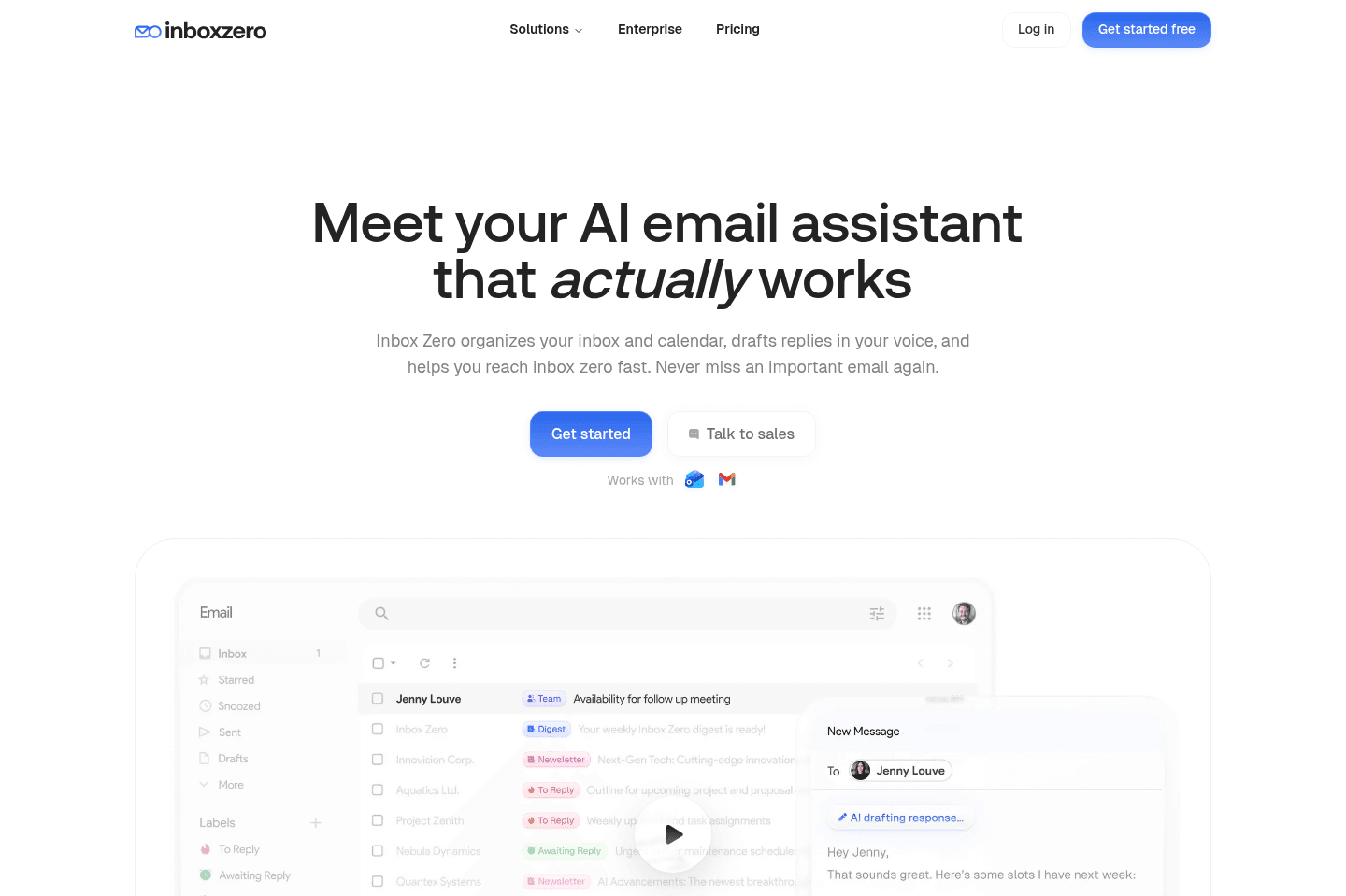
  8. Inbox Zero
    Inbox Zero

    Open-source AI assistant for email

    Open-source AI assistant for email
  9. Motion
    Motion

    Best for those who want an AI personal assistant

    Best for those who want an AI personal assistant
  10. Granola
    Granola

    Best virtual and in-person AI note taker

    Best virtual and in-person AI note taker
  11. Sunsama
    Sunsama

    Best pen and paper alternative

    Best pen and paper alternative
    Notable Mentions
  1. Mailman
    Mailman
    AI Email Assistant

    Best for scheduled email delivery

    Best for scheduled email delivery

Productivity Tool Overview

Guide Overview

Guide Overview

Welcome to your ultimate productivity stack guide!

If you're reading this guide, you:

  • Care about using modern tools with good UI/UX
  • Care about making your daily experience at work more enjoyable
  • Want tools that were created by really smart people who also care about the things above

What you won't find in this guide are general software recommendations with a bunch of tools that are 'trending' but we haven't actually used ourselves. This isn't another guide about all the productivity tools under the sun.

This guide is prescriptive and offers single tools to help you make essential business software decisions more quickly. The software below has been deeply vetted against competitors and all the below mentioned are used by us (we are paying customers).

Let's get into it! ⤵

Let's start with the portal to the internet: your browser.

For years, we used Chrome and the last thing we ever thought about needing was another browser. We have seen browser companies come and go with none on the market leaving much to be desired.

Then Arc by The Browser Company showed up. Arc is not just another browser.  It's a workflow engine, offering an entirely new way to personalize the internet and make it your own.

The idea behind Arc is that no matter where you are in the world, no matter what device, you can log into your "portal to the internet" aka your browser and have it configured exactly like you left it.

The problem with Chrome, we learned, is that the creators had no reason to make the internet personal. This is because the creators want you to start from scratch every time you open the browser, searching Google for where you want to end up online. This is great for their ad revenue business model.

It wasn't until we started using Arc that we realized how often we really were unnecessarily going to Google to just open up the programs we use on a daily basis.

The difference with Arc is that the team has totally rethought the bookmarks and the "tab experience", along with introducing a feature called "Spaces". Spaces allow you to stay focused and easily segment your personal and work life while easily organizing tabs are important to you in folders.

For example, set up a personal space, favorite your YouTube, Spotify, WhatsApp, and Gmail tabs—from there, they function like mini apps. Now, with the swipe of 2 fingers, you're in your work space. All of your favorite apps are swapped out with your work apps, and you're logged into all of your work accounts:

This is like organizing a drawer. You put everything in its place, and hours later when you return, everything is as you left it. No more "searching" every time you want to use the internet. This has tremendously reduced fatigue (we didn't even realize we had) when using the internet.

If you're intrigued, want to know more, and see more of the features/benefits in GIF format, go check out this article where we've done a deep dive on why we think Arc is the future of the internet.

Sign up for Arc For Free (MacOS only, Windows coming soon!)

Now that you've enhanced your browsing experience, let's move onto your email. Meet Superhuman. Superhuman is a paid email client tool that is designed to make your email experience faster and more enjoyable.

But wait, you might be thinking why pay for your email when you can use any email client for free? 🤔

"Making email suck less" is Superhuman’s business mission. And remember — this guide is for the folks who want the best of the best—and Superhuman is a tool that after using for several years, we can't live without.

Prior to Superhuman we were using Gmail. And Gmail is great as a free email sending tool, but once we tried Superhuman we found it made the entire "checking and answering emails" experience way more enjoyable—and fast.

Not kidding, you know those 3-5 seconds you often need to wait for Gmail to load—yeah, Superhuman is literally instant. Want to write an email? Open Superhuman and press [c] and you'll be in a compose window a solid 2 seconds before Gmail loads.

Superhuman allows you to triage through your inbox using only keyboard shortcuts and the app on the phone is also super sleek and fast. Set reminders to be returned on your emails if someone hasn't responded, mark messages as done with hitting a button and label messages with ease. Since we started using Superhuman, we see inbox 0 way more often.

In summary, if you’re on email A LOT and want to optimize for enjoyment/ease/speed, Superhuman is 100% worth it. We’ve been paying for it for years and can't see life without it It's thoughtful, fast, and powerful. The way email should have been.

Click here to get a free Superhuman trial (get 30 days free).

On the topic of email, Mailman is a Gmail plugin that allows you to control when and what emails should land in your inbox.

You can set the times you'd like Mailman to deliver your emails (say at 9 am and 4 pm daily) so that you are not constantly interrupted by a new emails coming in.

Waiting on an urgent email? You can tell Mailman to only allow the email from that specific sender.

Mailman is that cherry on top of email if you're looking to optimize your email experience and create more blocks of focus time in your day.

Click here to sign up for Mailman.

If you've hung around our website long enough, you'll know we 🫶 Motion. And that's because it's changed the way we managed our meetings, time and projects — and this cannot be ignored.

We think of Motion as the ultimate platform for time management. Motion is a calendar, a meeting scheduler, and a task/project manager all in one. On top of this, it uses AI to help plan your day (as if you had a personal assistant on hand).

Here's how it works:

  1. First, you add all of your tasks to Motion. You can add work tasks, personal tasks, and even recurring tasks.
  2. Then, you set the priority for each task. This tells Motion how important the task is and how soon it needs to be done.
  3. Finally, Motion automatically schedules your tasks into your calendar. It fits the tasks around your existing meetings and events, so you can always see what you need to focus on next.

For example, let's say you have three hour-long meetings scheduled for Monday. You also have some other tasks that you need to get done that day. If something urgent comes up and you need to add an ASAP task, Motion will automatically rearrange your day and push the other tasks back. This way, you can always be sure that you're working on the most important tasks first.

There are so many other calendar and project management tools on the market and we find that Motion to be the best that we've evaluated. It's also helped us replace numerous tools. For example, we went from using four tools, Google Calendar, Chili Piper (call scheduling), TickTick (personal task management), Asana (project management) to using just Motion to manage all of the above.
Click here to sign up for Motion.

How We Evaluate Productivity Tools

We score each productivity tool across multiple criteria, and hands-on expert evaluation

  • No Category Criteria records assigned to this category yet.
  • Expert Evaluation
    Curated by
    Alex
    and
    Andra
    , our rankings reflect in-depth testing, industry insights, and hands-on experience.
1
Raycast

Raycast

Best MacOS spotlight search replacement

Best MacOS spotlight search replacement

If you're using MacOS, Raycast is hands-down the best spotlight search replacement available. It's one of those apps that you won't "get" until you use it, but once you use it, you won't be able to live without it.

It's usually the first app we install on a new computer, if that tells you anything.

Raycast
Go to Raycast site

What is Raycast?

What is Raycast?

Most people use the native Spotlight search within MacOS, and most are totally happy with it. If that's you, you probably don't care much about this space, but I'm here to tell you that you should.

Search is the main way to navigate the OS, and imagine this search box with superpowers. Do you open up the calculator? Raycast has that built in. Have a separate window resizing/manager tool like Rectangles? Yeah, Raycast does that too.

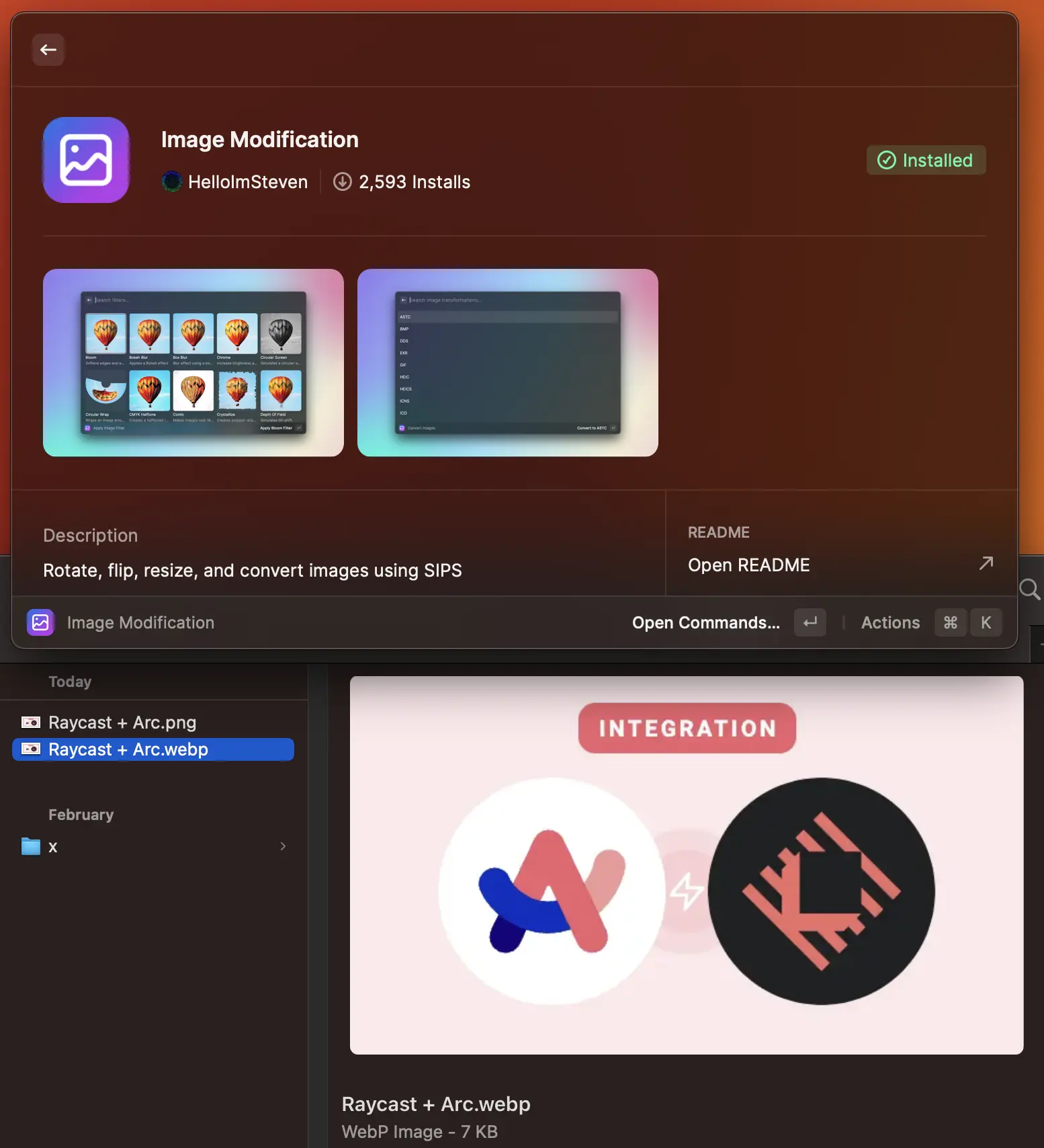
Just about anything you can think of, Raycast can do, or they have an app/integration for it. I'm not kidding—I literally compressed the image to the Arc + Raycast integration using a Raycast plugin:

Embedded Image

Never again do you need to navigate to a sketchy "image conversion" website again—you can now do it all through your favorite ⌘ + Space shortcut via Raycast.

Now for the more technical crowd... I'm here to tell you that it's better than Alfred in every way. It's beautiful, free, has deeper native integrations, and the developer community is next-level.

Skeptical? I hear you—so much in-fact that I've debated (for hours) with just about every single one of my power-user friends about why Raycast is far-and-above better than Alfred. They didn't believe me, fought me tooth-and-nail on it.

And guess what? Every single one of them are now using Raycast (and Arc 😉). They just needed to download it and give it a genuine shot. It does everything better, and looks 10x as good (UI/UX).

It's free, just give it a shot yourself. If you're skeptical, come debate me on Twitter—happy to convince you as well 🦾

Subscribe for updates

Get the latest rankings and insights on top Productivity apps—delivered to your inbox. Stay ahead with our expert picks and updates.

Supercut
Supercut
Featured

Video messaging that moves work forward

3
CleanShot X

CleanShot X

Best for fast Mac screenshots

Best for fast Mac screenshots

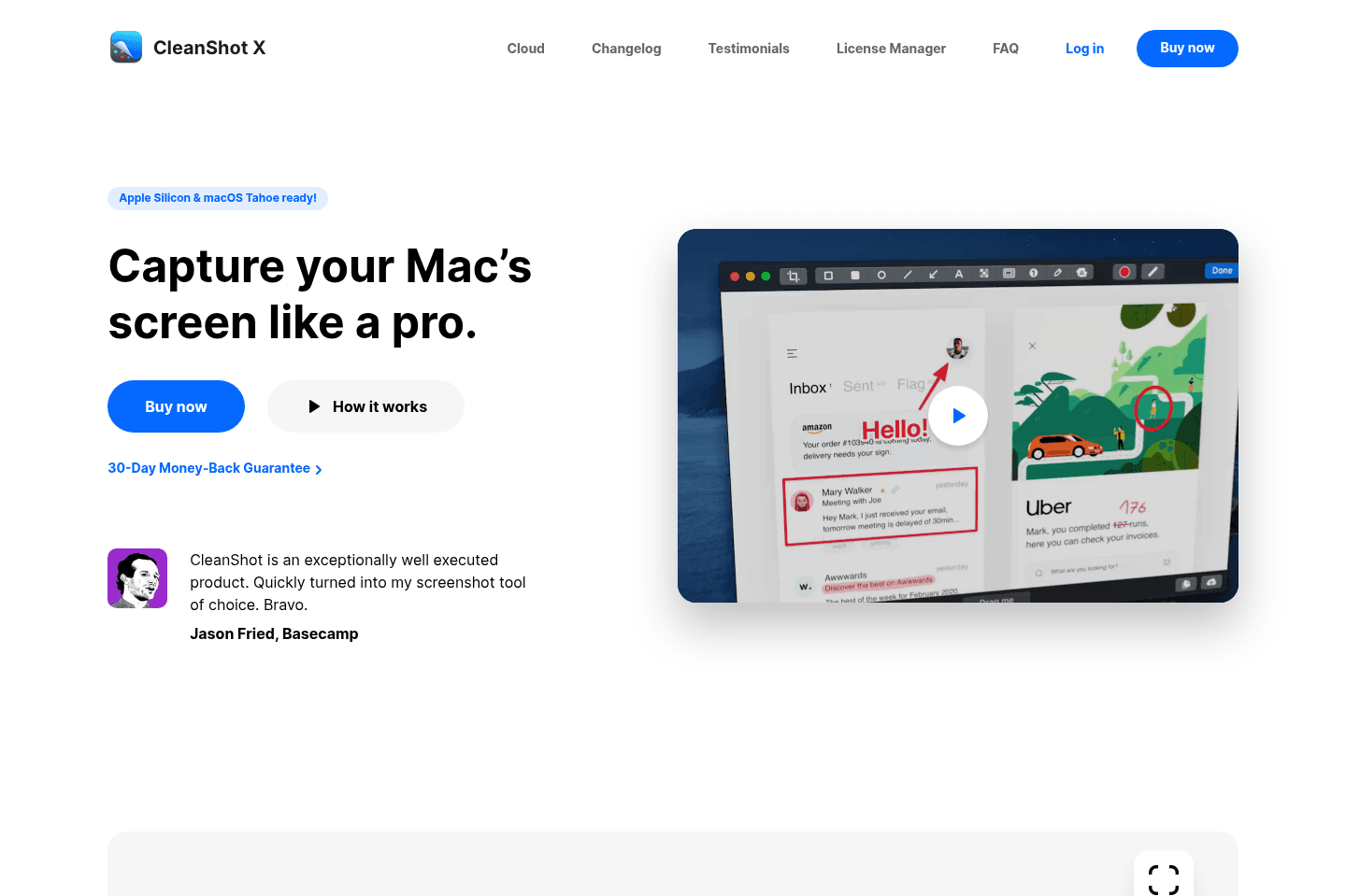
CleanShot X lets you instantly copy screenshots so you can paste them anywhere without dragging files around, keeps your shots organized on the side of your screen, and makes it easy to annotate or blur sensitive info. If you take screenshots often and want to save time, this tool will make you much more productive and is worth switching to.

CleanShot X
Go to CleanShot X site

What is Cleanshot X?

What is Cleanshot X?

For years, I used the native Mac screenshot tool (which saves your screenshots to your desktop, and then you need to drag the image into your email or wherever you're trying to get it). I didn't think there was a better option out there.

Then I met Alex and he introduced me to CleanShot X that auto-copies the screenshot you take so you can paste it directly where you want. Whaaat? Let me tell you, this saves me so.much.time on a daily basis.

Want to screenshot a few images? No problem. All the images will auto-appear on the side of your screen and you can pick and choose which ones you want.

It's also super easy to annotate and draw on each image if you want to point something out, or blur out important information.

In summary, if you screenshot often this will make you MUCH more productive. Try it for a week and you won't be able to go back.

4
tl;dv

tl;dv

Best for low-friction setup that records video

Best for low-friction setup that records video

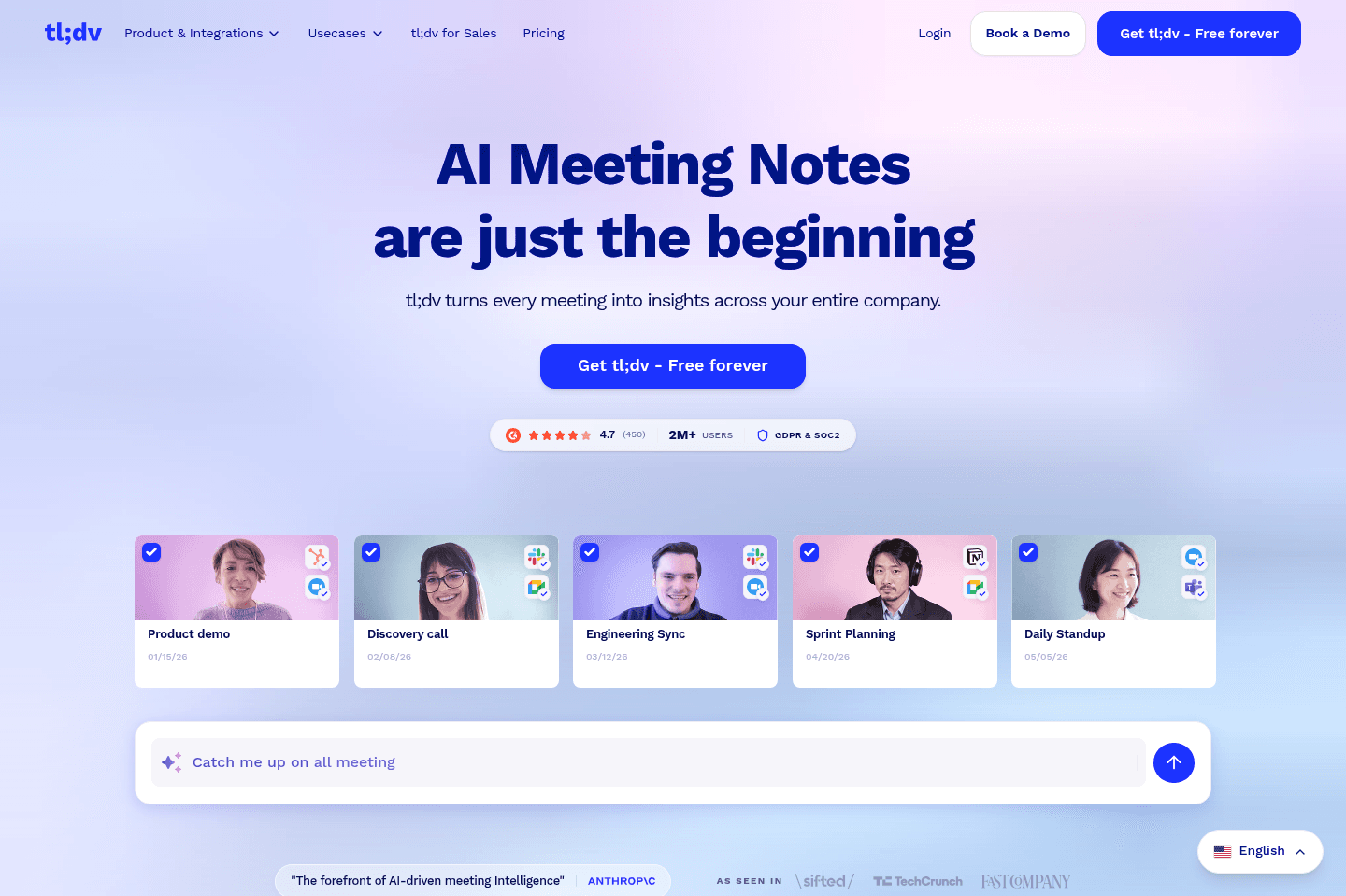
TL;DV lets you and your team take meeting notes in a floating pop-up during calls, automatically adds timestamps, and instantly shares everything with participants or just your team. If you want everyone to see and collaborate on call notes as they happen, especially with Slack integration, this is a solid pick, though it currently lacks deep CRM integrations.

tl;dv
Go to tl;dv site

What is tl;dv?

What is tl;dv?

What we love most about tl;dv is that you can take all of your meeting notes directly from a floating pop-up right within the meeting you're in.

As you type the notes, tl;dv automatically timestamps your message and your entire team can also see the notes as they are being written.

No more do we need to find where to take collaborative call notes of which would otherwise not even be connected to the call recording itself.

All of the most important notes and timestamps are automatically sent to everyone on the call (or just your team), and they even have a nifty Slack integration as well.

We do wish it natively integrated with more CRMs though, but know the team is working on opening up the API to allow for it.

Supercut
Supercut
Featured

Video messaging that moves work forward

5
Dashlane

Dashlane

Best modern password manager

Best modern password manager

Dashlane is the most user-friendly and secure password manager on the market and also what we use for work and personal.

They started as a personal password manager before moving into business, so their UI/UX is focused on simplicity and being an enjoyable experience at the core.

Dashlane
Go to Dashlane site

What is Dashlane?

What is Dashlane?

I'll preface this by saying that I've used LastPass, 1Password, Bitwarden, and even—only IT companies would recognize—IT Glue & MyGlue (a premium solution starting at $150/mo).

I first started using LastPass over a decade ago, got most of my family/friends on it, and eventually even customers as well (as a way to securely share passwords between companies).

The thing is, LastPass got acquired by LogMeIn and started becoming stagnant. It also went through what felt like a never-ending series of major data breaches over the years to follow.

This was when I started seriously evaluating alternatives (like Dashlane), as I knew it was going to be a heavy lift to switch—consisting of migrating myself (personal + work), family, friends, and even some customers all over to it from LastPass and MyGlue respectivel

For those more technical (or running an IT company) and considering IT Glue/MyGlue—it's great, but as a password manager, it's overkill. It's more of an IT infrastructure documentation tool, which they acquired a password manager, and rolled it into the mix. So you're paying a huge premium if you're planning on only using it as a password manager (as I was during the later years of pivoting away from the MSP side of the business).

Key Features

Key Features

Password Manager

Password Manager

Dashlane started as a password manager for consumers (B2C)—as at the end of the day, people need to manage passwords their many passwords across personal/work—and in the past few years, they've been focusing their efforts in building out the B2B (team management) component of Dashlane.

This is important because having used password managers built for companies, not people (e.g. IT Glue/MyGlue), you see first-hand that a powerful password manager is nothing if the end-user doesn't actually, well, use it... User-adoption is the most critical factor for a password manager to be successful.

That's where Dashlane stands out, because they were first-and-foremost a B2C company that built an exceptional end-user experience for everyday people, and have moved to the B2B market. This gives them a unique advantage in the space.

Take the mobile app (for iOS and Android), it's far and above the most modern and visually appealing of all the other password managers I've listed here.

That said, there is one area that lacking a bit with Dashlane (likely because they haven't been in B2B as long), and that's their API.

Security

Security

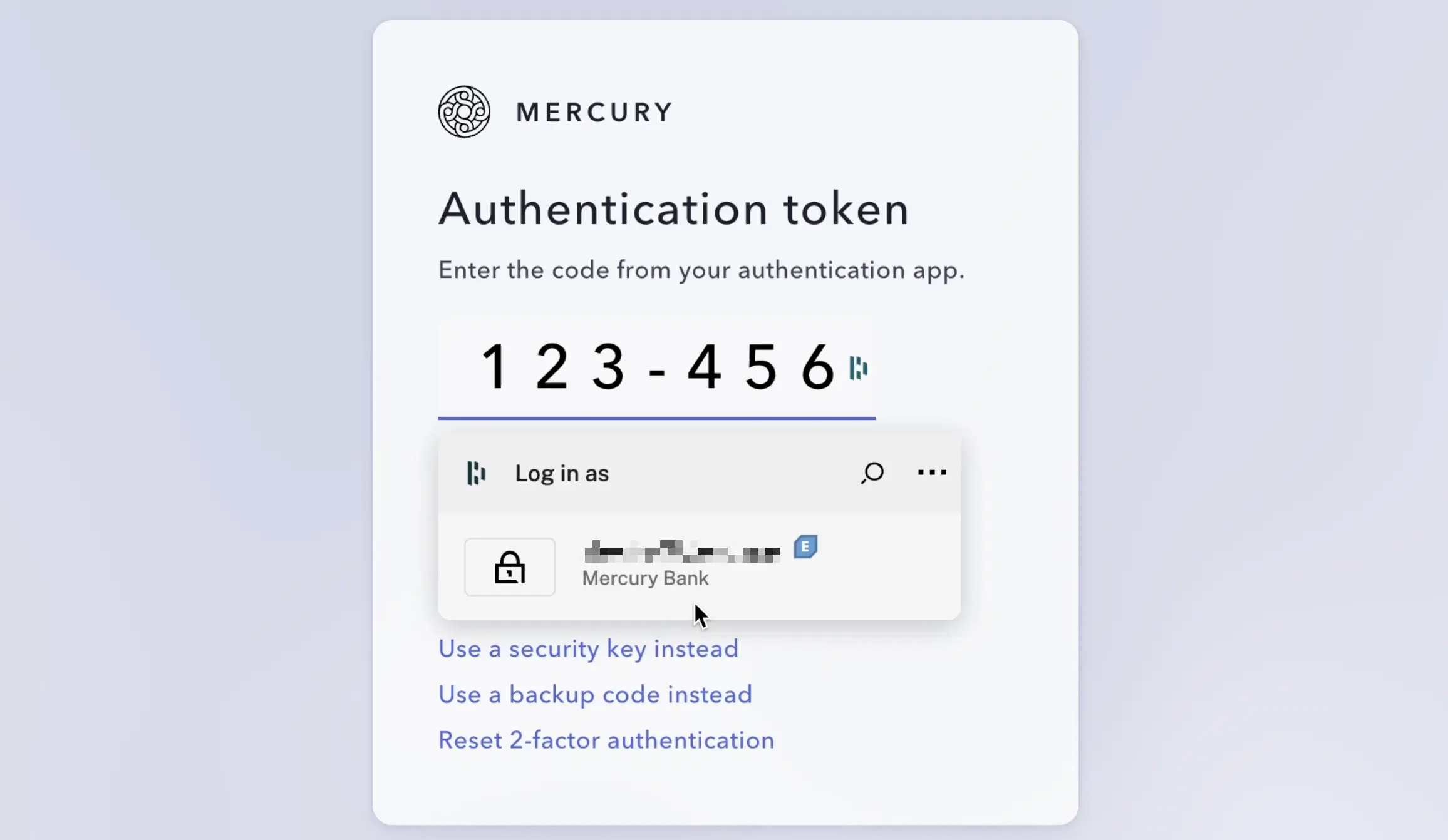
Once you're using a password manager like Dashlane, you can also set up 2-Factor Authentication (2FA) from right within the existing password that you save for a site. So instead of using the insecure SMS 2FA (which won't work if you're without or in spotty cell connection, which also brings with it sending delays of up to 5 minutes. Not to mention being prone to spoofing, phishing, and social engineering attacks), you can instead set up a time-based code, which will even autofill when logging into a website while still adding a second layer of security (e.g. if your password leaks, someone still cannot login to your account without the additionally changing code). From over a decade in the IT space, I know all too well that never does higher security also mean higher convenience, but with Dashlane, it actually does:

Embedded Image

6
Superhuman Mail

Superhuman Mail

Best overall email client

Best overall email client

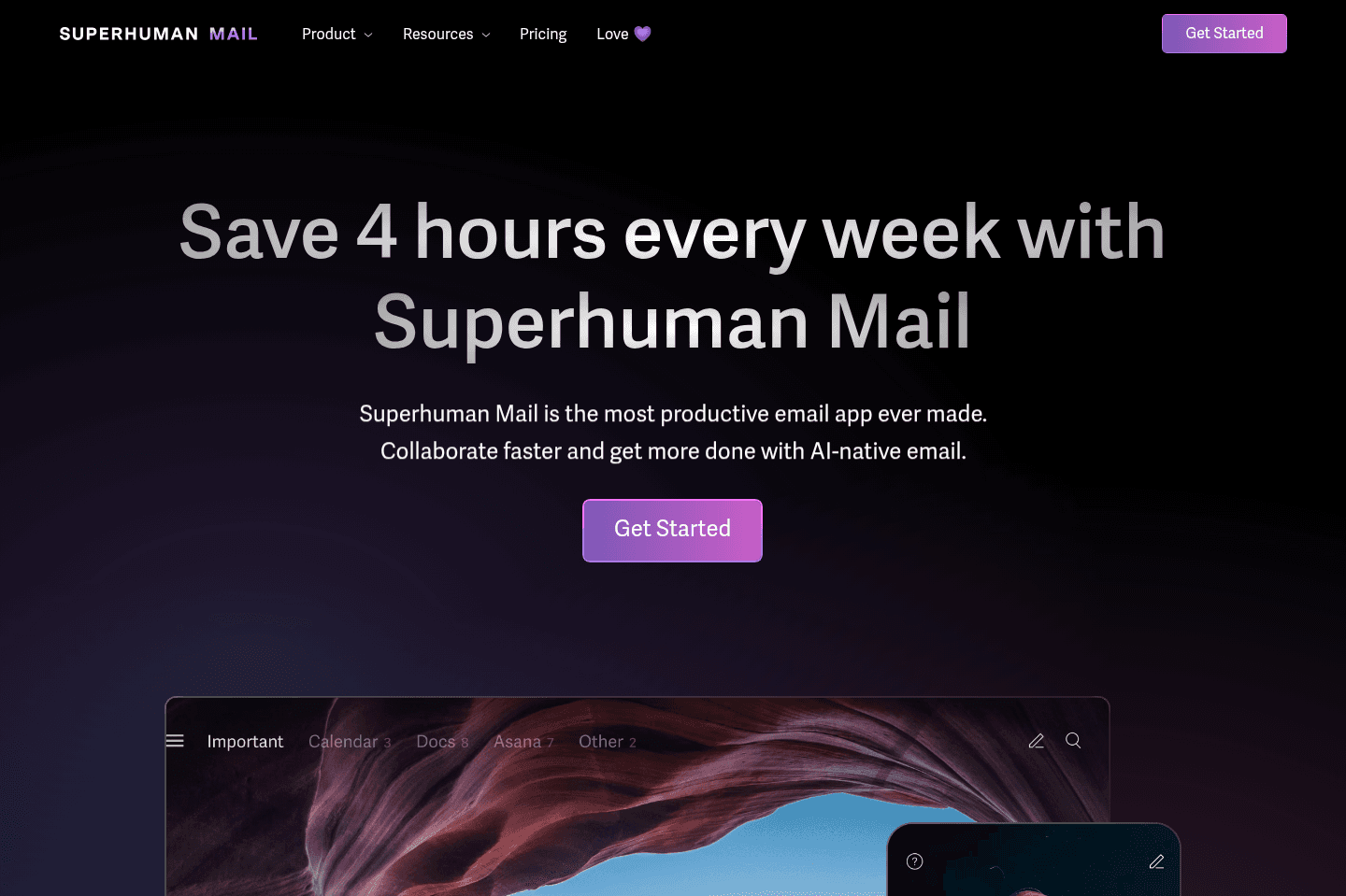
Superhuman Mail is the best email client on the market. It's wildly fast, minimal (not bloated with features), and helps individuals and teams triage through emails most efficiently. We've been using it for 6+ years and can't ever imagine going back to regular email.

Claim the Superhuman free trial for 30 days free, which is more than enough time to see if it fits your workflow.

Superhuman Mail
Go to Superhuman Mail site

What is Superhuman Mail?

What is Superhuman Mail?

Superhuman Mail is by far the best email client built for busy professionals who live in their inbox and want a faster, more focused experience. It works as a layer on top of Gmail or Outlook, meaning you keep your existing email provider, but operate entirely inside Superhuman Mail’s web, desktop, or mobile app instead.

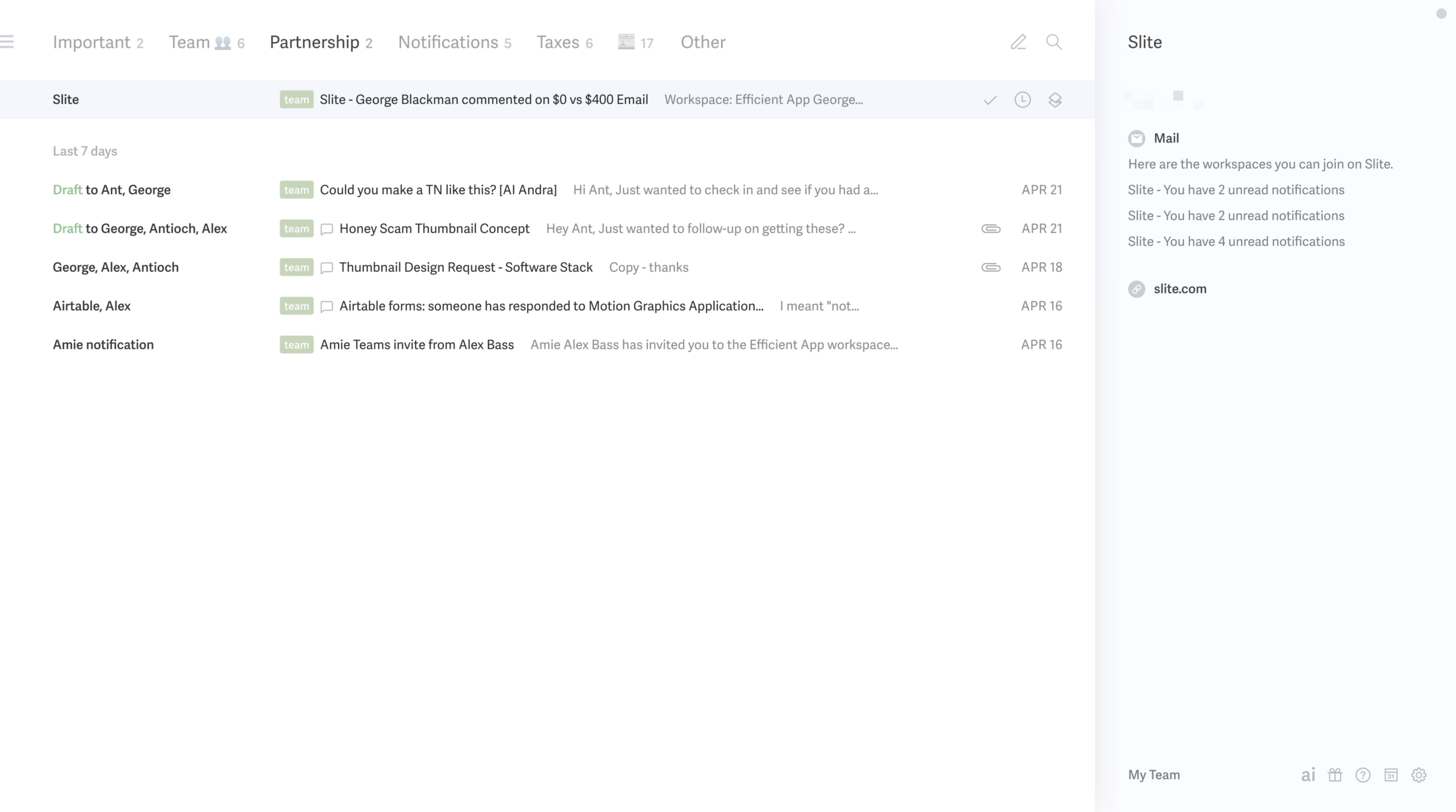
Superhuman Mail Inbox Splits

Superhuman Mail has a beautiful, minimal design and will help you get through your email faster. You can navigate your inbox almost entirely by keyboard, snooze messages effortlessly, use AI to draft responses in your voice, and create inbox splits to process emails in intentional batches. So, if checking email feels overwhelming, distracting, or just slower than it should be, Superhuman Mail really does fix that.

If you get more than 10 emails a week, we recommend trying Superhuman Mail for at least 30 days. If email slows you down, Superhuman Mail is the fastest fix we've found. The free month trial gives you enough time to see if it's actually worth paying for (heads up, you don't get the free month if you try signing up for Superhuman Mail directly). You can grab the free month via our Superhuman Mail discount link.

We've personally been using Superhuman Mail for over 6 years as our email app and couldn't see life without it.

And trust me, I used to be the person that said "I would never pay for email" but after trying it for the first month... I couldn't imagine going back to Gmail, and here I am now 6+ years later, still a paying customer, and I'm happier for it.

Superhuman Mail is available on MacOS, iOS, Android, and works on Windows via modern browsers.

Pros and Cons

Pros and Cons

Pros

Pros
  • Wildly fast performance (literally instant compared to Gmail/Outlook)
  • Minimal, beautifully designed interface with zero clutter
  • Team email collaboration features helps move emails forward more quickly and seamlessly
  • Deep-work friendly (no distractions, no unnecessary features)
  • Mobile app on iOS and Android to help you triage emails on-the-go
  • Free 30-day trial to test it out

Cons

Cons
  • Might feel unnecessary if you don't spend much time in email
  • While you can share emails and drafts with your team, you cannot assign emails and have your team answer on your behalf

Key Features

Key Features

Minimal Interface

Minimal Interface

The first time we opened Superhuman Mail, it genuinely felt like a different category of email tool. The wall of emails we were used to see just wasn't there instead it had been replace with a clean, fast interface that made it feel like this is the only email client actually designed for deep work.

The use of inbox splits makes brings allows for purpose and intention when managing your emails. There’s nothing visually overwhelming or distracting, which, if you spend hours in your inbox like we do, makes a massive difference. It doesn’t feel like you’re “doing email.” It feels like you’re focused.

Pair that with a mobile app that is purposefully designed to allow for triaging emails with speed and clarity and it honestly makes it impossible to go back.

Superhuman Mail AI

Superhuman Mail AI

Superhuman Mail actually drafts email responses in your tone. It learns from your previous messages and responds as you would.

Secondly, Superhuman Mail figures out if an email you sent needs a follow-up/nudge, and it automatically drafts a follow-up in your voice and leaves it in your inbox for you to hit send (yes, just like an executive assistant would). This makes it fantastic if you're doing sales out of your inbox.

Third, Superhuman Mail uses AI to search your inbox. Forget trying to find the perfect search term to surface an email. With Superhuman Mail, you can ask any question in plain language, and it will give you an AI summary response (e.g., "Where was the conversation left off with XYZ? When is the last time I spoke to XYZ?"). And you can even use the AI Chat for other things, like telling it to create a calendar invite.

Read Statuses

Read Statuses

Similar to read receipts in text messages, Superhuman Mail shows you exactly who opened your email, how many times they viewed it, and when they opened it. It's super helpful if you're waiting on a reply.

Calendar & Scheduler

Calendar & Scheduler

Superhuman Mail is also one of the best calendar apps and best scheduling apps if you live within your email. Why?

Say you get an event email with no calendar invite, just hit [b] and Superhuman Mail will instantly create an event for you (I absolutely love this feature). Or if you're writing to someone, and you say "let's meet next Tuesday" your calendar automatically pops open on the right so you can quickly check your availability.

Want to share your availability quickly? No worries, hit the keyboard shortcut and [CMD] + [SHIFT] + [a] and send over your free time slots in seconds so they can book in.

Keyboard Shortcuts

Keyboard Shortcuts

Superhuman Mail also allows you to triage through your inbox using only keyboard shortcuts.

I was a skeptic for years, until I finally gave it a shot. Learned some of the simple keyboard shortcuts like [e] for archive and [h] for snooze + some additional fun shortcuts like [#] for delete, and [!] for spam.

Just hit [0] to instantly open your calendar on the right-hand side without leaving your inbox, giving you a full view of your schedule while you continue working through emails.

Don't like memorizing keyboard shortcuts to get through your email more quickly? Great, then just press [CMD] + [k] for the command bar → the Superhuman Mail key, which allows you to do absolutely anything from anywhere just by typing.

Superhuman Mail For Teams

Superhuman Mail For Teams

You can share email threads with others (whether they are on your team or not) so you can collaborate under email.

This has come super handy for us when we've had sales negotiations (very helpful to @mention each other and check-in if what is proposed makes sense), or to more thoughtfully respond to a customer. Read our entire Superhuman Mail Team Comments review here.

If you share the Superhuman Mail Discount link with your entire team, you will all get a free 30 days to test it out together.

Pricing

Pricing
  • Monthly Subscription: $30/mo
  • Annual Plan: $300/year
Supercut
Supercut
Featured

Video messaging that moves work forward

7
Dia Browser

Dia Browser

Best for AI power users living in the browser

Best for AI power users living in the browser

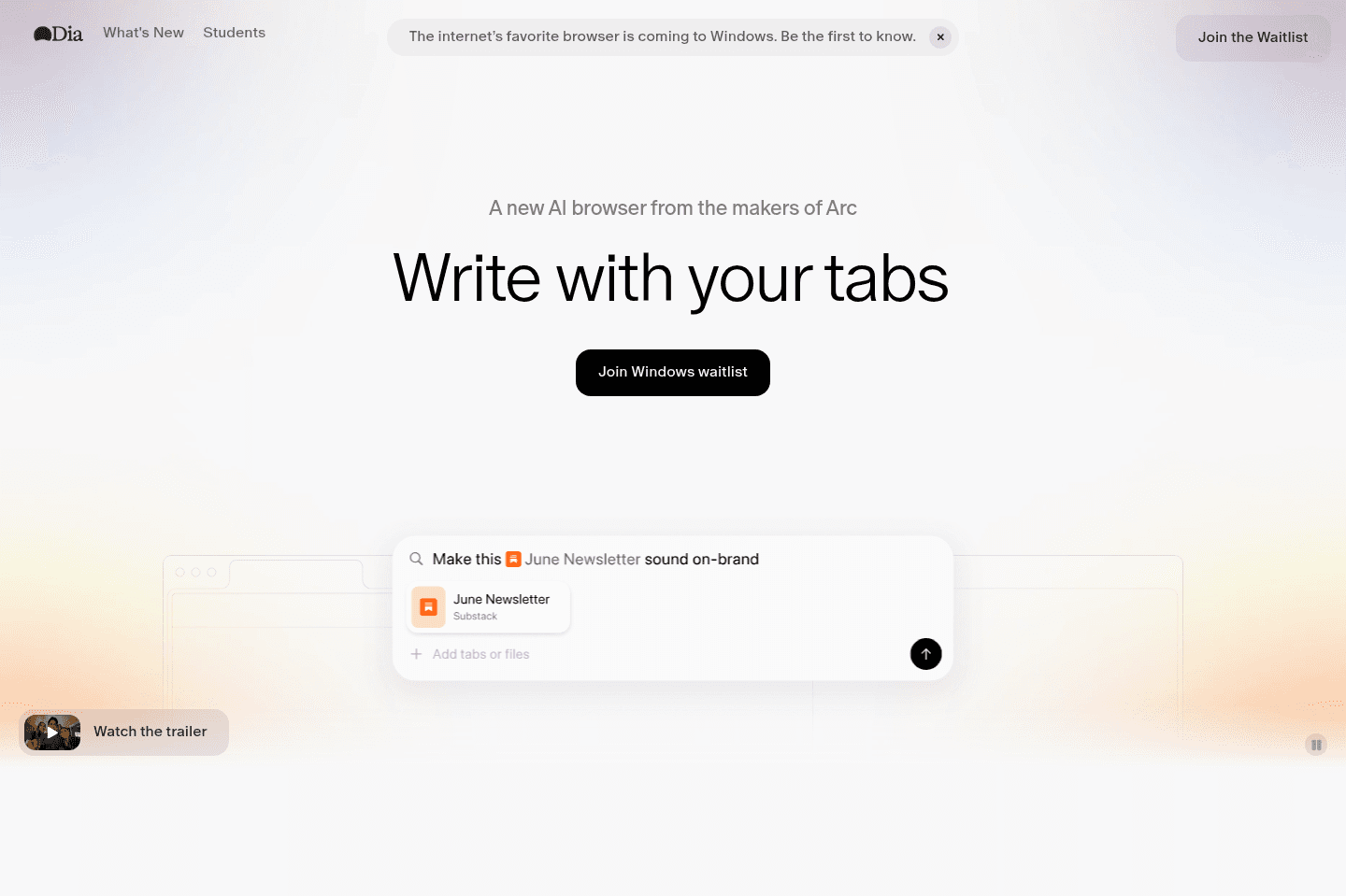
Dia Browser is effectively the AI version of Arc Browser, developed by the same team.

In-fact, most of the features that made Arc great (like the exceptional sidebar, tab management, and profiles features of Arc), have made their way to Dia, all with a modern AI chatbot experience baked in at the core.

Dia Browser
Go to Dia Browser site

What is Dia Browser?

What is Dia Browser?

Dia Browser is one of the latest AI web browsers from The Browser Company (the same team who built Arc Browser).

After The Browser Company got acquired by Atlassian for $610M, they were given the full resources to double-down on their AI browser, Dia.

Who is Dia Browser For?

Who is Dia Browser For?

Dia is for those who are super excited about agentic browsers (think of a baked-in AI chat sidebar, that can co-pilot the browser with you at times).

Pros & Cons

Pros & Cons

Pros

Pros
  • Dia has one of the most performant browsers out of all the current AI browsers on the market.
  • Backed by the same team as the beloved Arc Browser, much of what made Arc great has been making its way to Dia.
  • Since getting acquired for $610M, they now have the full backing of a $20B+ publicly traded company (Atlassian), to experiment and build in one of the most expensive and competitive spaces in the market.

Cons

Cons
  • Dia hasn't decided to go the path of Agent Mode (controlling your browser for you), type features that both ChatGPT Atlas and Comet have gone deep into. So if you're looking for that, it's not likely coming.
  • They can't currently use your actual ChatGPT history, so while their chat experience is beautiful and works well, I do at times wish I had more of the context from my ChatGPT account.
  • They don't yet have a mobile app for iOS or Android, which feels important for something as core as your browser.

Key Features

Key Features

Sidebar

Sidebar

The same powerful (optional) sidebar that first put Arc Browser on the market, and that everyone else copied (including ChatGPT Atlas and even Chrome), is in Dia, and more refined than ever.

Skills

Skills

If you're someone that likes the idea of being able to have pre-built prompts that can be ran that interact with and take into consideration the content on the page you're visiting, then you'll love their "Skills" functionality.

Pricing

Pricing

Dia is currently totally free, with an optional $20/mo tier, that unlocks unlimited AI chat limits.

That said, you'd be hard-pressed to hit limits on the free tier, I only hit it once, and I was doing some pretty deep shopping research, referencing dozens of tabs and YouTube video content.

Final Verdict

Final Verdict

Dia is one of the leading AI browsers in the space, arguably with the most talented and thoughtful product and design team behind it (and now with Atlassian's backing, nearly infinite resources at their hands).

Dia is definitely worth giving it a try, the only question is really whether or not you're open to switching browsers or not. As that's likely the largest blocker. Although, if you're on this page right now, that's likely exactly what you're looking to do, so yes, Dia is worth giving a shot, especially if you've never tried and AI browser.

8
Inbox Zero

Inbox Zero

Open-source AI assistant for email

Open-source AI assistant for email

Inbox Zero is an open-source AI email assistant that helps you label and organize your emails, and bulk unsubscribe from newsletters. It requires Google Workspace or Microsoft as the foundation.

Inbox Zero
Go to Inbox Zero site

What is Inbox Zero?

What is Inbox Zero?

Inbox Zero (not to be confused with what Superhuman Mail refers to getting through all your emails) is a layer atop your Gmail that helps you to easily unsubscribe from newsletters and automate label/forwarding flows all via AI.

The area that we use and love with Inbox Zero is where it helps us tame our email inbox, sort of like Mailman, but it focuses more on actually leveraging AI to automatically take action on your email (or unsubscribe if you're getting many newsletters but not reading any of them.

Key Features

Key Features

Open-Source

Open-Source

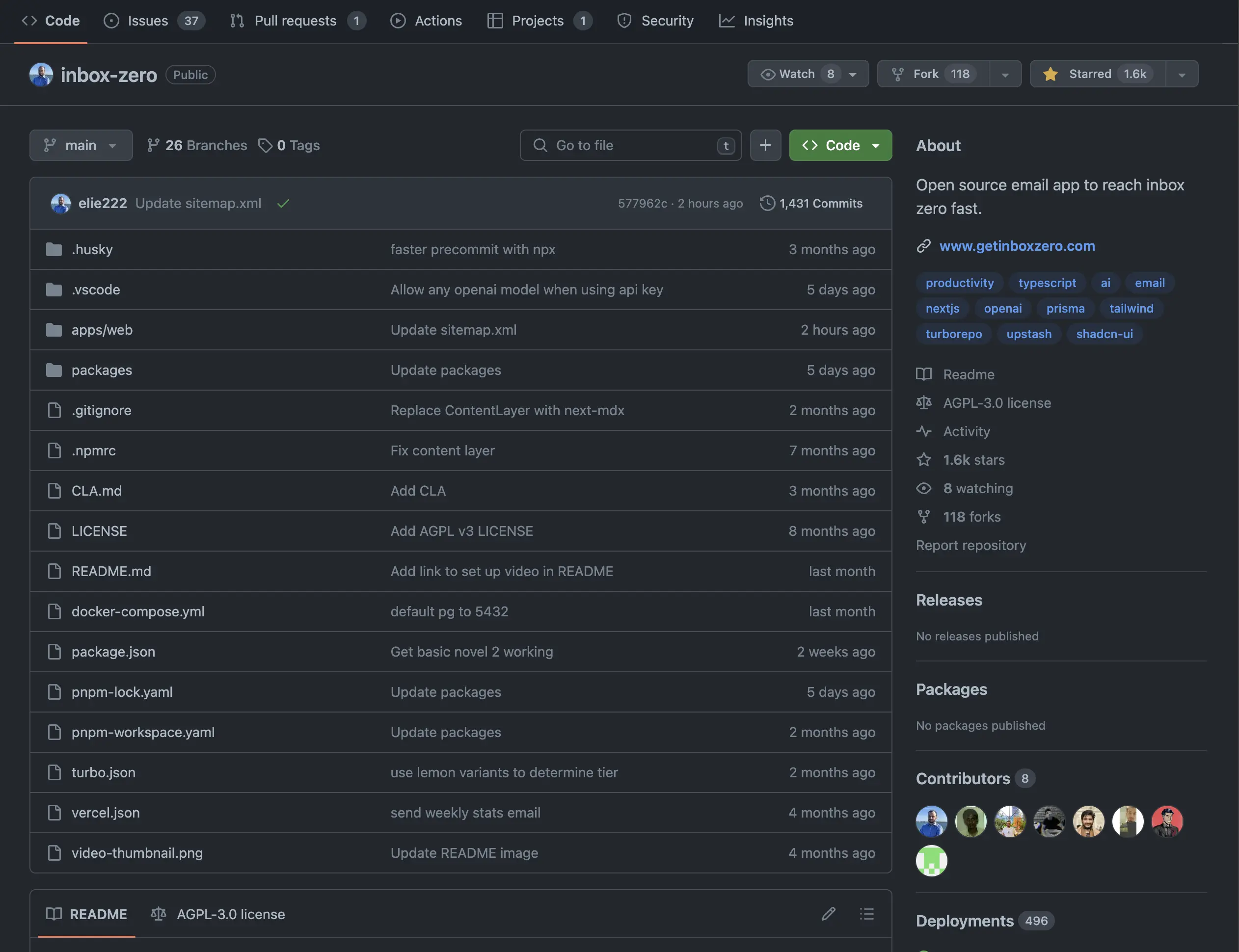
One thing to keep in mind with Inbox Zero (and how it differentiates from its competitors) is that it is an open source AI email assistant with thousands of stars on GitHub, so go and check out the code yourself if you'd like:

Embedded Image

Inbox Zero Open-Source GitHub Rep

Pricing

Pricing
  • Basic: $6/month on annual tier + $1.50/month for each additional email account
  • Business: $12/month on annual tier + $3/month for each additional email account
Supercut
Supercut
Featured

Video messaging that moves work forward

9
Motion

Motion

Best for those who want an AI personal assistant

Best for those who want an AI personal assistant

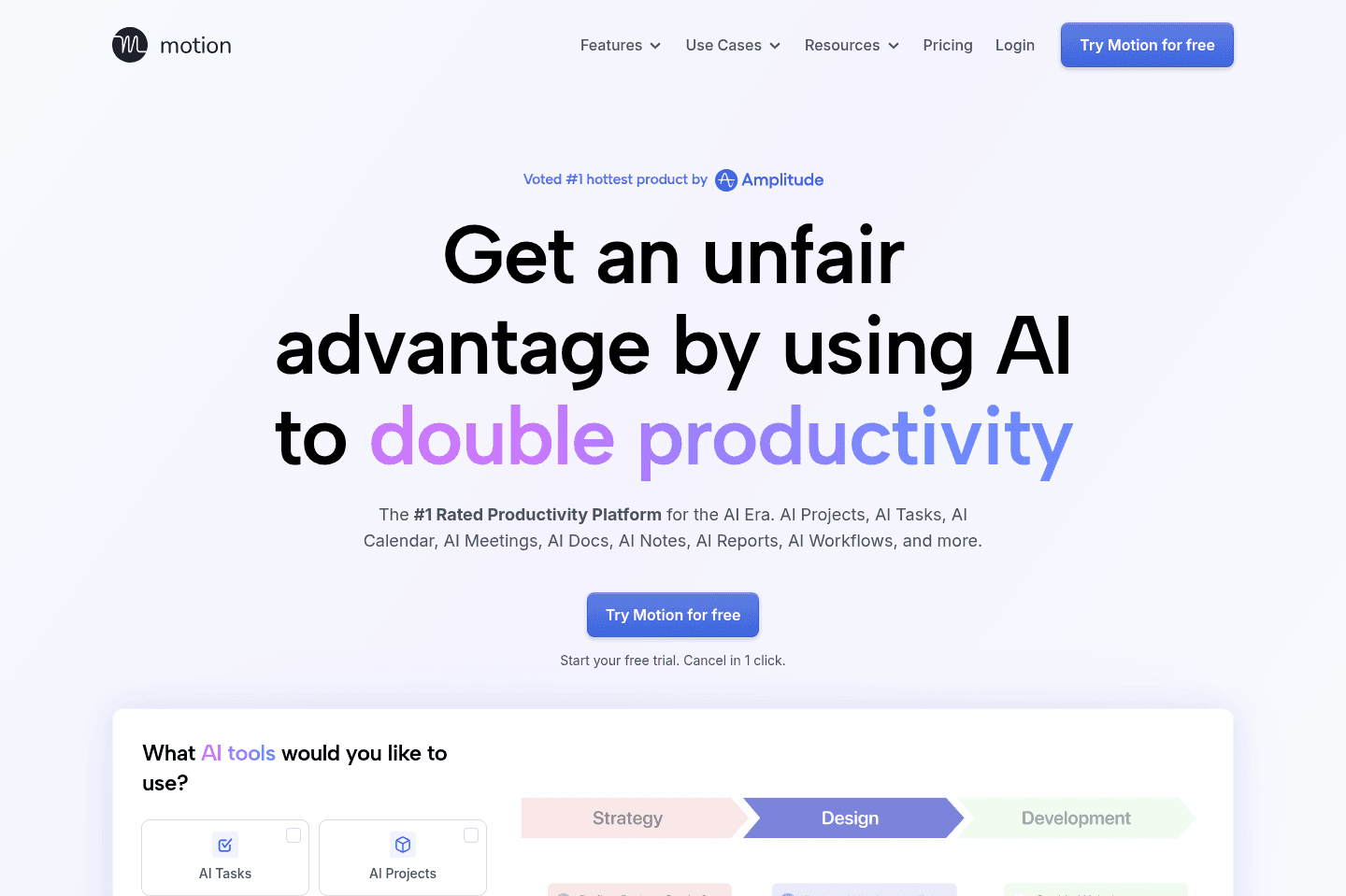
Motion is the most innovative AI-powered project management tool for individuals and teams who want to fully embrace AI to get work done.

It uses AI to take all of your team's projects, tasks, priorities, deadlines, and dependencies to build the perfect day for you and your team, time blocking tasks right on your calendar. They also have AI Docs, & an AI Note Taker, helping you get work done faster.

We've been using it for 5 years and is core to how we manage our time and projects!

Motion
Go to Motion site

What is Motion?

What is Motion?

There’s a big difference between perceived productivity, i.e., trying new apps, color-coding everything, reorganizing your system for the fifth time, versus actually finishing meaningful work. Motion leans into the second camp.

It's more focused on taking away the busy work that silently eats up all your time and less about making everything look perfectly organized.

It does this through its AI auto-scheduling feature, which works by taking all the tasks on your calendar and using AI to create a schedule that makes sense. Meaning you log on for your workday, and all your tasks are scheduled. You know exactly where to jump in with no guesswork.

It's built for people who actually want to get work done and not just tinker with productivity tools.

Motion's AI assistant basically takes the place of an assistant who would plan your day for you. So, instead of rearranging tasks or deciding what to work on next, you open your calendar, and it’s already mapped out.

Pros and Cons

Pros and Cons

Pros

Pros
  • Automatically schedules tasks onto your calendar
  • Eliminates constant manual planning and rearranging
  • Fully mapped-out daily schedule

Cons

Cons
  • Not ideal for people who enjoy customizing and constantly reorganizing tools
  • Less focused on aesthetics or perfectly polished layouts

Key Features

Key Features

AI Calendar

AI Calendar

You come in, look at your calendar, and everything is laid out. You know what needs to get done, and your team has a clear picture.

AI Task Auto-Scheduling

AI Task Auto-Scheduling

Motion places your tasks directly onto your calendar so you don’t have to decide what to work on next. You open your day, and it’s already planned.

Workflow Templates

Workflow Templates

Workflow Templates in Motion are reusable project templates that define exactly how your work gets done from start to finish. They remove mental overhead by clearly mapping out every step of your process, so you can jump straight into execution without second guessing what comes next or forgetting critical steps.

They include your roles, stages, tasks, and key details so every project follows the same structured process. Once set up, Motion uses the template to automatically schedule everything on your team's calendars and adjust timelines when things change.

Pricing

Pricing

Motions prices range from $19 to $34 per month (Individual to Team plans).

10
Granola

Granola

Best virtual and in-person AI note taker

Best virtual and in-person AI note taker

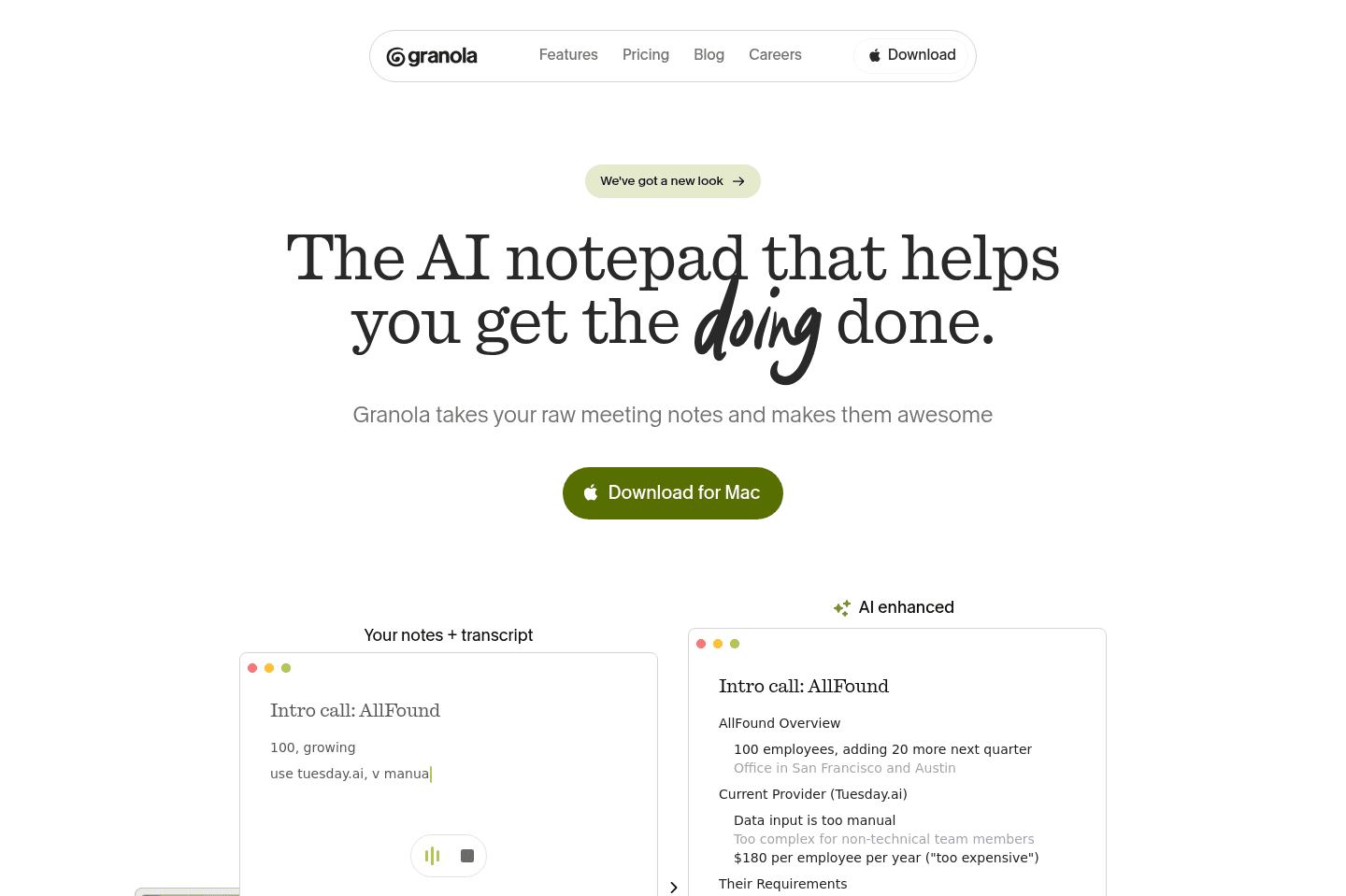
Granola is essentially an always-on listening assistant (primarily for meetings), allowing for perfect recollection, along with meeting assistance (call context question/answers mid-call), no meeting bot required.

Granola has become the meeting repository for all internal (in-person) and external meetings and brainstorming sessions. We have a new rule at Efficient App: if Granola wasn't there, it didn't happen.

Granola
Go to Granola site

What is Granola?

What is Granola?

Granola is a meeting recorder tool that doesn't require those annoying bots to join. In-fact the people you're on the call with don't even have to know you're using it.

Interestingly enough, this isn't any different than just having a note taker on the call, because they don't allow you to playback the audio. What you can do is ask Granola's AI Chatbot questions about the call, or any calls you've had across the company.

You can even ask Granola questions mid-call, which uses full context of the call up to that point, or can even come up with contextual questions to ask to help the conversation flowing. It's really as if you have an active note taking assistant on the call alongside you, helping you keep the conversation flowing, and researching further context details when needed.

We make sure to always have Granola recording our meetings (even in-person team meetings and brainstorming meetings), even if we have one of the best AI note taker bots joining the call as well. It's just a more lightweight solution that can't be kicked from calls and is less invasive.

Supercut
Supercut
Featured

Video messaging that moves work forward

11
Sunsama

Sunsama

Best pen and paper alternative

Best pen and paper alternative

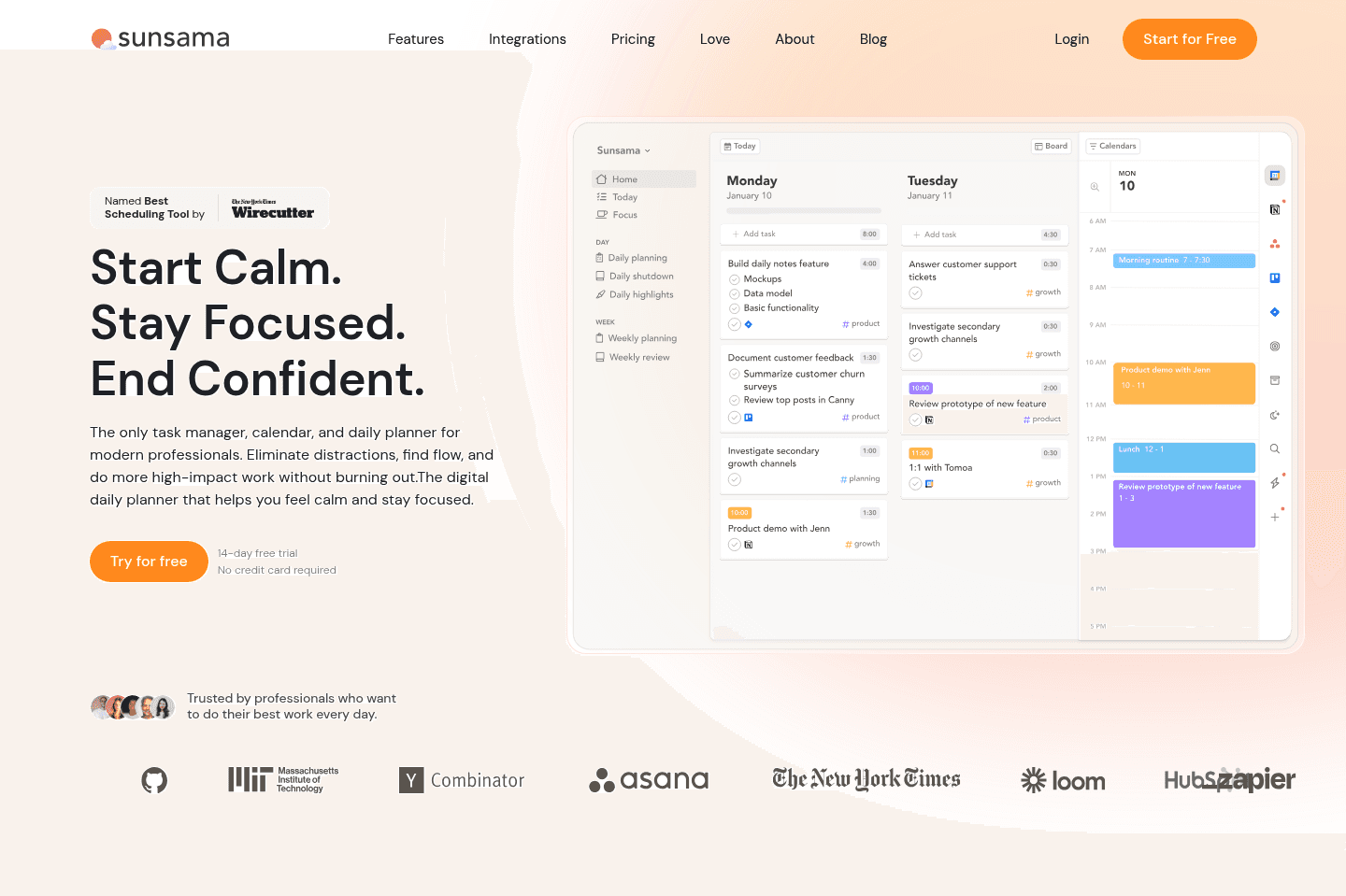
Sunsama is a beautifully designed daily planning app.

It's great for those who enjoy the ritual of planning their day, and don't want to lose the intentionality aspect of daily planning. If you love pen & paper daily planning, yet want a digital planner, but hate the idea of AI running things for you, Sunsama is for you.

Make sure to grab a Sunsama free trial for a free 30 days, if you want to try it (this is normally only 14 days if you go through their site). No credit card required so giving it a shot is easy compared to other daily planners.

Sunsama
Go to Sunsama site

What is Sunsama?

What is Sunsama?

Sunsama is a daily planner built around intentional, manual time blocking. The very first thing it asks each morning is "What do you want to get done today?"

It's intuitive and easy to navigate, giving you a full view of your tasks on one side and your calendar on the other. You have the ability to drag tasks onto your schedule and then reflect on obstacles. Then, at the end of the day, you go through a shutdown ritual and review what you completed. It’s not a tool that's trying to automate your life, but trying to help you be more mindful about it.

I always recommend Sunsama to my friends who love pen-and-paper planners but want a digital version. If you enjoy sitting down for 10–15 minutes each morning to thoughtfully plan your day, you'll probably love what Sunsama brings to the table.

If you hate the idea of AI planning your day, then Sunsama is 100% for you (it's basically the opposite of Motion). There's no AI auto-scheduling or project management tool built in.

My mind (and mental health) loves the idea of Sunsama, but in reality, as a business owner it's not a tool I can activity stay on top of and maintain with the daily rituals. There are too many changes things in my day-to-day that I need something more automated. But if you like calm, I definitely recommend giving it a shot.

Pros and Cons

Pros and Cons

Pros

Pros
  • Structured daily routines
  • Beautiful, calming, minimal design
  • Daily planning and time blocking experience
  • Strong philosophy around healthy work habits
  • Integrates with popular tools (Asana, Monday, Gmail, Slack, etc.)

Cons

Cons
  • Heavy manual daily planning
  • Limited team collaboration features
  • Can feel time-consuming for busy professionals

Key Features

Key Features

Daily Planning

Daily Planning

Sunsama creates an experience that guides you through a routine focused on what you feel, not what is fastest or what an AI automation thinks is most efficient.

There is what Sunsama calls auto-scheduling, which is different from how AI works with tools like Motion. What it means is it uses a mixture of keyboard shortcuts and your preset schedule to place tasks on your calendar, split them, or defer them; it's not actually doing anything with AI or anything that automated.

We could see this really working for someone who prefers control over AI guesswork and already likes sitting down to map out their day. This feels like the cleanest digital version of that experience. It forces you to be realistic about your time and in tune with your day.

Task Aggregation

Task Aggregation

Sunsama doesn’t try to replace your project management software, but it's aware that professionals often need to be in tools like Asana, Monday, Trello, Gmail, Slack, etc.

So it connects to those tools and allows you to pull in tasks, BUT it doesn’t automatically schedule everything. This is different from other tools that, with a click of a button, your entire schedule is ready to go; with Sunsama, you choose what makes it onto your calendar.

It acts more like a daily decision layer on top of your existing stack. Your PM tool manages the big picture, and Sunsama helps you decide what actually gets your time today.

Daily Shutdown & Reflection

Daily Shutdown & Reflection

Much like the beginning of your day, Sunsama has you do a shutdown routine at the end of the day. You review what you completed and reflect on how the day went.

This might sound redundant if you are just trying to be as efficient as possible, but if the goal is awareness and intention, it's powerful. A lot of busy founders just want to close their laptops and be done with the day, but Sunsama makes you pause and look at your progress.

It does a great job of helping you reinforce work boundaries and help you build a healthier relationship with work, because when you see all your output, it makes you realize sometimes it's okay to stop.

Pricing

Pricing
  • Free: 30-day free trial with our Sunsama discount (normally only 14 days if you go direct). No credit card required.
  • Pro: $20/mo per user (billed yearly) or $25/mo (billed monthly). Best for busy professionals who want a full daily planning system with unlimited usage, integrations, and AI features.
  • Enterprise: Unlisted. Includes SSO, SCIM, audit logs, and custom security, compliance, and billing options for larger teams.
Worth trying
Apps worth trying
These productivity-adjacent apps prioritize another category at their core, but their productivity features are strong enough that you should still consider them.
  1. Comet Browser
    Comet Browser
    Browser

    Best free agentic mode option

    Best free agentic mode option
  2. Todoist
    Todoist
    Todo List

    Best pen-and-paper alternative

    Best pen-and-paper alternative
  3. Clockwise
    Clockwise
    Time Management

    Clockwise optimizes your team’s schedules to create more time in everyone’s day.

    Clockwise optimizes your team’s schedules to create more time in everyone’s day.
  4. Reclaim AI
    Reclaim AI
    Time Management

    For basic task scheduling on your calendar

    For basic task scheduling on your calendar
  5. Superlist
    Superlist
    Todo List

    Best design-focused task and list app

    Best design-focused task and list app
  6. TickTick
    TickTick
    Todo List

    Best for basic task management

    Best for basic task management
  7. Routine
    Routine
    Daily Planner

    Free daily planner

    Free daily planner
  8. Tella
    Tella
    Screen Recording

    Best for recording + editing course content

    Best for recording + editing course content
  9. Morgen Calendar
    Morgen Calendar
    Daily Planner

    Calendar with basic task management

    Calendar with basic task management
  10. Akiflow
    Akiflow
    Daily Planner

    Best for task consolidation from third party apps

    Best for task consolidation from third party apps
  11. Screen Studio
    Screen Studio
    Screen Recording

    Best for polished screen recordings

    Best for polished screen recordings
  12. Linear
    Linear
    Project Management

    Best for engineering teams

    Best for engineering teams
  13. Arc Browser
    Arc Browser
    Browser

    For your productivity workspace

    For your productivity workspace
  14. ChatGPT
    ChatGPT
    AI Chatbot

    Best overall AI chat app

    Best overall AI chat app
  15. Perplexity
    Perplexity
    AI Chatbot

    Best for researching, whether work, student, or personal

    Best for researching, whether work, student, or personal
  16. Trello
    Trello
    Project Management

    Simple kanban task management

    Simple kanban task management
  17. Zapier
    Zapier
    Automation

    Best no-code tool for building app integrations

    Best no-code tool for building app integrations
  18. Notion
    Notion
    Knowledge Base

    Good knowledge base, but skip for everything else

    Good knowledge base, but skip for everything else
Discover More Efficient Apps Lists

Explore the best apps across different categories and find the perfect tools to stay productive.

Superhuman Mail
Missive
Notion Mail
Spark
Gmail
Tatem
Hey
Outlook
Skiff
Email

9 apps and 0 deals

Motion
Linear
Asana
Monday
ClickUp
Wrike
Trello
Jira
Shortcut
Project Management

9 apps and 0 deals

Related app comparisons
Browse Categories