

 Wispr FlowBest
Best AI voice dictation app
Best AI voice dictation app
 LittlebirdBest
Best context-aware AI note taker
Best context-aware AI note taker
 RaycastRecommended
Best MacOS spotlight search replacement
Best MacOS spotlight search replacement
 CleanShot XBest
Best for fast Mac screenshots
Best for fast Mac screenshots
 DashlaneRecommended
Best modern password manager
Best modern password manager
 Superhuman MailBest
Best overall email client
Best overall email client
 Dia BrowserRecommended
Best for AI power users living in the browser
Best for AI power users living in the browser
 Inbox Zero
Open-source AI assistant for email
Open-source AI assistant for email
 MotionBest
Best AI project management for small-mid-size teams
Best AI project management for small-mid-size teams
 SunsamaBest
Best for mindful planning
Best for mindful planning

Productivity Tool Overview
Productivity Guide
Productivity GuideWelcome to your ultimate productivity stack guide!
If you're reading this guide, you:
- Care about using modern tools with good UI/UX
- Care about making your daily experience at work more enjoyable
- Want tools that were created by really smart people who also care about the things above
What you won't find in this guide are general software recommendations with a bunch of tools that are 'trending' but we haven't actually used ourselves. This isn't another guide about all the productivity tools under the sun.
This guide is prescriptive and offers single tools to help you make essential business software decisions more quickly. The software below has been deeply vetted against competitors and all the below mentioned are used by us (we are paying customers).
Let's get into it! ⤵
How We Evaluate Productivity Tools
We score each productivity tool across multiple criteria, and hands-on expert evaluation
- Ease of UseQuick to set up and intuitive to use without a steep learning curve.
- Feature DepthCore features that work well, not surface-level checkboxes.
- Reliability & PerformanceConsistent, fast, and dependable with minimal bugs.
- Value for MoneyPricing that's fair relative to what you actually get.
- Integrations & EcosystemWorks well with other tools in your stack.
- Expert EvaluationCurated by, our rankings reflect in-depth testing, industry insights, and hands-on experience.AlexandAndra
Wispr Flow
Best for faster writing
Best for faster writingWe've been trying dictation tools for years, and Wispr Flow is the first one that actually worked reliably enough for us to keep using every single day.
Press a button, speak, and it'll use AI to write out clean text across Slack, texts, email (anywhere). I even use it for fast content writing or when I'm talking to AI. At this point, it feels like one of those tools where, if it disappeared, I'd be massively annoyed. If you spend a big chunk of your day writing or typing, definitely give it a shot. This is the future.
What is Wispr Flow?
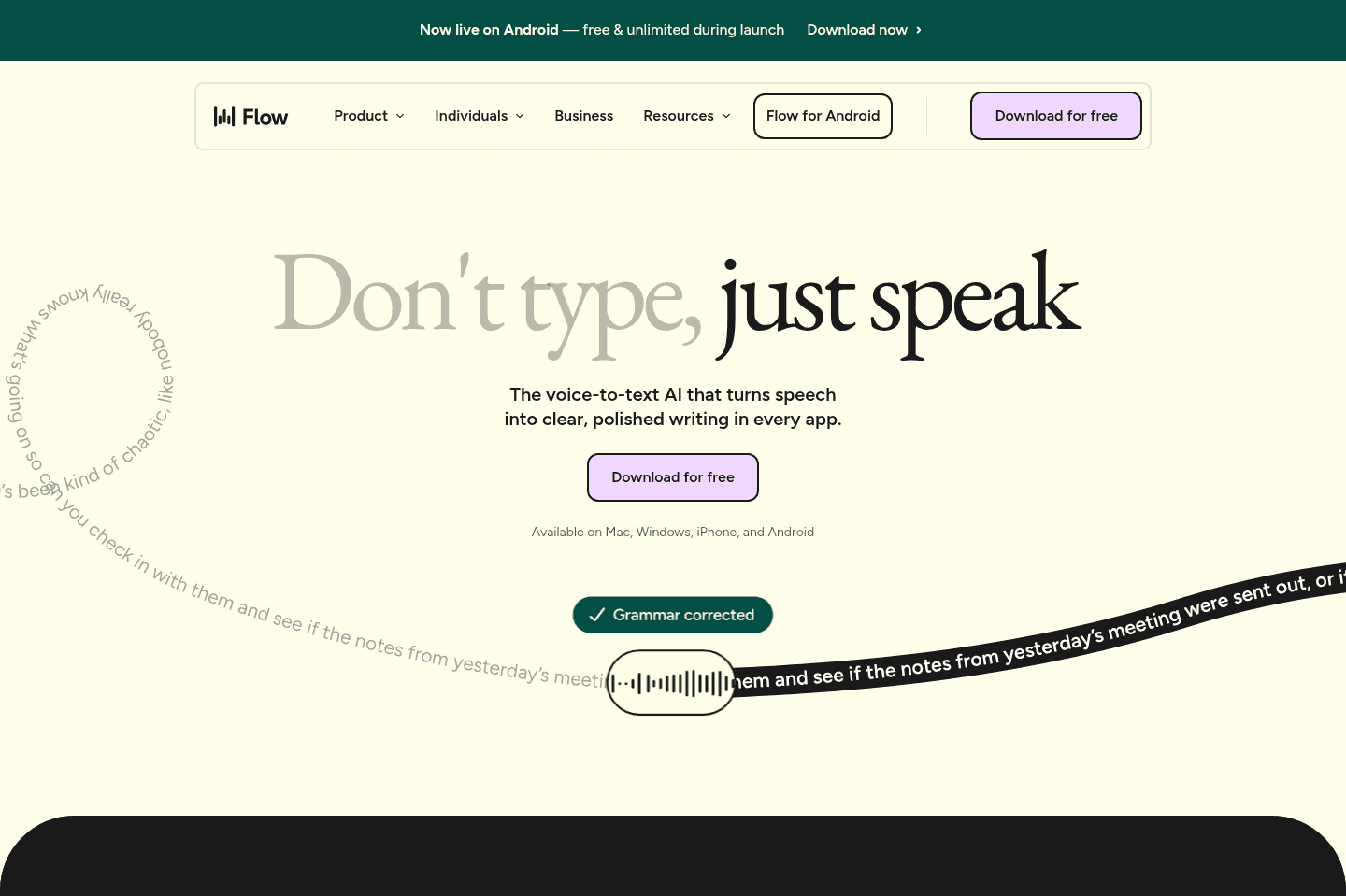
What is Wispr Flow?Wispr Flow is an AI dictation tool that lets you speak naturally, and uses AI to fix any errors as you speak (e.g. if you correct yourself mid-sentence, it will just output the corrected text).
Productivity Wins
Productivity WinsWispr Flow is essential to my productivity workflow. I've been using it for one year at the time of writing and have dictated nearly 150,000 words!
Before Wispr Flow
Before Wispr FlowI have tried many dictation apps in the past. After all, I am a writer and spend most of my times translating my thoughts onto the screen.
The problem I often ran into was that dictation apps would dictate every single thing I said, every "um" and "like" and "I think" and I would spend just as much time editing what I wrote afterwards.
And that was when they actually worked. Because I can't tell you how many times I've tried using dictation only to realize it didn't actually capture what I said! So after saying the same time three times in a row...I gave up on dictation as a method of working. That is, until Wispr Flow came along.
After Wispr Flow
After Wispr FlowWispr Flow was the first dictation app I used that works reliably and that's because it uses AI. Immediately, I noticed the difference.
If you correct yourself mid-sentence (e.g. let's meet Tuesday -- oops, I mean Thursday!) it will just output "Let's meet Thursday" removing all your fumbles. Looking at my stats, Wispr Flow has made over 10,000 fixes for me 😅
It also has a clipboard for anything you dictate so if for whatever reason the app you're writing is glitches and it doesn't paste, you have a backup.
I started using Wispr Flow on my phone to answer text messages. Then I got it on my computer and started using it to answer Slack messages, emails, and even writing first drafts of articles.
When I can't use it (e.g. someone is on a call next to me), I feel the pain. I feel the time slipping away as I type something that could have taken me seconds to speak.
Get the latest rankings and insights on top Productivity apps—delivered to your inbox. Stay ahead with our expert picks and updates.
Littlebird
Best for perfect memory and time tracking
Best for perfect memory and time trackingLittlebird is an AI assistant built around one idea: the more context it has, the more useful it becomes. It records meetings, pulls from your calendar and email, AND reads what's on your screen so it can understand what you've really been doing throughout the day.
That's what lets you ask something as simple as "What did I do today?" and get a real answer instead of guessing or piecing things together yourself.
What is Littlebird?
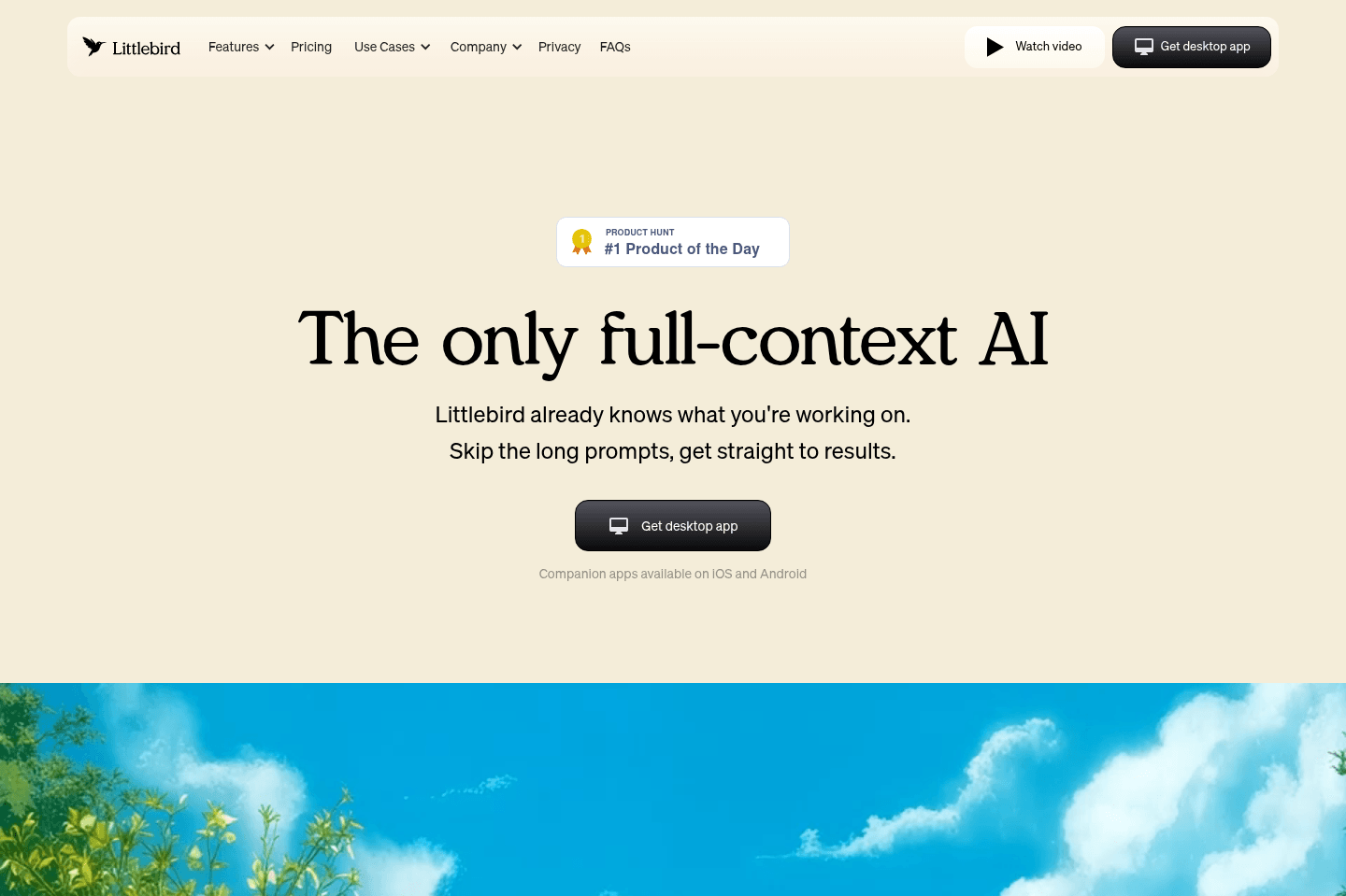
What is Littlebird?Littlebird is an always-on AI assistant. It watches what you do all day on your computer and has perfect memory of everything you see.
Productivity Wins
Productivity Wins"I have no idea where my time goes during the day. I know I am working, but I feel all over the place." If you've said something like this recently, then Littlebird is definitely worth checking out.
Before Littlebird
Before LittlebirdAlex (CEO of Efficient App): I honestly can't tell you where I spend my time. The question "what'd you do today?" would trigger me, because the mental load of trying to remember was too much.
I jump around from meeting to meeting, to Slack message, I unblock team members, answer emails...but I can't tell you "what I actually did". My day is mostly reactive.
Back when we were consulting, I used to use Harvest (now acquired by Bending Spoons, RIP) to track my client time on every little thing. But since we moved over to a content business, it's all just been living in my head.
After Littlebird
After LittlebirdAlex (CEO of Efficient App): Since Littlebird see's everything I do all day, I'm able to ask "What did I do today?" and it will give me a breakdown of % time spent in different parts of the business (Hiring, Engineering, Content Creation, etc).
I now can actually answer the question of where my time went!
And if I need to remember something I read somewhere, I can just ask "what was that website I was looking at?" or "when did this conversation happen?" and Littlebird has the answers.
It's like an extension of my brain.

Not a tool. A hire.

Raycast
Best MacOS spotlight search replacement
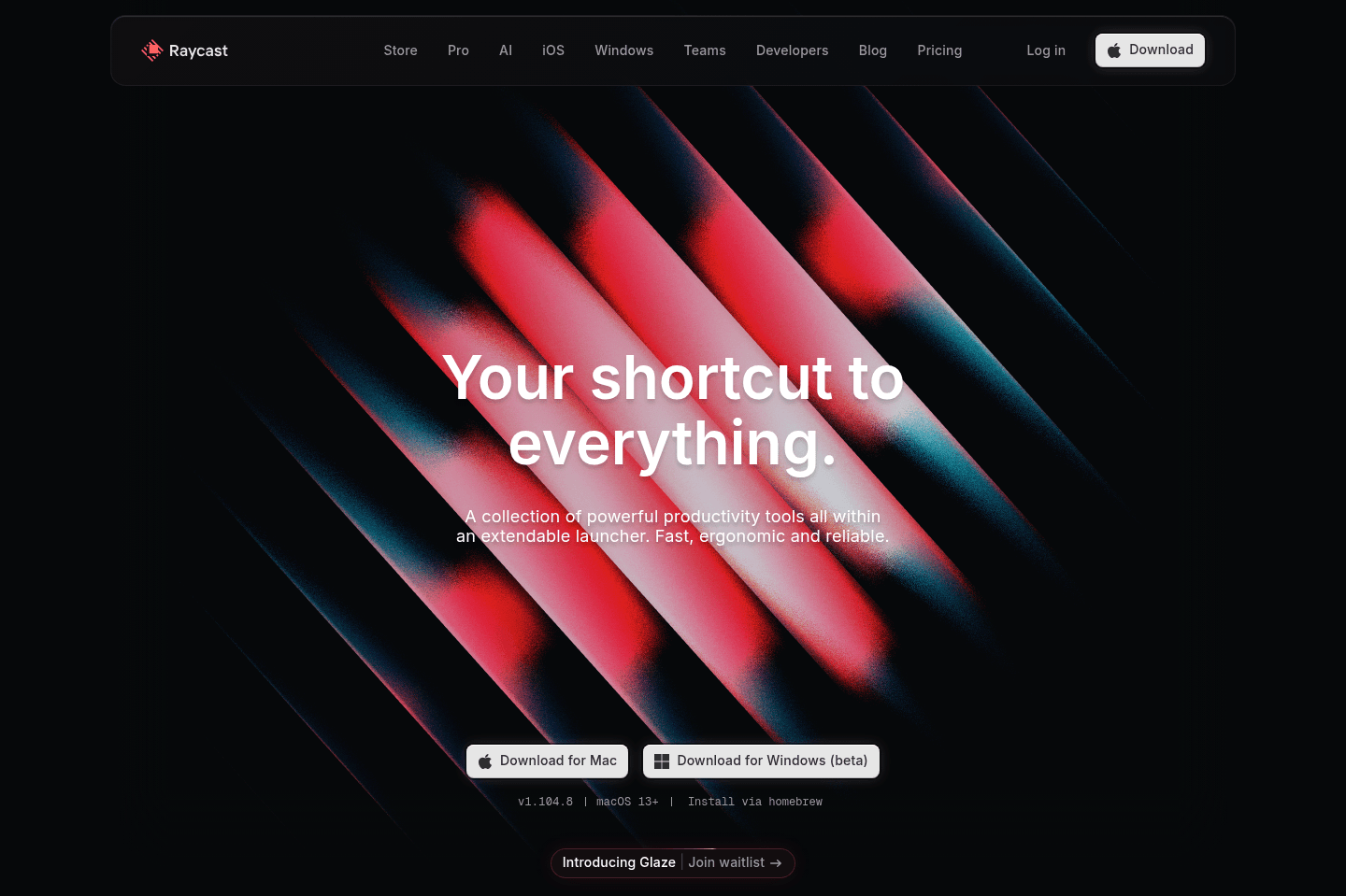
Best MacOS spotlight search replacementIf you're using MacOS, Raycast is hands-down the best spotlight search replacement available. It's one of those apps that you won't "get" until you use it, but once you use it, you won't be able to live without it.
It's usually the first app we install on a new computer, if that tells you anything.
What is Raycast?
What is Raycast?Raycast is a macOS productivity app that replaces Spotlight search with something a whole lot more useful.
Instead of just searching your computer, it turns your Command + Space shortcut into a command center that can open your apps or access AI, but also resize windows and run snippets.
Most people are fine with the native Spotlight search on Mac, and if you're only opening apps a few times a day, you might not care.
But once I got used to Raycast, it feels weird to go without it. Search became the main way I started to move around my computer, and Raycast made the search bar way more useful than Apple ever did.
We originally started using Raycast for the non-AI features. Clipboard history, emoji search, snippets, Caffeinate, color picker, app launching, and all of that became part of my daily workflow before AI was even part of the conversation.
It's one of those apps that doesn't exactly sound "sexy," yet has a huge impact on your productivity.
Pros and Cons
Pros and ConsPros
Pros- One shortcut replaces the clunky "open app, find thing, copy thing, paste thing" dance
- Clipboard history alone solves a workflow problem that hits me all day
- Team snippets let us share links, messages, and business details across computers
- Free version is genuinely useful, so there's no real downside to trying it
- Beautiful UI and a deep extension ecosystem that replaces a bunch of separate tools
Cons
Cons- Raycast AI feels underwhelming if you want deep, context-aware AI work
- Snippets and team features won't add much if your team has no repeatable language or links
- Mac only
Key Features
Key FeaturesClipboard History
Clipboard HistoryI truthfully cannot live without this one.
It's the feature that made Raycast stick for us. Normally your Mac only remembers the last thing you copied, but with Raycast you can pull up your full clipboard history and paste any of it.
So when I copy a link, then another link, then a piece of text, I'm not bouncing back through tabs to re-copy something I already had. It sounds unimportant until you realize how often it saves you.
Snippets and Team Snippets
Snippets and Team SnippetsSnippets are saved pieces of text you reuse without rewriting them, like UTMs, our business mailing address, and NDA language.
The team version is what sold us on paying after using the free version for ages, because Alex and I can share the same snippets across both our computers.
If your business has recurring sales, ops, hiring, or partnership messages, it's genuinely worth it. If your team doesn't have repeatable language, it won't do much for you.
App and Extension Ecosystem
App and Extension EcosystemThe developer community and growing library of extensions is something I wish more tools had.
I'd much rather compress an image through a Raycast plugin than go to some sketchy image conversion site, which I totally haven't done before. It means a lot of little tasks stay inside your launcher instead of scattering you across random apps and websites.
Pricing
Pricing- Free: $0/mo. Best for most individual Mac users who want...
- Pro: $10/mo, or $8/mo billed annually at $96/yr. Best for power users who care about sync or want Raycast AI built into your launcher.
- Pro + Advanced AI: $20/mo, or $16/mo billed annually at $192/yr. Best for users who specifically want access to more advanced AI models.
- Teams Pro: $15/user/mo, or $12/user/mo billed annually at $144/user/yr. Best for small businesses if shared snippets and commands become part of daily operations.
- Teams + Advanced AI: $25/user/mo, or $20/user/mo billed annually at $240/user/yr. Best for teams that want access to the most advanced AI models.
- Enterprise: Custom pricing, billed annually. Best for larger organizations that need advanced security and admin controls.
CleanShot X
Best for fast Mac screenshots
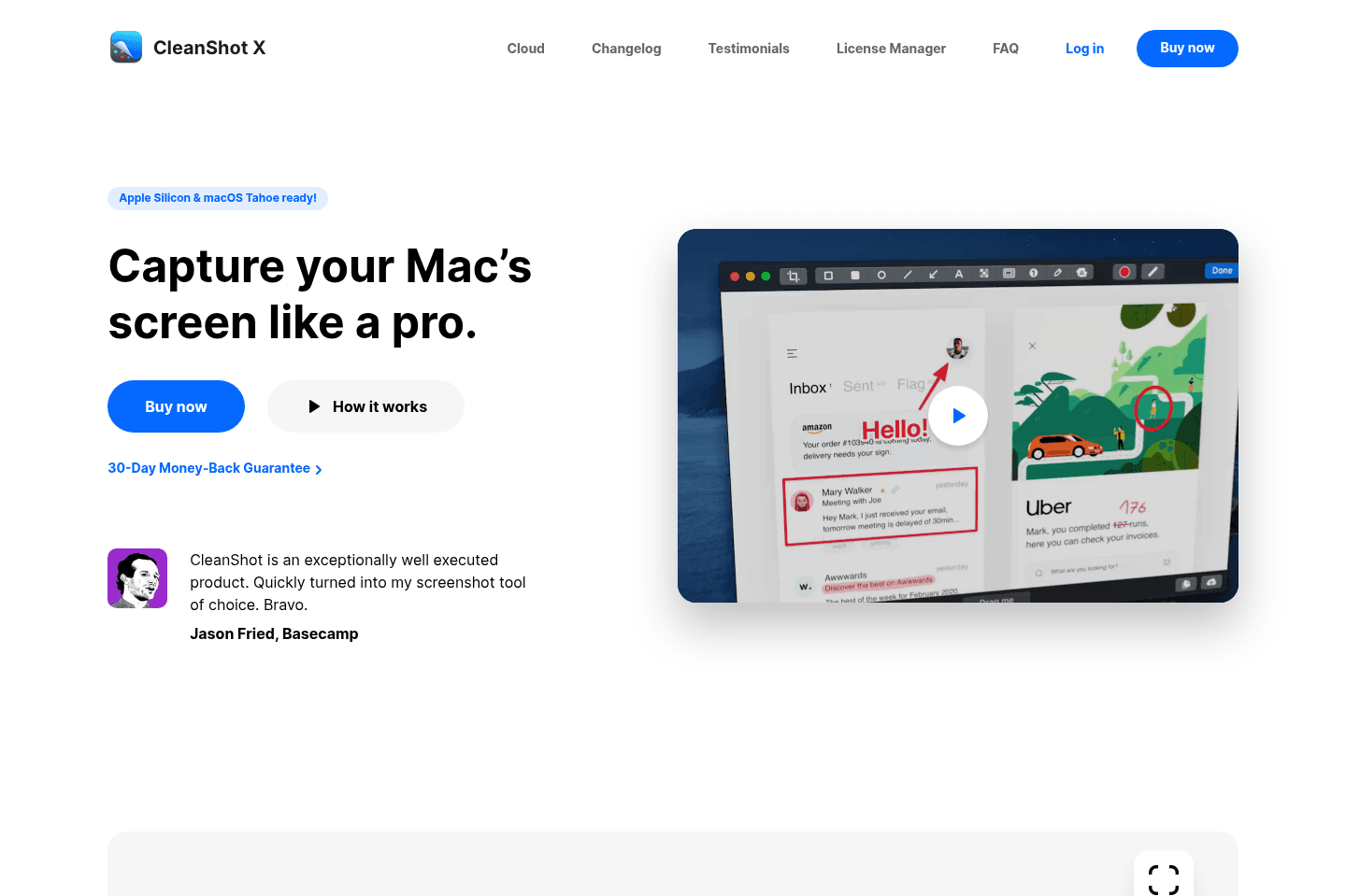
Best for fast Mac screenshotsCleanShot X lets you instantly copy screenshots so you can paste them anywhere without dragging files around, keeps your shots organized on the side of your screen, and makes it easy to annotate or blur sensitive info. If you take screenshots often and want to save time, this tool will make you much more productive and is worth switching to.
What is Cleanshot X?
What is Cleanshot X?CleanShot X is a screenshot and screen-recording app for macOS that replaces the built-in Mac screenshot tool.
It automatically copies every screenshot to your clipboard, stores recent captures in a floating tray instead of scattering them across your desktop, and includes built-in annotation, blur, and highlighting tools. It also records short screen clips and GIFs, and can generate shareable cloud links.
For years, I used the native Mac screenshot tool (which saves your screenshots to your desktop, and then you need to drag the image into your email or wherever you're trying to get it). I didn't think there was a better option out there.
Then I met Alex and he introduced me to CleanShot X that auto-copies the screenshot you take so you can paste it directly where you want. Whaaat? Let me tell you, this saves me so much time on a daily basis.
If you use a Mac, you need CleanShot X 😅 I seriously can't live without CleanShot X. Ever time I get a new laptop, it's the first thing I install.
Pros and Cons
Pros and ConsPros
Pros- Screenshots copy straight to your clipboard
- Recent screenshots sit in a tidy tray instead of scattering across your desktop
- Fast annotation, blur, and highlighting without opening a separate editor
- Never once noticed it slowing down my machine, even running in the background all day
- One-time $29 license option that pays for itself quickly
Cons:
Cons:- MacOS only
Key Features
Key FeaturesScreenshot Tray and Restore History
Screenshot Tray and Restore HistoryEvery screenshot automatically copies to your clipboard.
Recent screenshots live in a small floating tray on the side of your screen, so taking five in a row doesn't turn into a mess of files.
This is especially helpful when I'm collecting examples or grabbing screenshots for content.
The latest one is copied automatically, but I can still go back for an earlier one, and there's a shortcut that pulls up your history so you can restore something instead of retaking the same screenshot like a maniac.
Annotation, Blur, and Highlighting
Annotation, Blur, and HighlightingWhen I need to point something out to a teammate without writing a whole paragraph, I draw an arrow, number a few steps, highlight the thing that matters, and it's ready to go.
The blur tool also comes in handy on a near daily basis. We post a lot of screenshots, and hiding sensitive info in five seconds instead of opening another editor is incredibly helpful.
Cloud Sharing
Cloud SharingYou can upload a screenshot and generate a shareable link, which is handy when you'd rather hyperlink an image than paste or attach it.
For 99.9% of my screenshots I'm pasting directly or bringing them in locally, but the cloud sharing is helpful if I I need a quick link.
Pricing
Pricing- App + Cloud Basic: $29 one-time payment. Best for Mac users who take screenshots for content often.
- App + Cloud Pro: $8/mo/per user (annually) or $10/mo (monthly). Best for teams or power users who want cloud uploads, shareable screenshot links, and a more collaborative screenshot workflow.
Not a tool. A hire.
Dashlane
Best modern password manager
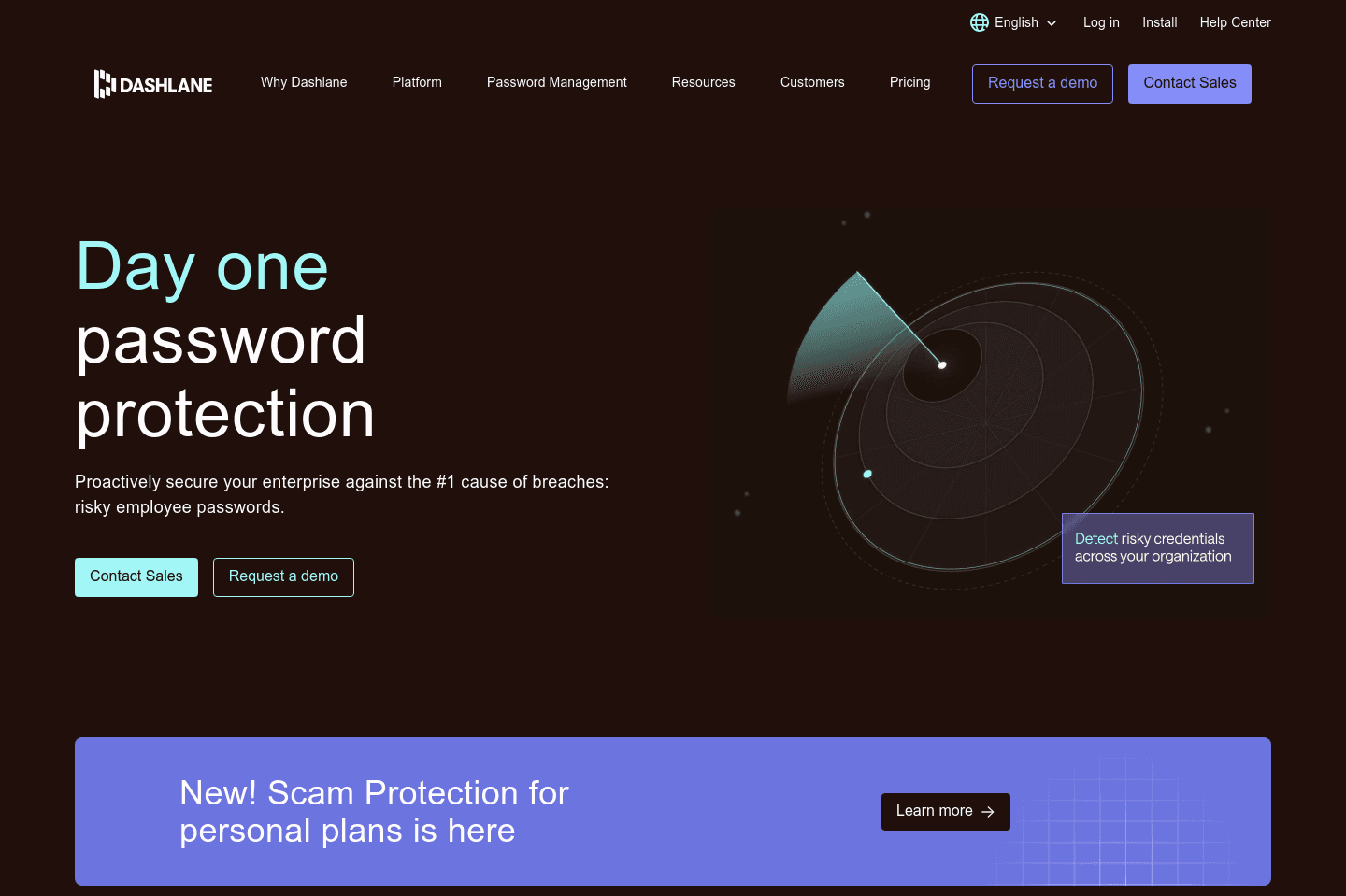
Best modern password managerDashlane is the most user-friendly and secure password manager on the market and also what we use for work and personal.
They started as a personal password manager before moving into business, so their UI/UX is focused on simplicity and being an enjoyable experience at the core.
What is Dashlane?
What is Dashlane?I'll preface this by saying that I've used LastPass, 1Password, Bitwarden, and even—only IT companies would recognize—IT Glue & MyGlue (a premium solution starting at $150/mo).
I first started using LastPass over a decade ago, got most of my family/friends on it, and eventually even customers as well (as a way to securely share passwords between companies).
The thing is, LastPass got acquired by LogMeIn and started becoming stagnant. It also went through what felt like a never-ending series of major data breaches over the years to follow.
This was when I started seriously evaluating alternatives (like Dashlane), as I knew it was going to be a heavy lift to switch—consisting of migrating myself (personal + work), family, friends, and even some customers all over to it from LastPass and MyGlue respectivel
For those more technical (or running an IT company) and considering IT Glue/MyGlue—it's great, but as a password manager, it's overkill. It's more of an IT infrastructure documentation tool, which they acquired a password manager, and rolled it into the mix. So you're paying a huge premium if you're planning on only using it as a password manager (as I was during the later years of pivoting away from the MSP side of the business).
Key Features
Key FeaturesPassword Manager
Password ManagerDashlane started as a password manager for consumers (B2C)—as at the end of the day, people need to manage passwords their many passwords across personal/work—and in the past few years, they've been focusing their efforts in building out the B2B (team management) component of Dashlane.
This is important because having used password managers built for companies, not people (e.g. IT Glue/MyGlue), you see first-hand that a powerful password manager is nothing if the end-user doesn't actually, well, use it... User-adoption is the most critical factor for a password manager to be successful.
That's where Dashlane stands out, because they were first-and-foremost a B2C company that built an exceptional end-user experience for everyday people, and have moved to the B2B market. This gives them a unique advantage in the space.
Take the mobile app (for iOS and Android), it's far and above the most modern and visually appealing of all the other password managers I've listed here.
That said, there is one area that lacking a bit with Dashlane (likely because they haven't been in B2B as long), and that's their API.
Security
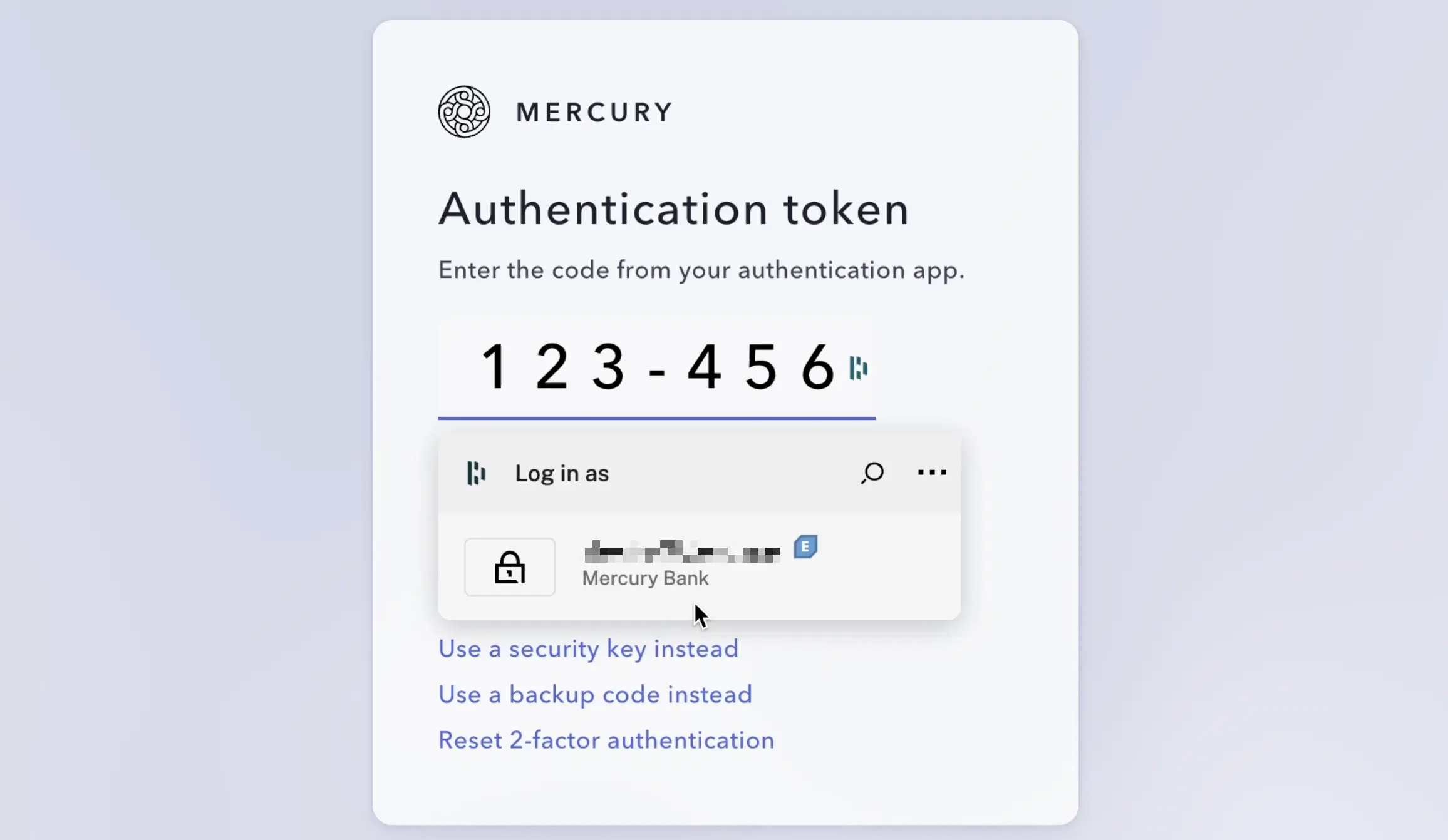
SecurityOnce you're using a password manager like Dashlane, you can also set up 2-Factor Authentication (2FA) from right within the existing password that you save for a site. So instead of using the insecure SMS 2FA (which won't work if you're without or in spotty cell connection, which also brings with it sending delays of up to 5 minutes. Not to mention being prone to spoofing, phishing, and social engineering attacks), you can instead set up a time-based code, which will even autofill when logging into a website while still adding a second layer of security (e.g. if your password leaks, someone still cannot login to your account without the additionally changing code). From over a decade in the IT space, I know all too well that never does higher security also mean higher convenience, but with Dashlane, it actually does:
Superhuman Mail
Best productivity email client
Best productivity email clientSuperhuman Mail is the best email client on the market. It's wildly fast, minimal (not bloated with features), and helps individuals and teams triage through emails most efficiently. We've been using it for 6+ years and can't ever imagine going back to regular email.
Claim the Superhuman free trial for 30 days free, which is more than enough time to see if it fits your workflow.
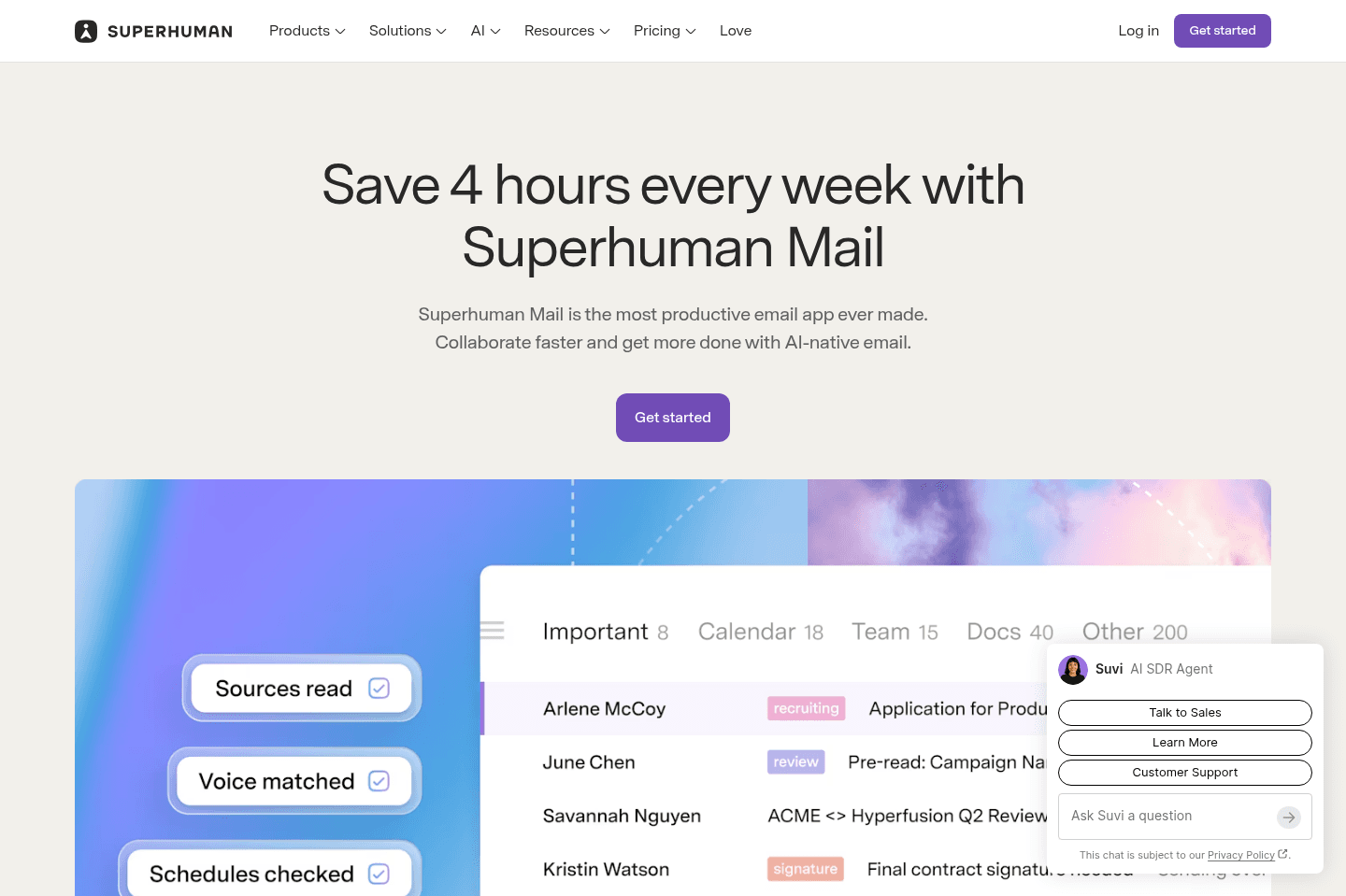
What is Superhuman Mail?
What is Superhuman Mail?Superhuman Mail is an email client, and a go-to tool for people who want the most modern email app experience. It helps you get through your emails much faster (we've used it for 7 years, and wouldn't use anything else).
It works on top of your existing Gmail or Outlook account, but you never actually open those again. Superhuman Mail becomes your entire email experience. Inside Superhuman Mail, you get a ton of productivity features to help you stay on top of your inbox (e.g. you can use keyboard shortcuts to triage through your email without ever touching your mouse, split inboxes, AI auto-labels, send later features, and even super fast snooze reminders).
If you get more than 10 emails a week, Superhuman Mail is absolutely worth trying.
Key Features
Key FeaturesFast & Minimal Email Interface
Fast & Minimal Email InterfaceThe biggest reason Superhuman Mail works so well is that it replaces the usual inbox experience with something much faster and much calmer. You can check out our Superhuman Mail Review to see screenshots of the interface.
The first time I used it, it genuinely felt like I could exhale while writing my emails.
Keyboard Shortcuts
Keyboard ShortcutsOne of the things longtime users love most about Superhuman Mail (including us) is how fast it feels once you learn the basics. You can archive, snooze, move through messages, open your calendar, and trigger commands without constantly reaching for your mouse.
When I first saw Alex using keyboard shortcuts to clear out his inbox, I felt like he was playing a cool video game. Hit CMD+K and basically take any action inside your inbox. It's super cool!
AI Features
AI FeaturesSuperhuman Mail has a lot of AI features that are actually thoughtfully integrated, not bolted on. One of the best is AI auto-labels, which can automatically group similar emails and turn them into inbox splits for you.
That means instead of jumping between unrelated conversations all day, you can triage in focused batches. For example, you can separate team emails from admin and tax emails, or keep partnership and sales conversations in their own lane. You can also auto-archive certain types of emails, which cuts down on noise without adding more manual work. For productivity, this is a big deal. It is about protecting your attention while you work!
More than that, Superhuman Mail notices when an email likely needs a nudge and uses AI to draft a follow-up for you. It writes the follow-up, so when you open your inbox, all you need to do is hit send. For sales, partnerships, recruiting, it keeps the conversation going with little mental effort.
Pricing
Pricing- Monthly: $30/mo
- Annual: $300/year
Not a tool. A hire.
Dia Browser
Best for AI power users living in the browser
Best for AI power users living in the browserDia Browser is effectively the AI version of Arc Browser, developed by the same team.
In-fact, most of the features that made Arc great (like the exceptional sidebar, tab management, and profiles features of Arc), have made their way to Dia, all with a modern AI chatbot experience baked in at the core.
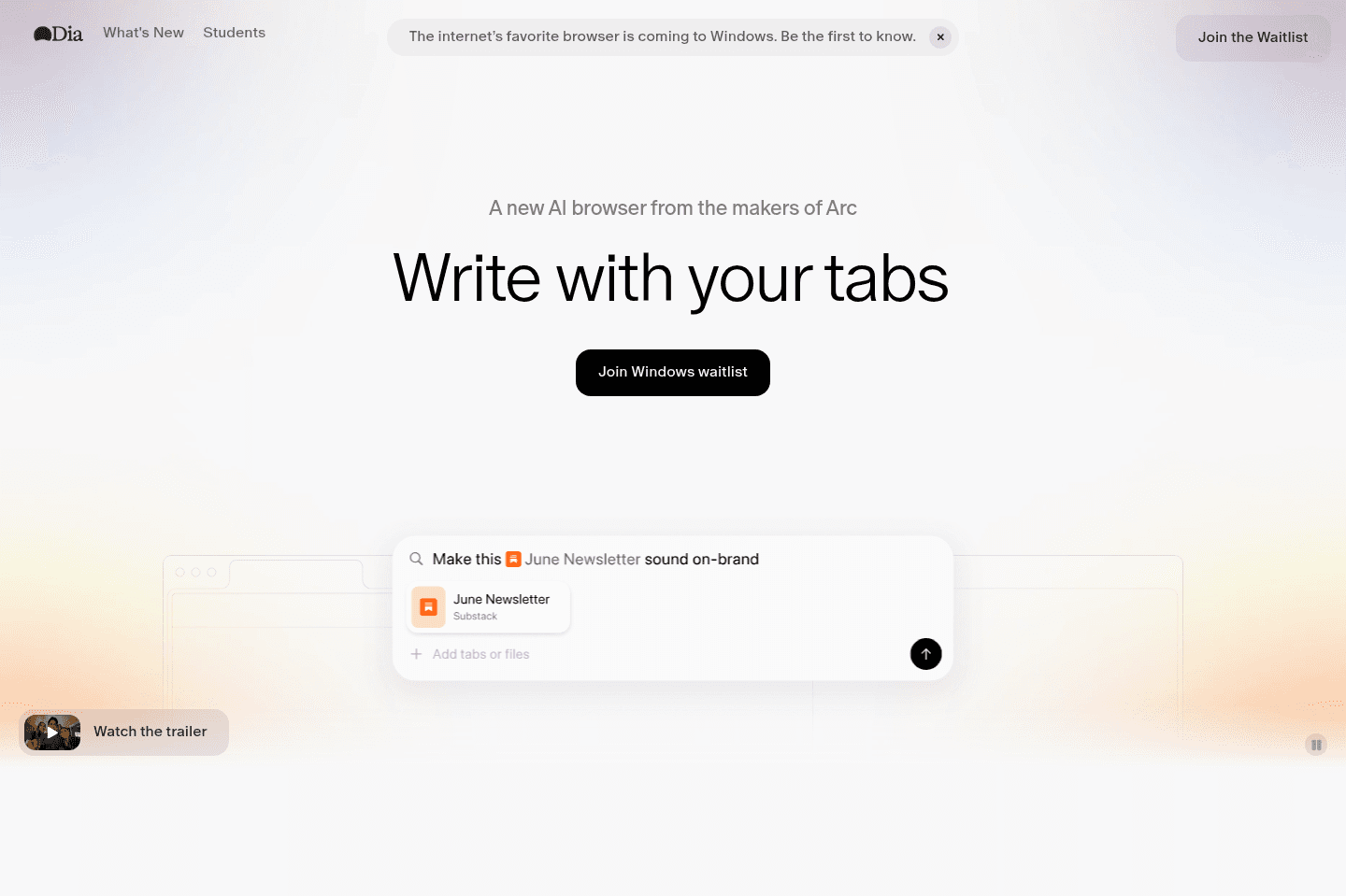
What is Dia Browser?
What is Dia Browser?Dia Browser is one of the latest AI web browsers from The Browser Company (the same team who built Arc Browser).
After The Browser Company got acquired by Atlassian for $610M, they were given the full resources to double-down on their AI browser, Dia.
Who is Dia Browser For?
Who is Dia Browser For?Dia is for those who are super excited about agentic browsers (think of a baked-in AI chat sidebar, that can co-pilot the browser with you at times).
Pros & Cons
Pros & ConsPros
Pros- Dia has one of the most performant browsers out of all the current AI browsers on the market.
- Backed by the same team as the beloved Arc Browser, much of what made Arc great has been making its way to Dia.
- Since getting acquired for $610M, they now have the full backing of a $20B+ publicly traded company (Atlassian), to experiment and build in one of the most expensive and competitive spaces in the market.
Cons
Cons- Dia hasn't decided to go the path of Agent Mode (controlling your browser for you), type features that both ChatGPT Atlas and Comet have gone deep into. So if you're looking for that, it's not likely coming.
- They can't currently use your actual ChatGPT history, so while their chat experience is beautiful and works well, I do at times wish I had more of the context from my ChatGPT account.
- They don't yet have a mobile app for iOS or Android, which feels important for something as core as your browser.
Key Features
Key FeaturesSkills
SkillsIf you're someone that likes the idea of being able to have pre-built prompts that can be ran that interact with and take into consideration the content on the page you're visiting, then you'll love their "Skills" functionality.
Pricing
PricingDia is currently totally free, with an optional $20/mo tier, that unlocks unlimited AI chat limits.
That said, you'd be hard-pressed to hit limits on the free tier, I only hit it once, and I was doing some pretty deep shopping research, referencing dozens of tabs and YouTube video content.
Final Verdict
Final VerdictDia is one of the leading AI browsers in the space, arguably with the most talented and thoughtful product and design team behind it (and now with Atlassian's backing, nearly infinite resources at their hands).
Dia is definitely worth giving it a try, the only question is really whether or not you're open to switching browsers or not. As that's likely the largest blocker. Although, if you're on this page right now, that's likely exactly what you're looking to do, so yes, Dia is worth giving a shot, especially if you've never tried and AI browser.
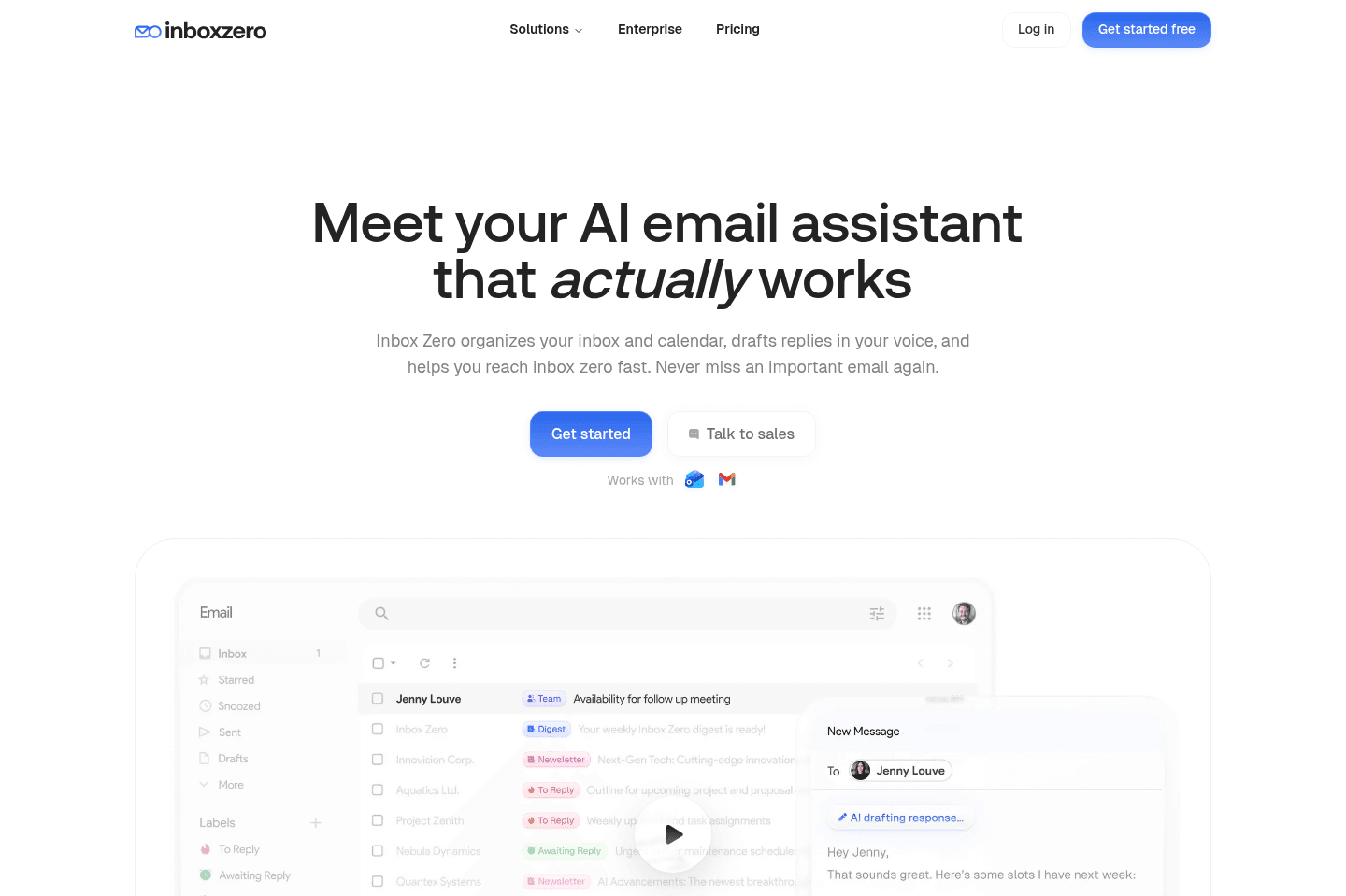
What is Inbox Zero?
What is Inbox Zero?Inbox Zero (not to be confused with what Superhuman Mail refers to getting through all your emails) is a layer atop your Gmail that helps you to easily unsubscribe from newsletters and automate label/forwarding flows all via AI.
The area that we use and love with Inbox Zero is where it helps us tame our email inbox, sort of like Mailman, but it focuses more on actually leveraging AI to automatically take action on your email (or unsubscribe if you're getting many newsletters but not reading any of them.
Key Features
Key FeaturesOpen-Source
Open-SourceOne thing to keep in mind with Inbox Zero (and how it differentiates from its competitors) is that it is an open source AI email assistant with thousands of stars on GitHub, so go and check out the code yourself if you'd like:
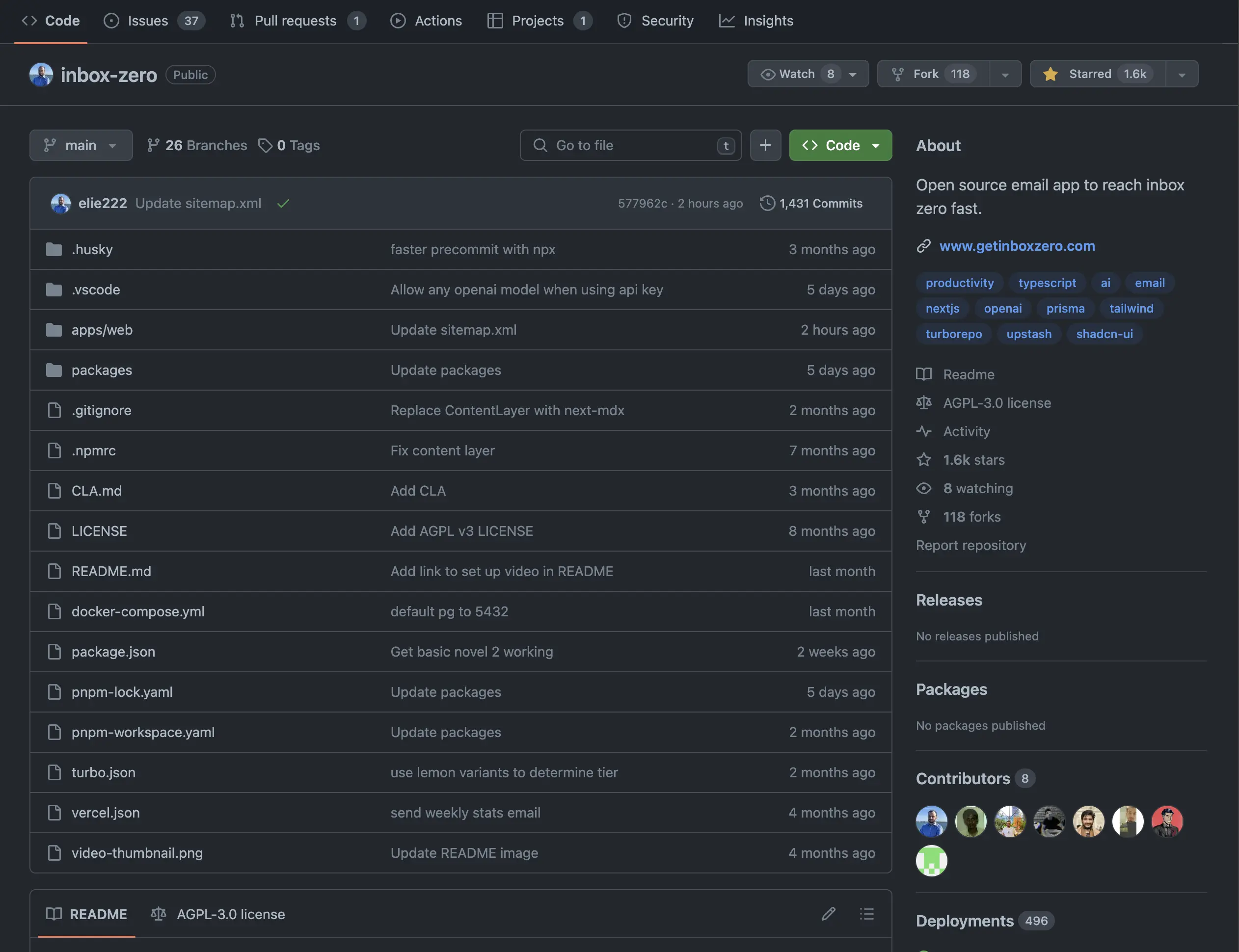
Inbox Zero Open-Source GitHub Rep
Pricing
Pricing- Basic: $6/month on annual tier + $1.50/month for each additional email account
- Business: $12/month on annual tier + $3/month for each additional email account
Not a tool. A hire.
Motion
Best for those who want an AI personal assistant
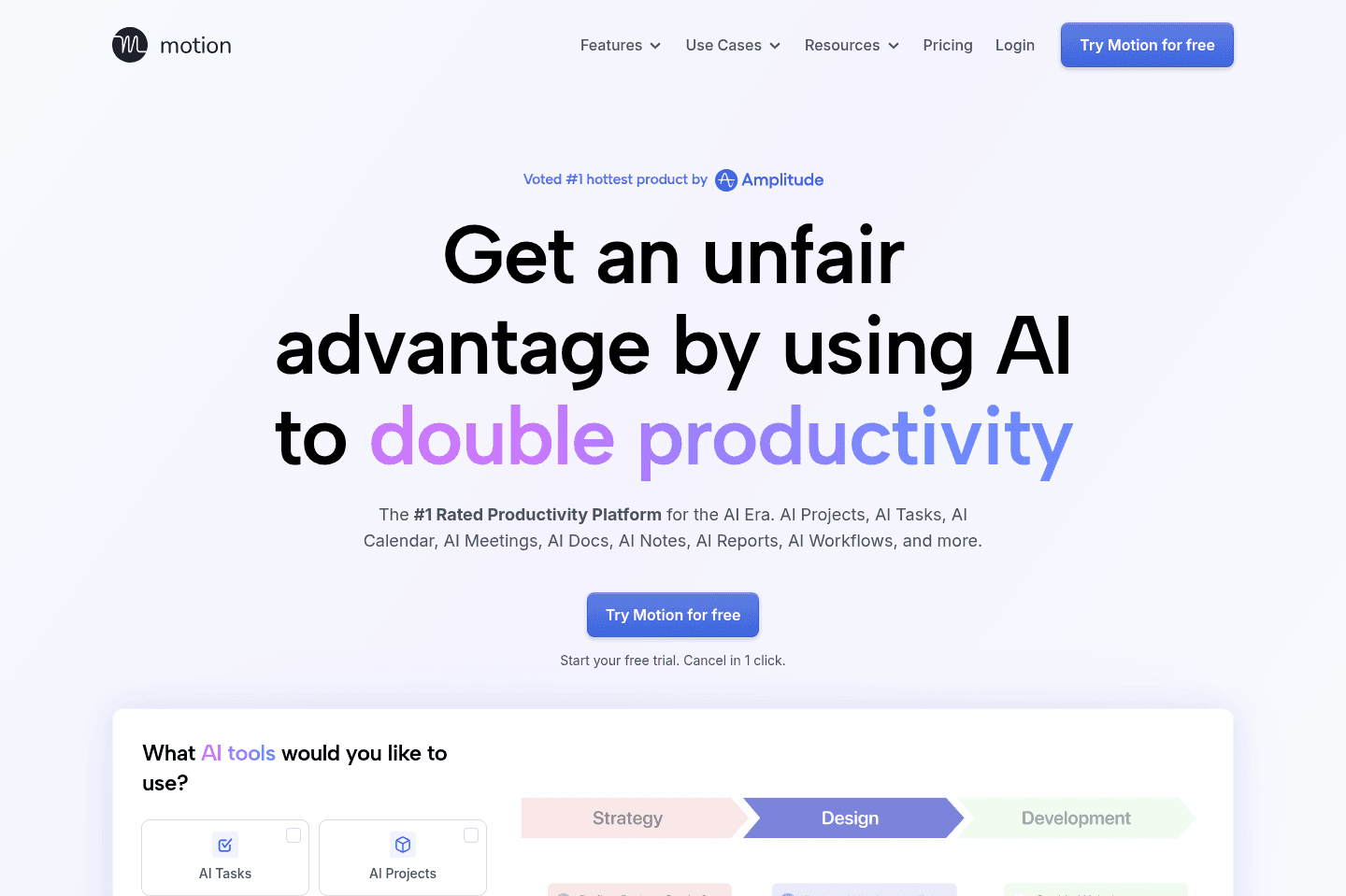
Best for those who want an AI personal assistantMotion is the most innovative AI-powered project management tool for individuals and teams who want to fully embrace AI to get work done.
It uses AI to take all of your team's projects, tasks, priorities, deadlines, and dependencies to build the perfect day for you and your team, time blocking tasks right on your calendar. They also have AI Docs, & an AI Note Taker, helping you get work done faster.
We've been using it for 5 years and is core to how we manage our time and projects!
What is Motion?
What is Motion?There’s a big difference between perceived productivity, i.e., trying new apps, color-coding everything, reorganizing your system for the fifth time, versus actually finishing meaningful work. Motion leans into the second camp.
It's more focused on taking away the busy work that silently eats up all your time and less about making everything look perfectly organized.
It does this through its AI auto-scheduling feature, which works by taking all the tasks on your calendar and using AI to create a schedule that makes sense. Meaning you log on for your workday, and all your tasks are scheduled. You know exactly where to jump in with no guesswork.
It's built for people who actually want to get work done and not just tinker with productivity tools.
Motion's AI assistant basically takes the place of an assistant who would plan your day for you. So, instead of rearranging tasks or deciding what to work on next, you open your calendar, and it’s already mapped out.
Pros and Cons
Pros and ConsPros
Pros- Automatically schedules tasks onto your calendar
- Eliminates constant manual planning and rearranging
- Fully mapped-out daily schedule
Cons
Cons- Not ideal for people who enjoy customizing and constantly reorganizing tools
- Less focused on aesthetics or perfectly polished layouts
Key Features
Key FeaturesAI Calendar
AI CalendarYou come in, look at your calendar, and everything is laid out. You know what needs to get done, and your team has a clear picture.
AI Task Auto-Scheduling
AI Task Auto-SchedulingMotion places your tasks directly onto your calendar so you don’t have to decide what to work on next. You open your day, and it’s already planned.
Workflow Templates
Workflow TemplatesWorkflow Templates in Motion are reusable project templates that define exactly how your work gets done from start to finish. They remove mental overhead by clearly mapping out every step of your process, so you can jump straight into execution without second guessing what comes next or forgetting critical steps.
They include your roles, stages, tasks, and key details so every project follows the same structured process. Once set up, Motion uses the template to automatically schedule everything on your team's calendars and adjust timelines when things change.
Pricing
PricingMotions prices range from $19 to $34 per month (Individual to Team plans).
Sunsama
Best for mindful planning
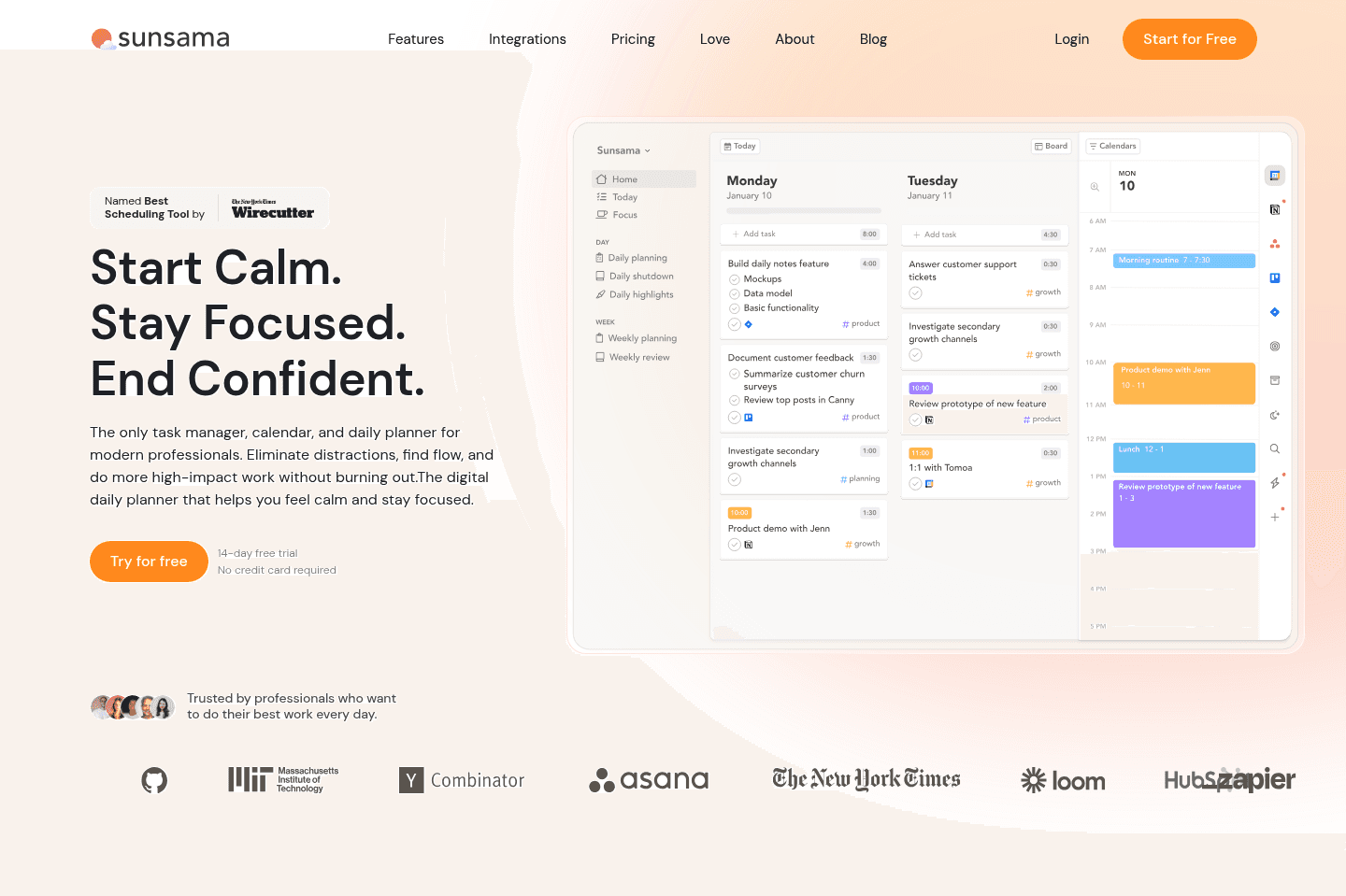
Best for mindful planningIf you often feel like you are biting off more than you can chew in your day and then beating yourself up for not being productive enough, Sunsama is for you. It helps you plan your tasks on your calendar to get a more realistic view of what you can get done.
Make sure to grab a Sunsama free trial for a free 30 days, if you want to try it (this is normally only 14 days if you go through their site). No credit card required so giving it a shot is easy compared to other daily planners.
What is Sunsama?
What is Sunsama?Sunsama is a mindful daily planner first, and an AI productivity tool second. It's ideal if you love the idea of manually planning your day, but still want some AI assistance.
The AI features mostly support the manual planning process instead of taking it over. They offer recommendations for planned time estimates and channels for tasks based on past tasks and timer data.
It's definitely not Motion-style AI scheduling where the tool figures out your whole day for you, and that's kinda the point. Sunsama's going to be for the productivity person who wants to stay in control, but with a little bit of AI magic around the edges.
Pros and Cons
Pros and ConsPros
Pros- Structured daily routines
- Daily planning and time blocking
- Beautiful, calming, minimal design
- Strong philosophy around healthy work habits
- AI time estimates and channel recommendations
- Integrates with popular tools like Asana, Gmail, Slack, and more
Cons
Cons- Heavy manual daily planning
- Limited team collaboration features
- No full AI auto-scheduling like Motion
- Time-consuming for busy professionals
- AI features are helpful, but not a differentiator
Key Features
Key FeaturesDaily Planning
Daily PlanningI originally tried Sunsama because I was trying to be more mindful of my workload.
When I tried Sunsama, I really liked that it created an experience that guided me through a routine, a decision-making routine, instead of having me blast through tasks as fast as possible. Overall, it did a great job of forcing me to confront my actual work capacity instead of over scheduling myself.
Naturally, I was curious how they were going to marry AI features with this mindfulness without giving AI the keys to planning my full day.
Surprisingly, the AI features fit into the philosophy better than I expected. It does things like recommend how long a task will take and which channel it belongs in based on the work you've already added and tracked.
This is especialy helpful for people like me, who have time blindness. The AI keeps you from pretending a task will only take 20 minutes when it actually is going to take you an hour.
Daily Shutdown & Reflection
Daily Shutdown & ReflectionJust like the beginning of your day, Sunsama also has a shutdown routine at the end of your day. There's also this "Daily Highlights" feature that I like. It uses AI to provide you with a personal reflection and a list of tasks, giving you a solid summary to help you get a good visual of where your time went.
Obviously, for those whose goal is speed, the intentionality behind Sunsama will probably feel unnecessary, but for productivity people who care about awareness, it'll do a great job of helping you build better, healthier work boundaries.
Pricing
Pricing- Yearly Subscription: $16/month (Save 20% when you pay up front)
- Monthly Subscription: $20/month
Not a tool. A hire.