Google SSO
Google SSO
Google SSO Button (example)
What Is Google SSO?
What Is Google SSO?SSO is Single Sign-On, which ultimately just means, instead of using a new complex master password with your password manager, how could your team go about simply logging in with Google instead?
This would make Dashlane in some way feel like a Google password manager, but one with password sharing, team collaboration, more secure password functionality, and an alternative to Google authenticator 2FA functionality built right into Dashlane.
Why Use Google SSO?
Why Use Google SSO?Setting up Google login (SSO) for your software is a huge value add to your team, getting everyone easy access to their Dashlane password manager, well, if you're technical enough to manage to get it working that is... 😅
As someone that literally started an IT company over a decade ago and ran it for over 5 years, I too struggle getting Google SSO working with my favorite apps.
So if you're anything like me, looking to enable Google login for your team (or should I call it IdP (Identity Provider), SAML (Security Assertion Markup Language), or SSO (Single Sign On), yeah, that's what I'm talking about, and we're here to help you set it up once and for all.
Dashlane Password Manager
Dashlane Password ManagerDashlane is, in our opinion one of the best password managers on the market. With the built-in authenticator app, you won't need additional security tools like Authy or Google Authenticator. The main downfall is that using any password management software, you're also introducing an additional master password (that should be unique), and your team might not love you for this. 😅
Dashlane with Google SSO
Dashlane with Google SSOEnter all the benefits of Dashlane, without the downfalls that come with higher security!
If you haven't yet signed up for the Dashlane Business tier for your Dashlane account (required for SSO), you can sign up for your free 14 day trial with an additional Dashlane discount.
Once you're logged in, you're going to want to visit the admin console of Dashlane (you can access it by visiting your Dashlane password vault and pressing "Open Admin Console" in the bottom-left corner). From there, you can visit Single sign-on -> Confidential SSO:
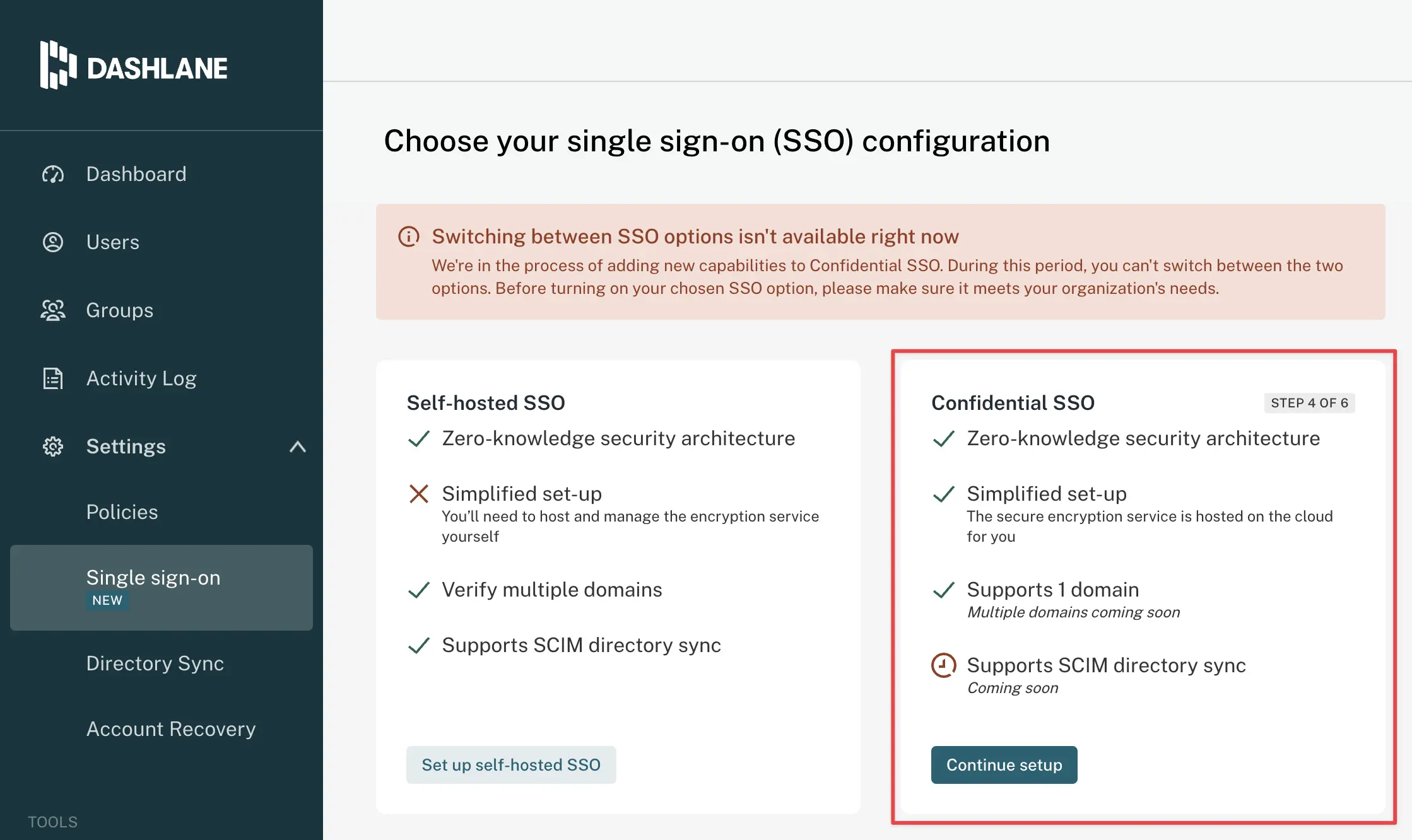
This guide is specifically for Confidential SSO, not Self-hosted SSO
From here, you'll see the steps you need to complete and what information you need to copy/paste (some of it is universal, other parts, like the DNS verification, is unique to your account). We'll go through those steps below in this guide.
Google Admin Console
Google Admin ConsoleCreate a Custom SAML App
Create a Custom SAML AppIn the Google Workspace Admin console, select Apps → Web and mobile apps from the navigation. On the Web and mobile apps screen, select Add App → Add custom SAML app:
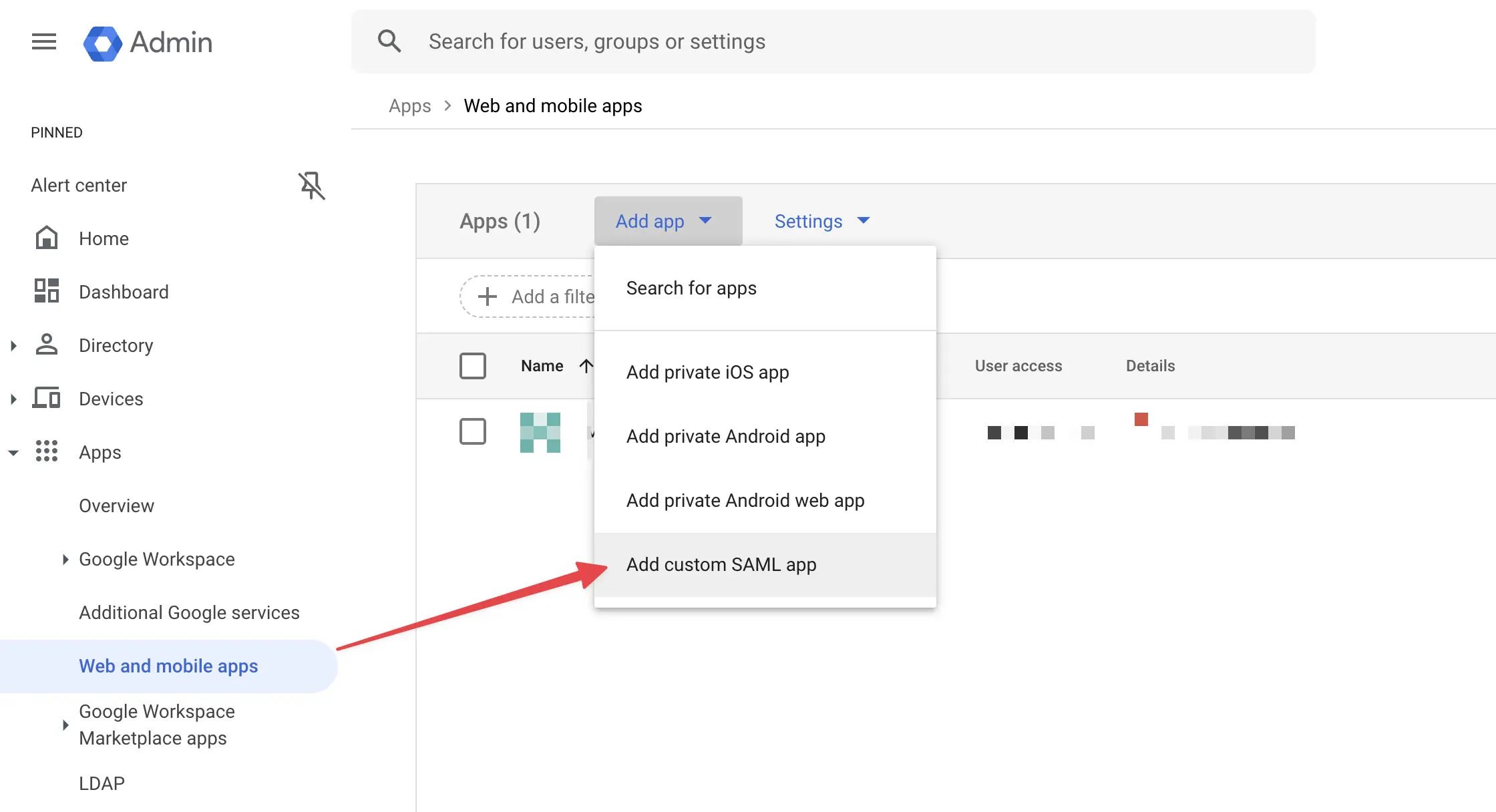
Add Custom SAML App in Google Admin Console
App Details
App DetailsOn the app details screen, give the application a unique Dashlane-specific name and select the Continue button.
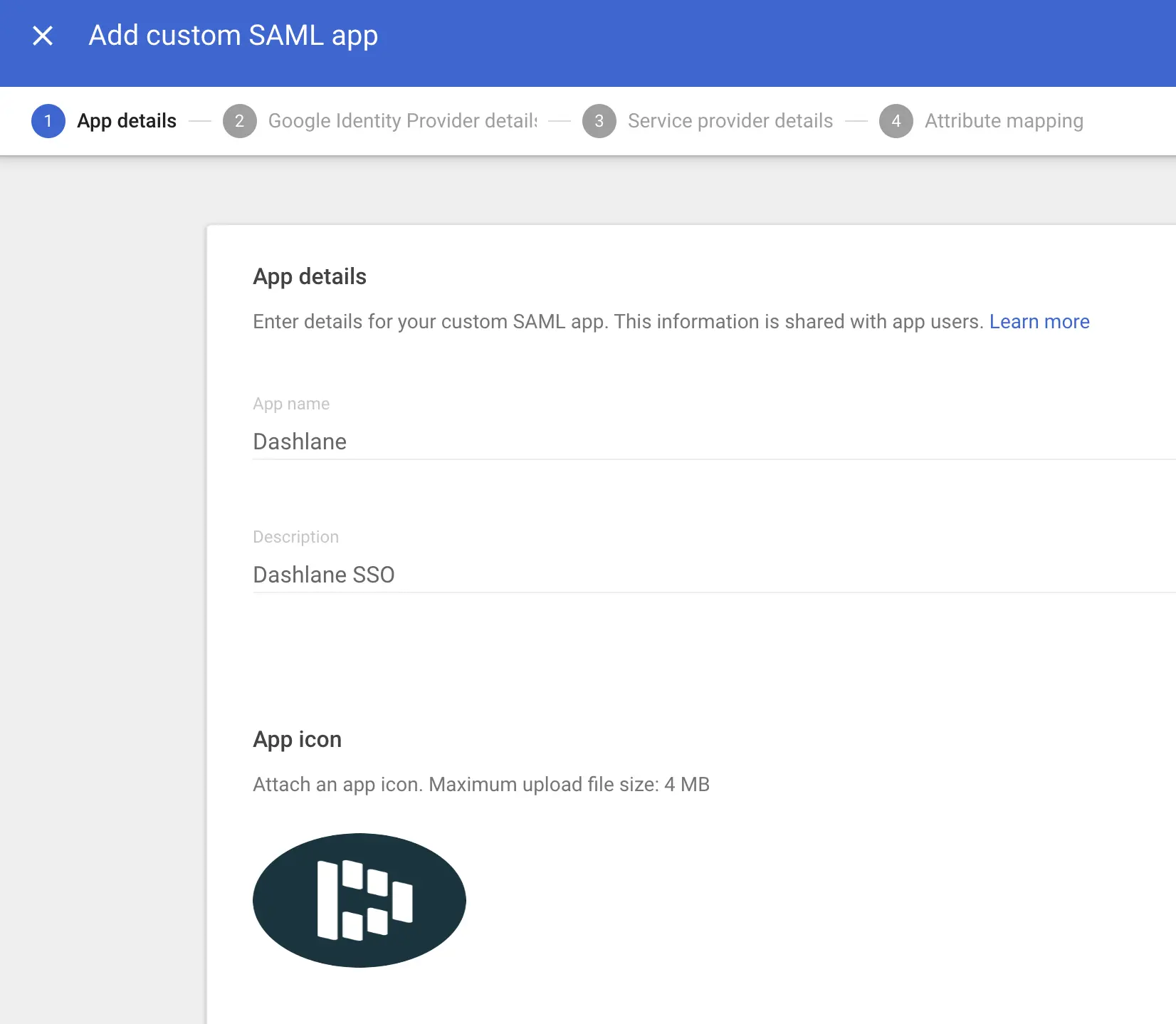
For some reason the logo looks stretched, but upon saving it, it looks fine
You can use the beautiful Dashlane logo that we made right here:

Dashlane Logo
Google Identity Provider Details
Google Identity Provider DetailsOn the Google Identity Provider details screen, use Option 1 and Download Metadata:
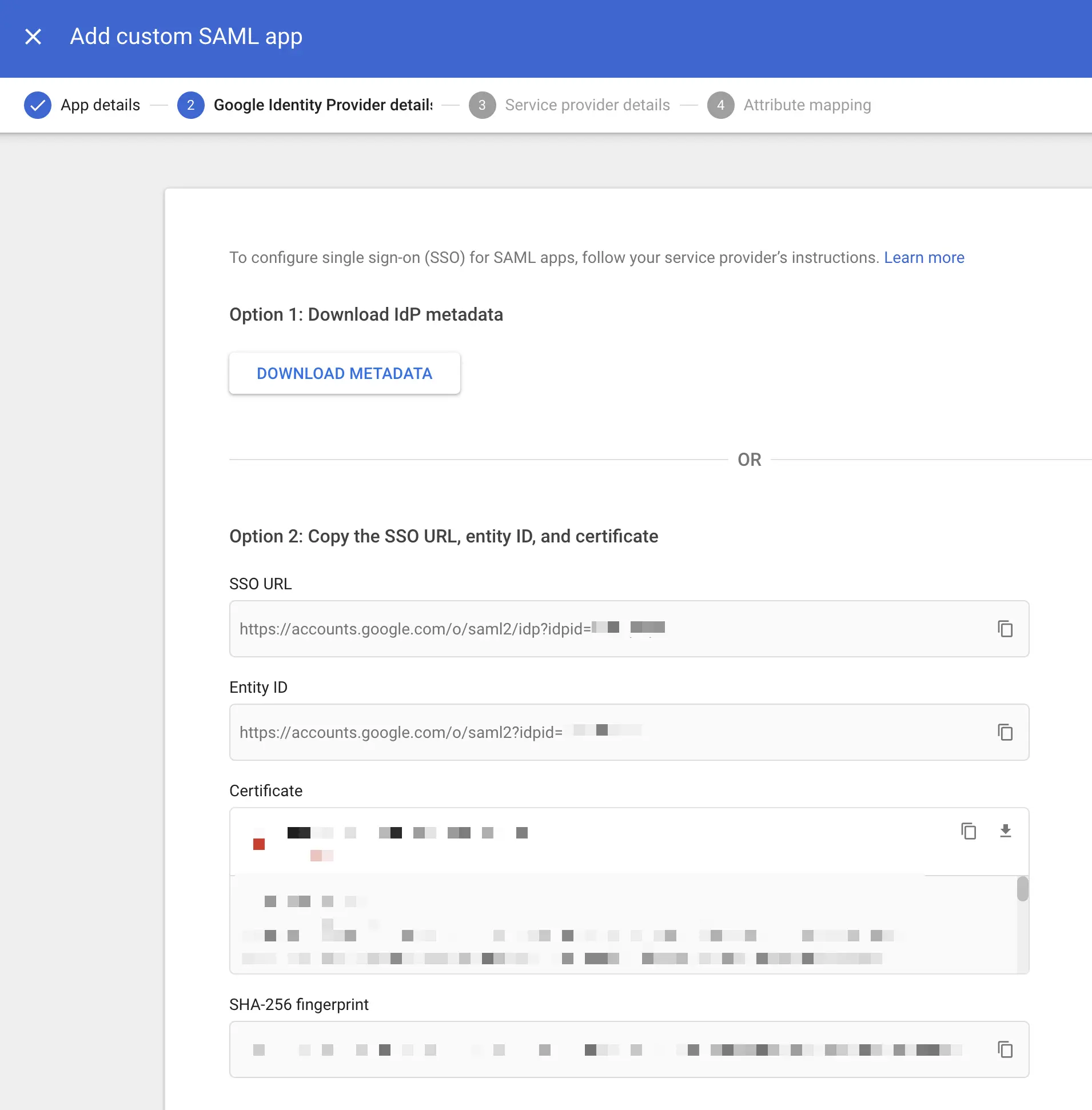
You're going to want to open up the XML file it downloaded googleidpmetadata.xml and copy the contents and pasting them back in the Dashlane Admin console under Step 2:
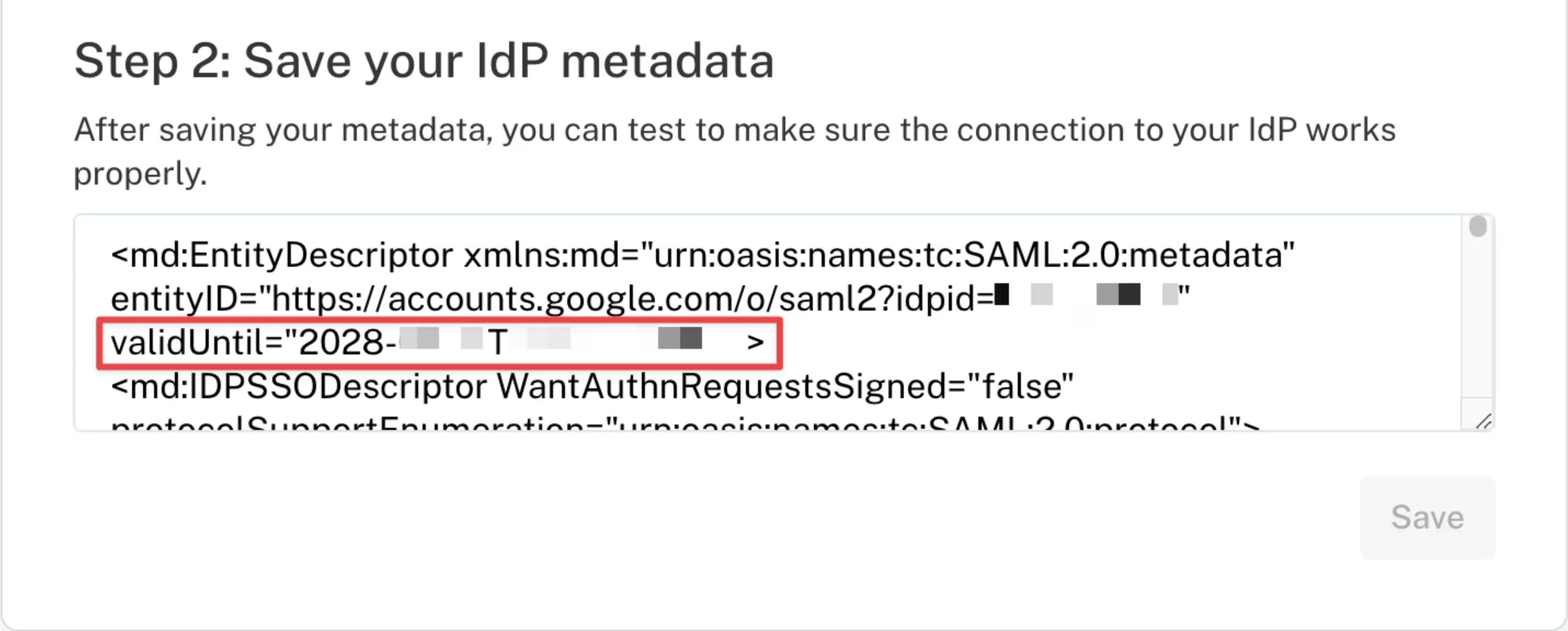
This valid until date should be in the future
If the Valid Until date is not in the future, that means the certificate is expired. If the certificate is expired, that's fine, you can renew it later (after you complete setup), just continue for now—mind you, most people will not experience this:
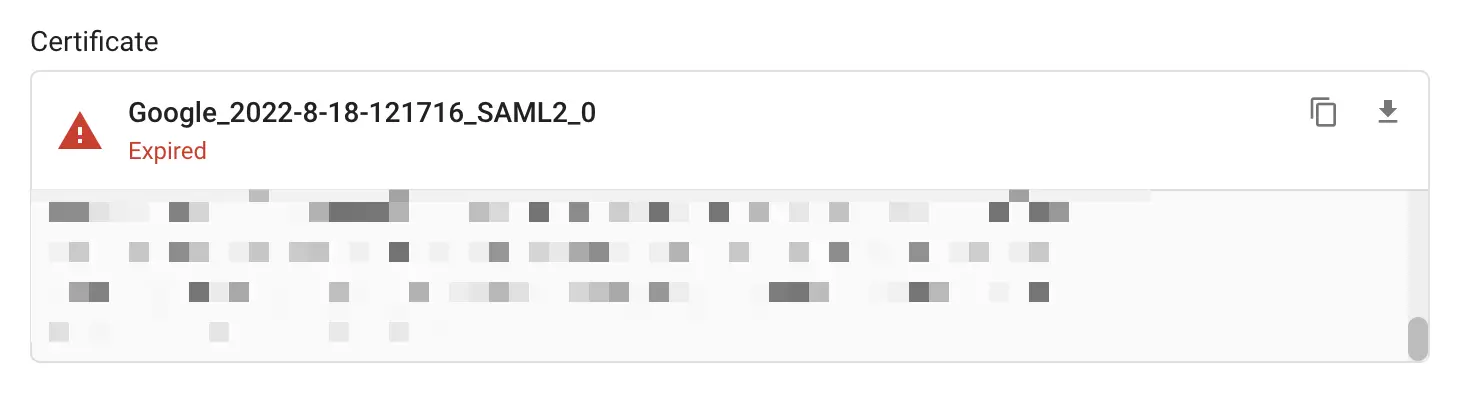
You might get an expired certificate alert here—we'll deal with that later
Select Continue when you are finished.
Service Provider Details
Service Provider DetailsOn the Service provider details screen, configure the following fields:
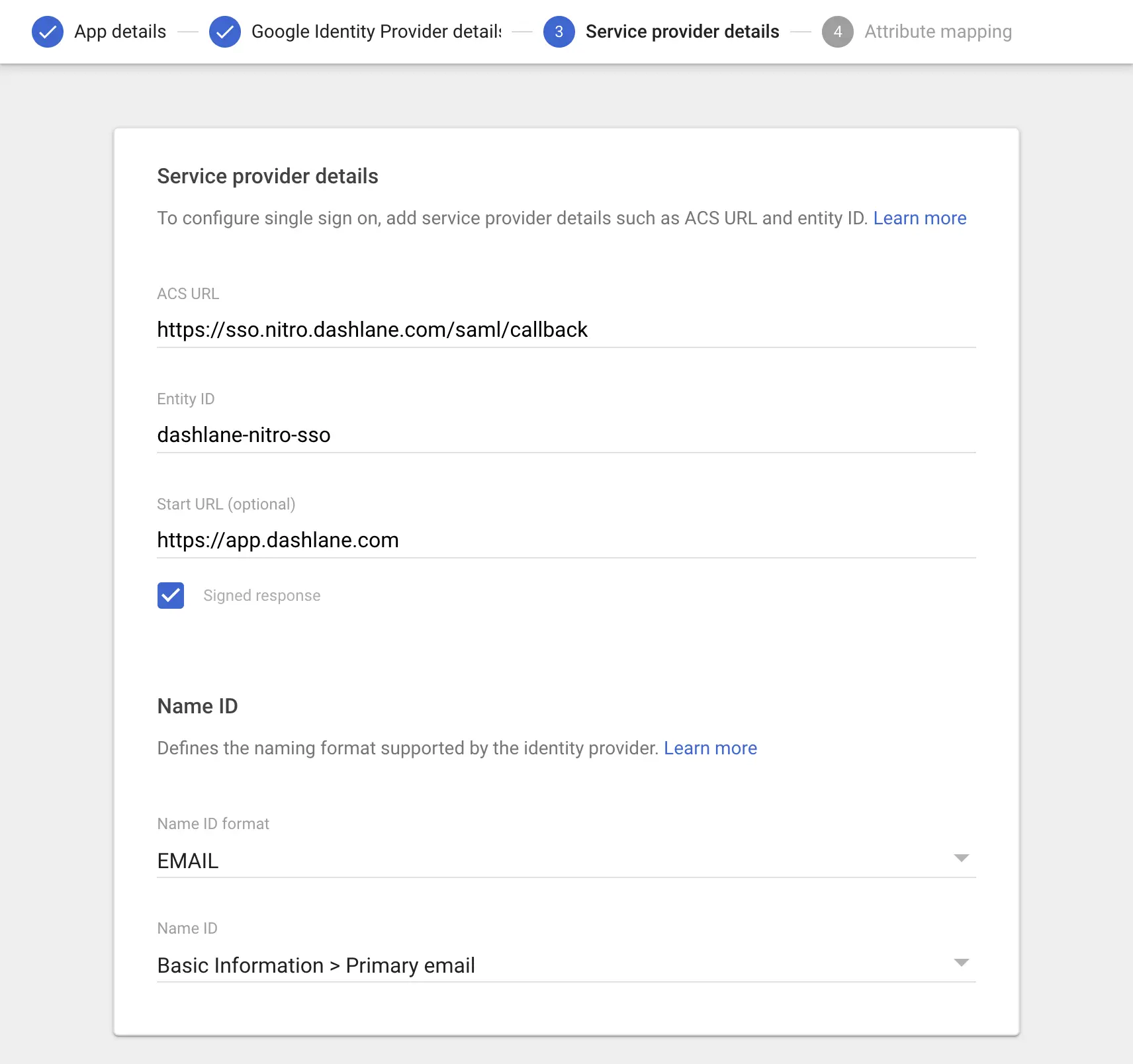
Fields Explained
ACS URL:
Set this field to the pre-generated Assertion Consumer Service (ACS) URL retrieved from the Dashlane SSO configuration screen.
Entity ID: dashlane-nitro-sso
Set this field to the pre-generated SP Entity ID retrieved from the Dashlane SSO Configuration screen.
Start URL: https://app(.)dashlane(.)com
Optionally, set this field to the login URL from which users will access Dashlane.
Signed response: ✅
Check this box if you want Workspace to sign SAML responses. If not checked, Workspace will sign only the SAML assertion. (We've checked this box)
Name ID format: EMAIL
Name ID: Basic Information > Primary Email
(Unless you'd rather use a different attribute like name, but email address will be the most unique and is recommended)
Select Continue when you are finished.
Attribute Mapping
Attribute MappingOn the Attribute mapping screen, select the Add Mapping button and construct the following mapping:
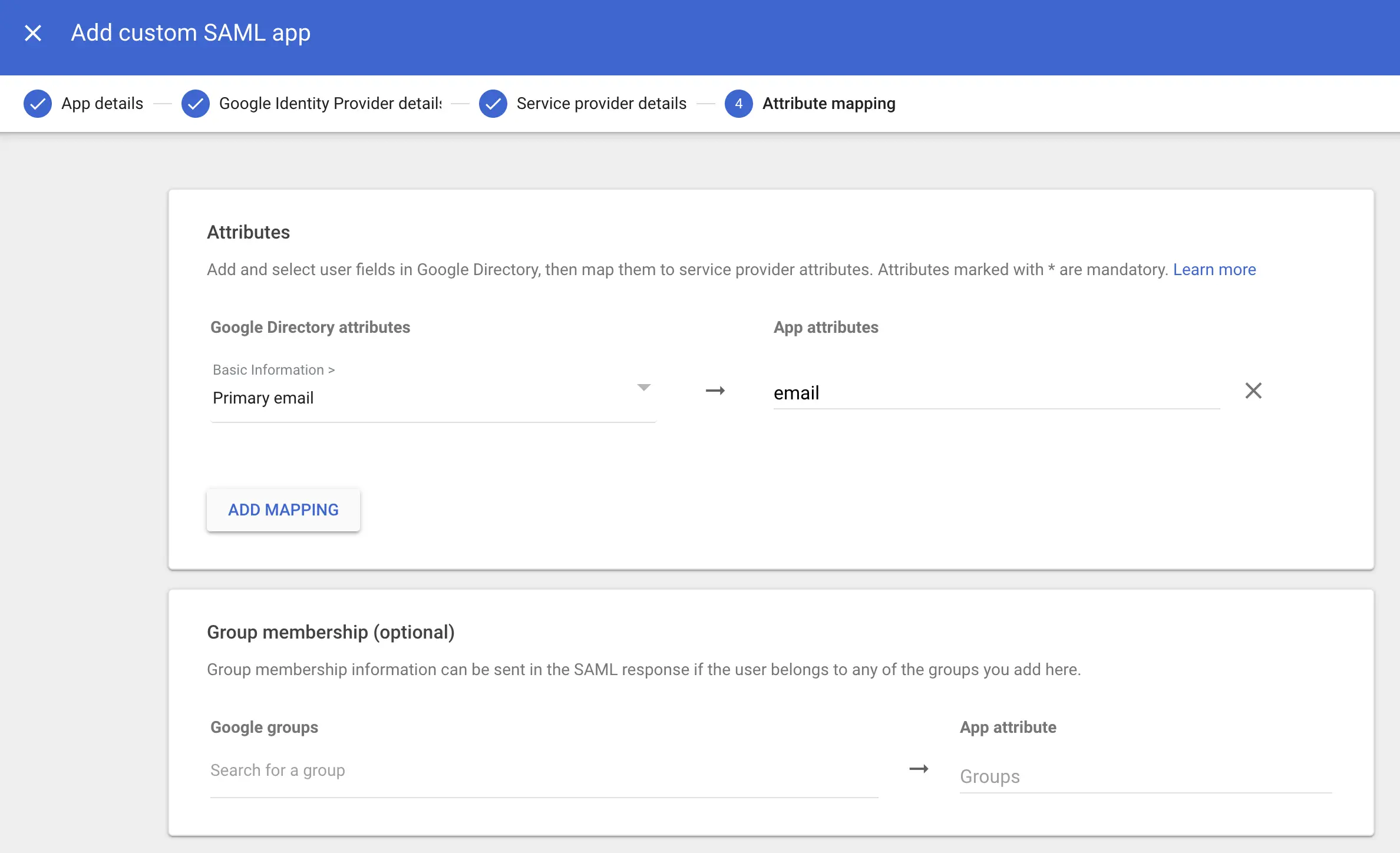
Mapping your attributes in Google Workspace Custom SAML App Setup
Google Directory attributes: Primary email
App attributes: email
Select Finish.
Debugging Issues (Optional)
Debugging Issues (Optional)Certificate Expired
If your certificate is expired (mentioned back in Step 2 as a potential issue that may have arisen), select Manage Certificates under Apps > Web and mobile Apps > Dashlane > Service provider details > Manage certificates:
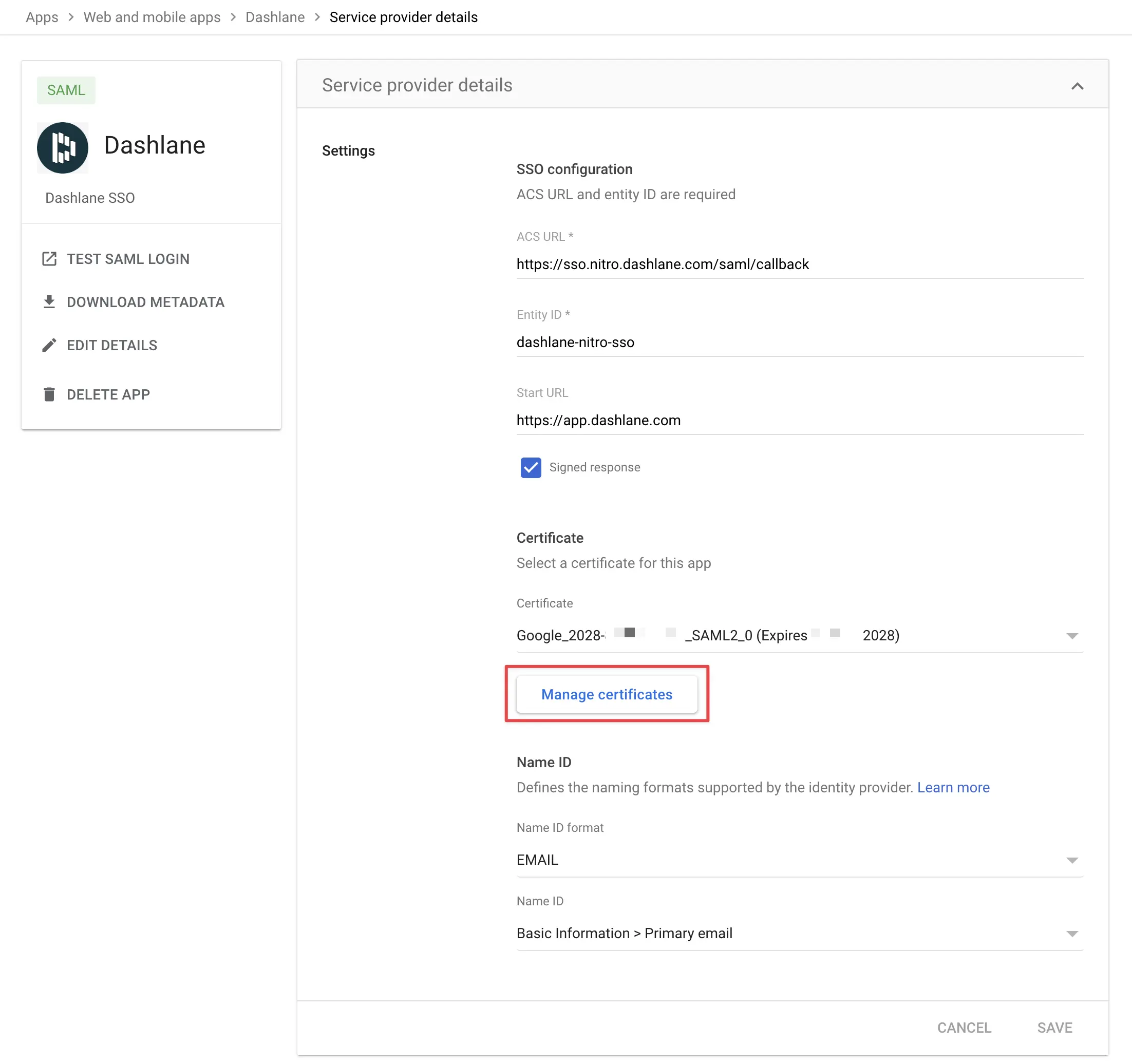
Debugging certificate expired
And then select "Add Certificate":
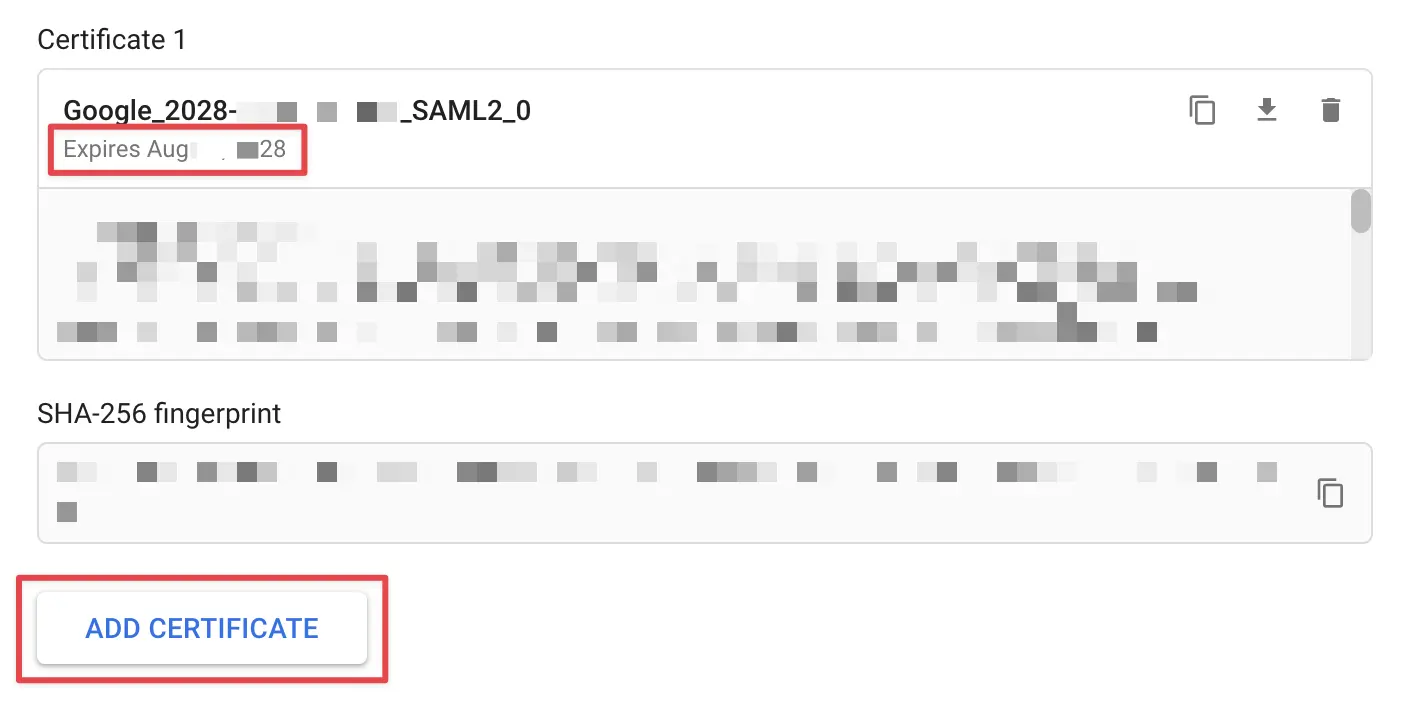
Select add certificate (only if it's expired already)
Then select the new certificate on the prior screen (you might need to refresh if it's not letting you select the new certificate).
Re-Download Metadata
Make sure you also download the new Google IdP Metadata after adding the new certificate:
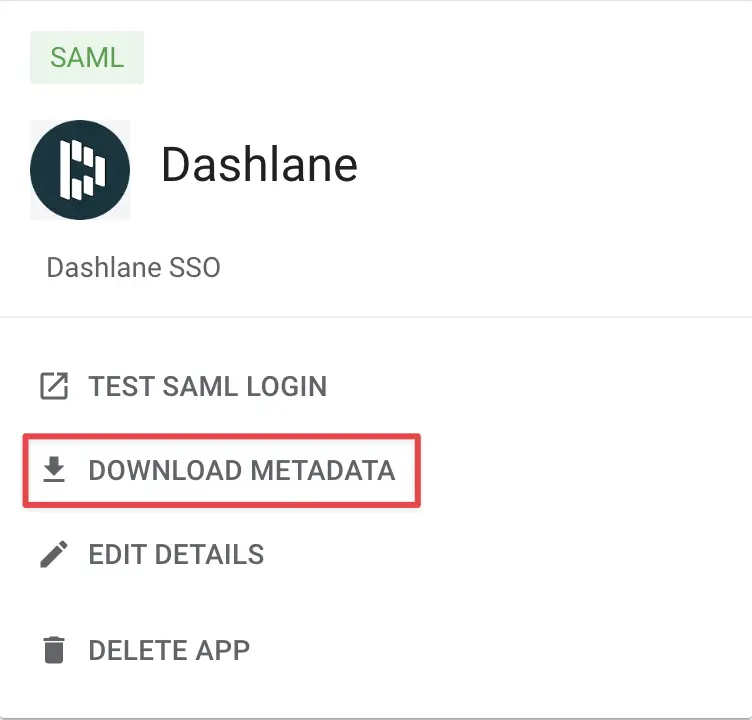
Download IdP Metadata
And be sure to open the downloaded file, googleidpmetadata.xml and copy the contents and pasting them back in the Dashlane Admin console under Step 2:
Ensure this date is in the future before saving
Turn on the app
Turn on the appBy default, Workspace SAML apps will be OFF for everyone. Open the User access section for the SAML app and set to ON for everyone or for specific Groups, depending on your needs:
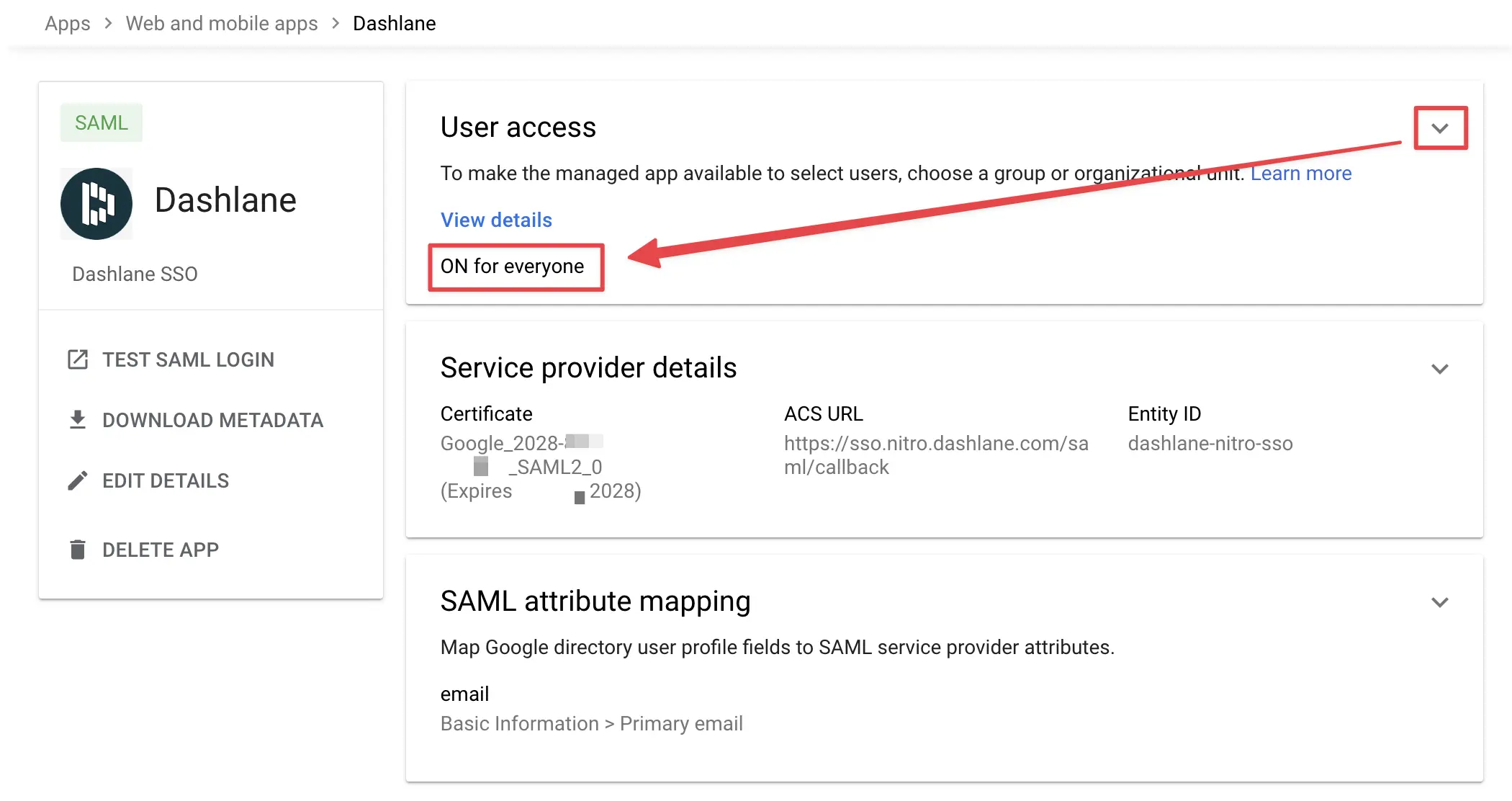
Ensure it's turned on for everyone
User Access
Save your changes. Please note that it can take up to 24 hours for a new Workspace app to propagate to users existing sessions, although it should be pretty immediate.
Dashlane Admin Console
Dashlane Admin ConsoleAt this point, you have configured everything you need within the context of the Google Workspace Admin console. Return to the Dashlane web password vault admin area to complete the configuration:
Dashlane SSO Admin Console
Step 3: Domain Name
Step 3: Domain NameEnter the email domain for your company and then select "Update Email Domain":
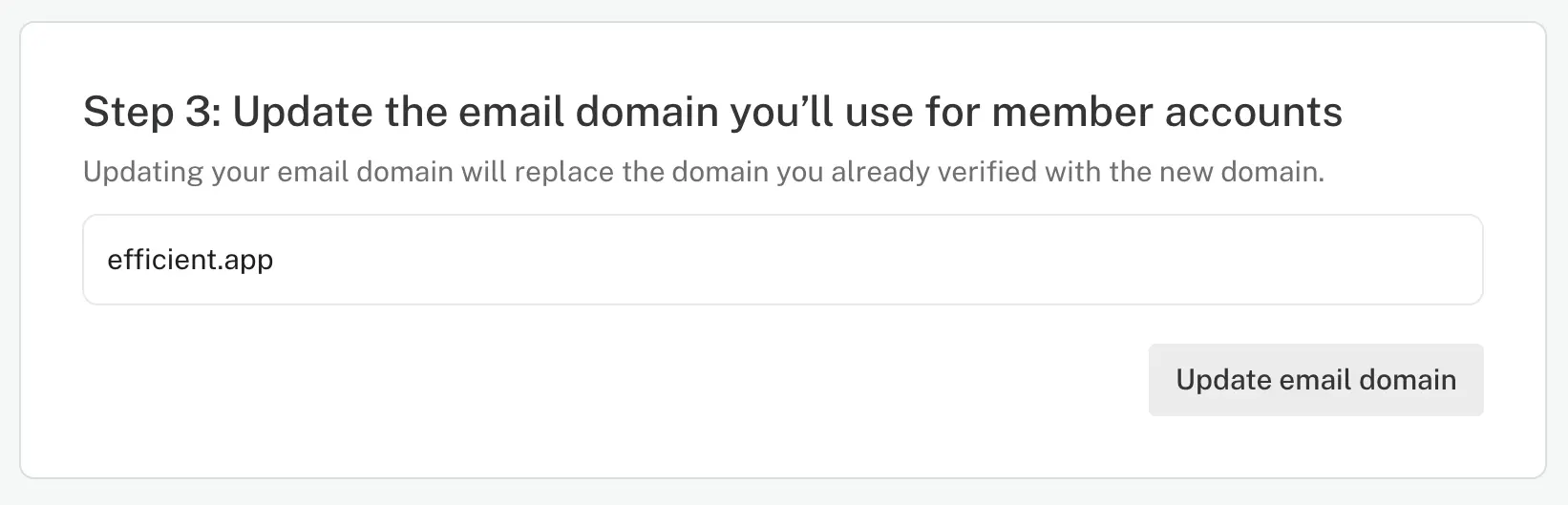
Enter your company email domain
Step 4: Dashlane DNS TXT Record
Step 4: Dashlane DNS TXT RecordNext, go to your DNS Provider and enter the following information as a DNS TXT record:
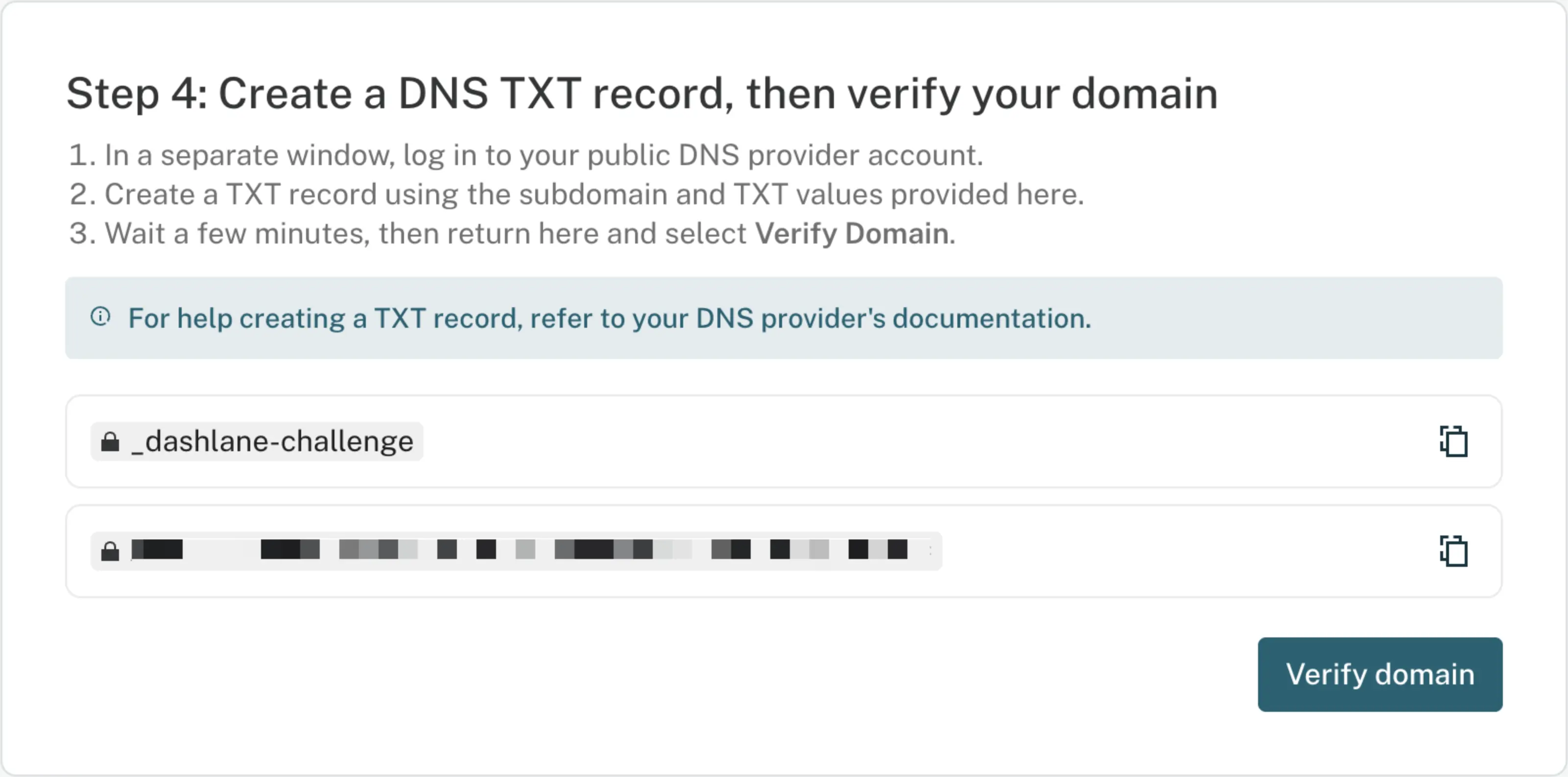
Copy/paste the TXT record info (unique to your account) into your domain DNS area
Update your DNS settings (we use Cloudflare to manage our DNS):
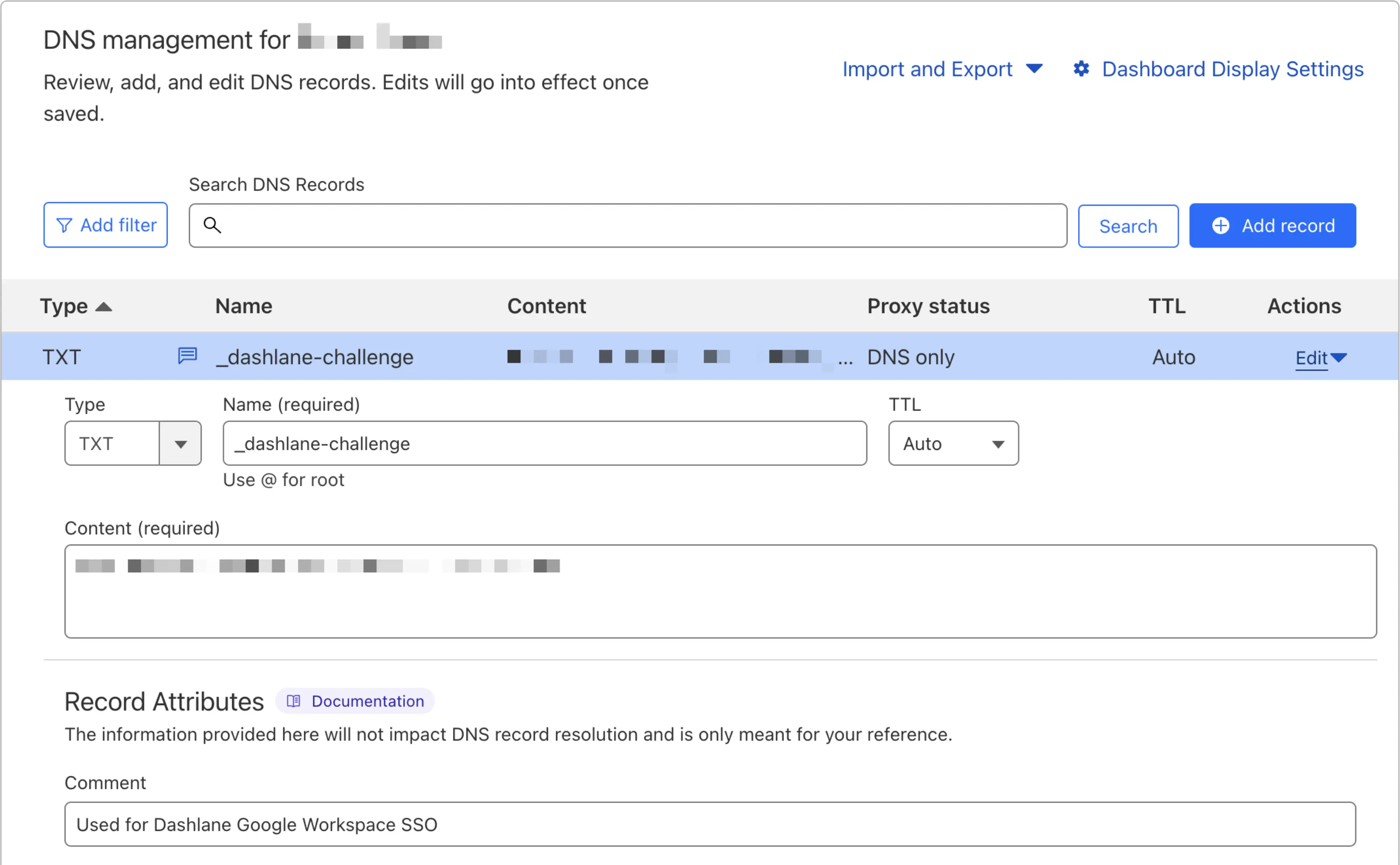
Example of TXT record filled out on Cloudflare
Then verify the DNS TXT record back in the Dashlane Admin SSO console:
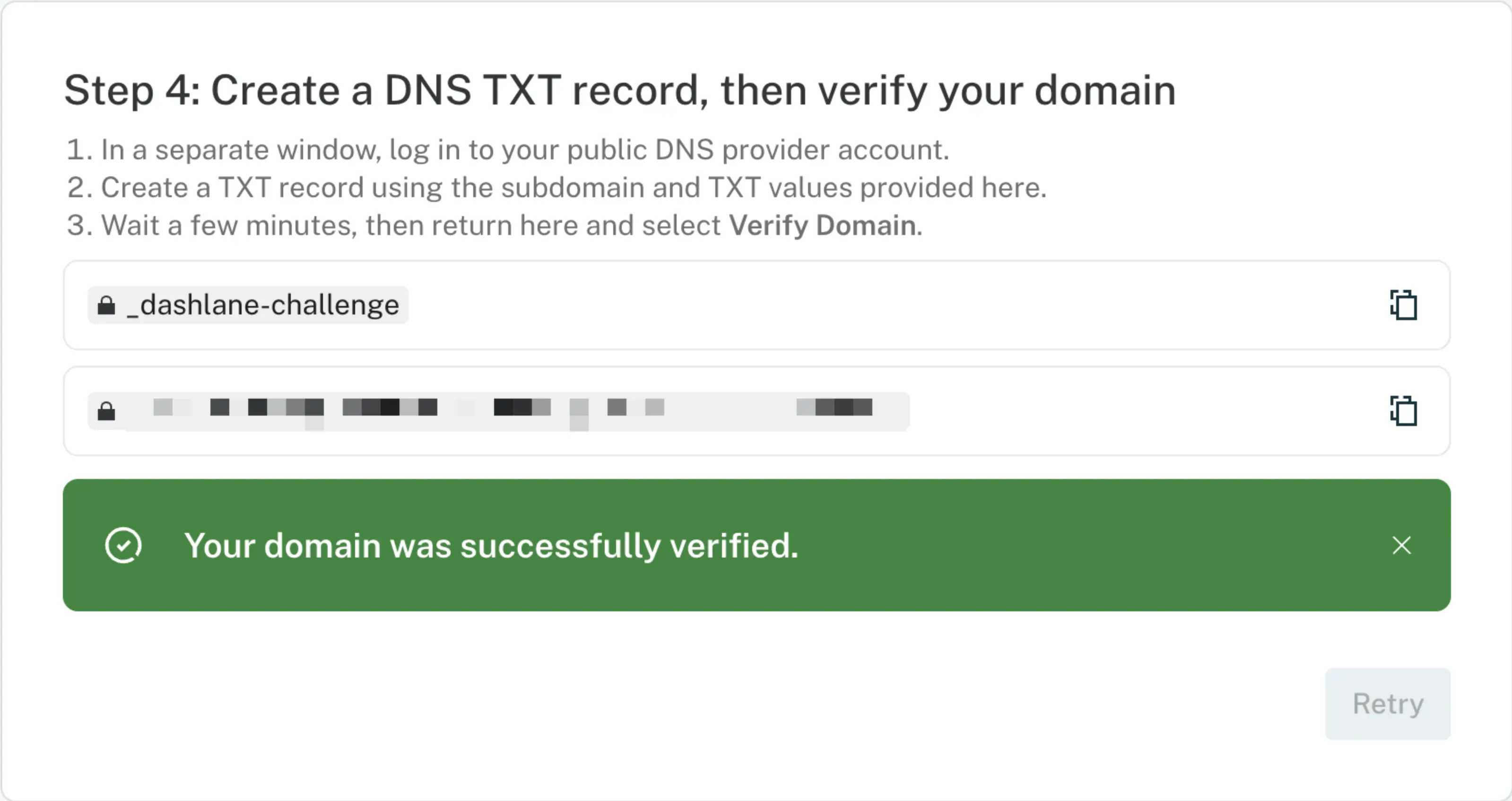
Successfully verified Dashlane DNS TXT Record
Step 5: Test your SSO Connection
Step 5: Test your SSO ConnectionSelect the account for the domain you've set it up for:
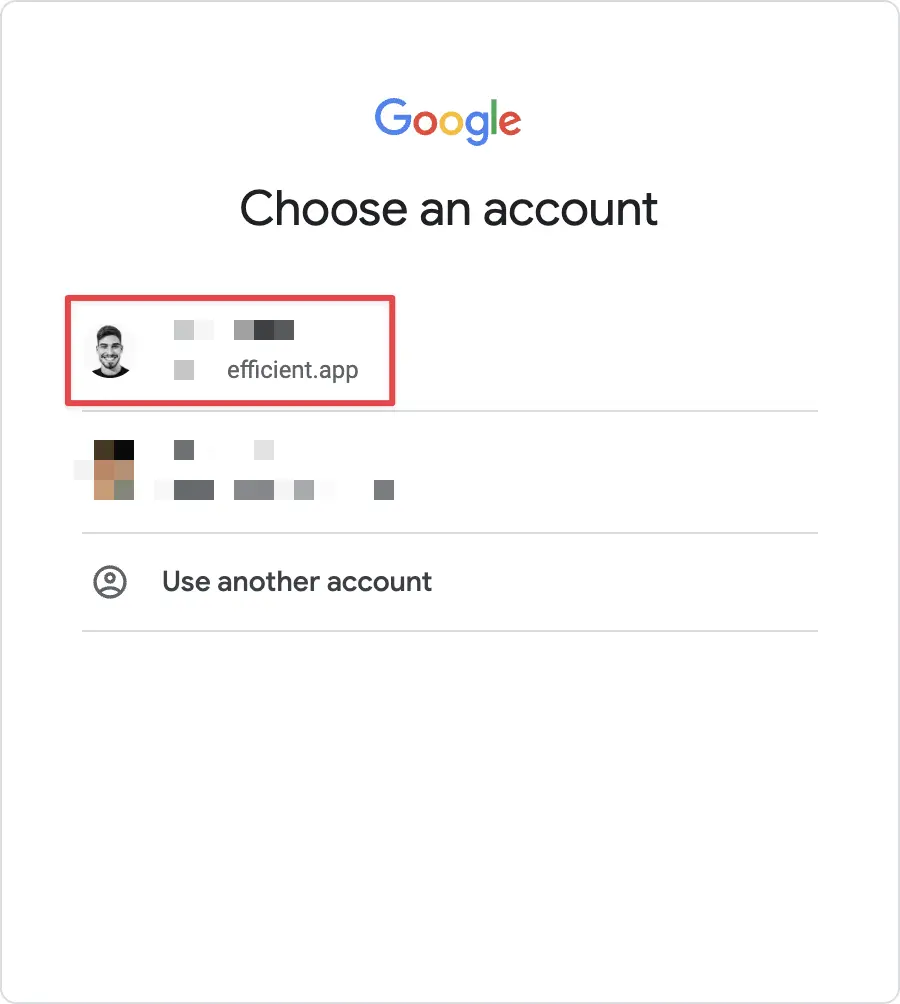
Select your Google Workspace Account
And then it should successfully redirect you back to Dashlane with a success message:
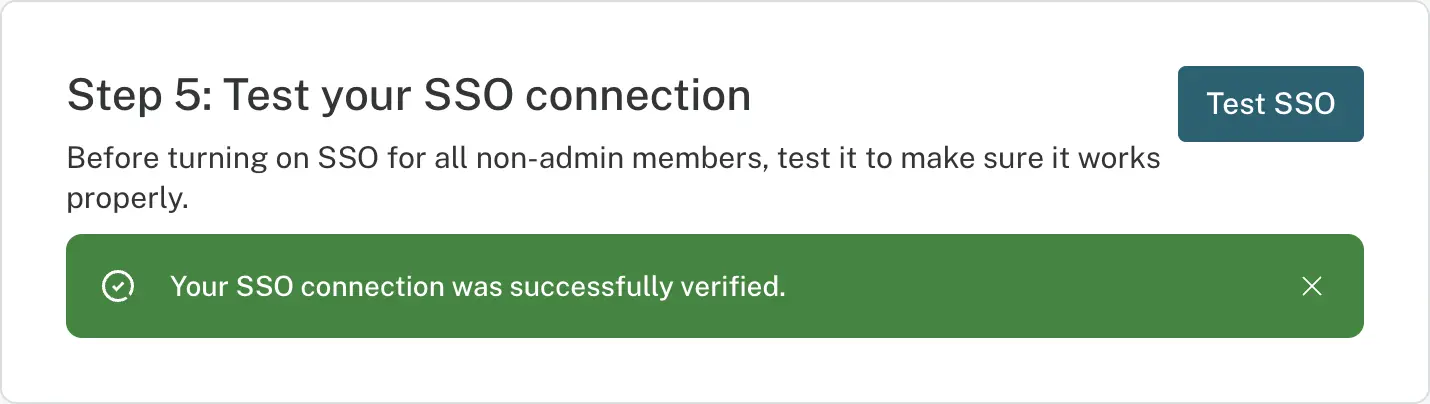
SSO Test Connection Successful
If you get an error here saying to reach out to Dashlane support and you initially had an expired certificate in the Google Admin console, make sure that you updated the IdP metadata in Step 2 to the new certificate generated (otherwise you'll get an expired certificate message in the console logs). Refer above to the Certificate Expired step if this is the case for you.
Step 6: Turn On SSO
Step 6: Turn On SSOImportant Note: You'll need to contact Dashlane Support if you ever want to deactivate SSO after activating it:
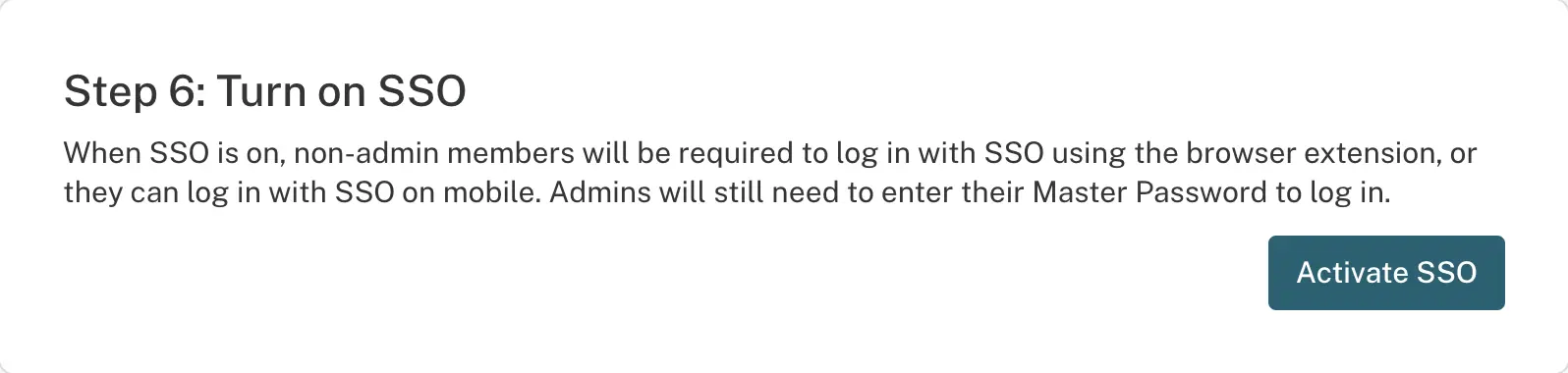
Activate SSO

Success!
If your team members formerly had a Dashlane login, the next time they login, they'll be prompted with the following message to login via SSO (Google Login):
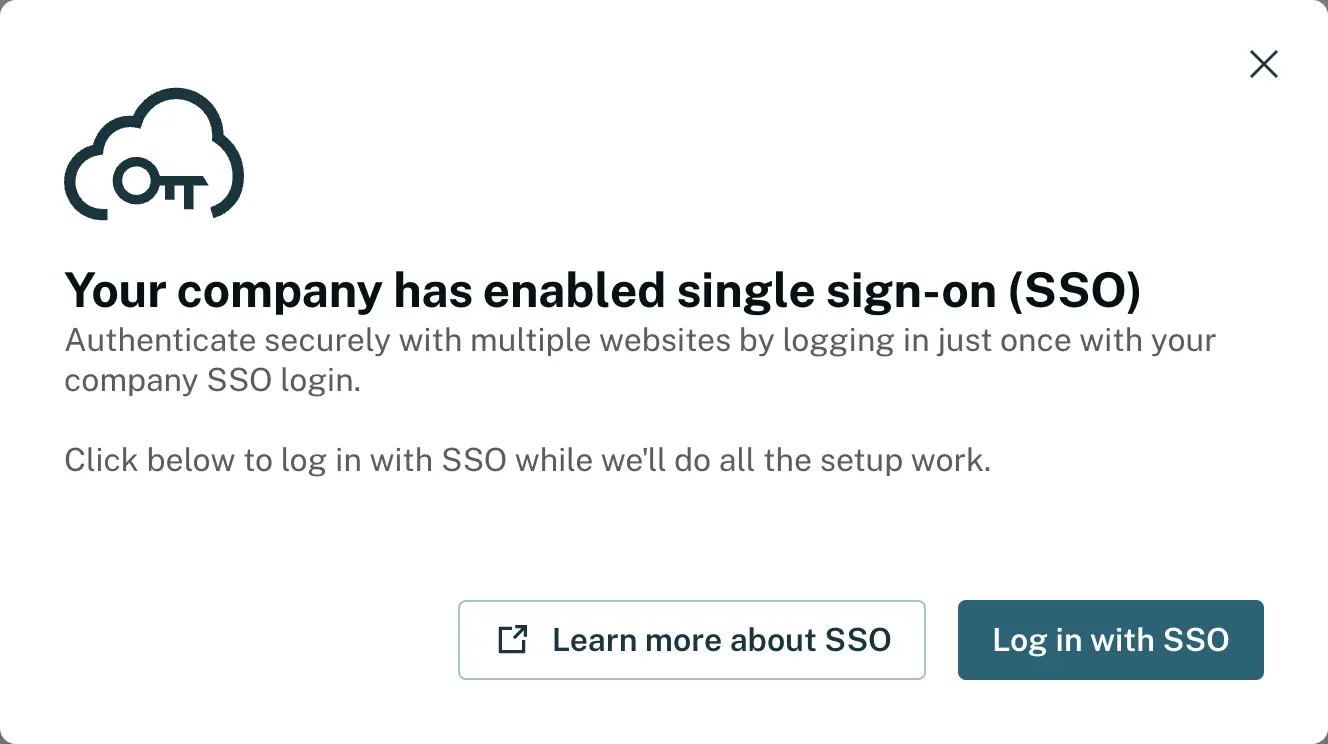
Google single sign-on (SSO) now enabled for everyone
Conclusion
ConclusionAnd that's it! Any Dashlane users on your team should be on your way to never forgetting a password again, and you should never have to worry about them not having a strong master password again. And your team will appreciate you for making it so easy for them to login (and for them not having to remember another login again!)
With Dashlane as your team password vault, you'll also have a baked in 2FA authenticator app built right in to the password management software, so no longer will your team need to mess with SMS 2 factor authentication which brings with it many flaws and security concerns.
You now have Dashlane password manager as a replacement to the Google password manager for your entire team moving forward.
Limitations
LimitationsAccount Access
You cannot use SSO for the Admin Dashlane accounts for security reasons, so if you're just an individual, or a team of a few people, and you want everyone to have Admin access, enabling the above will not help as everyone will still have to login with their Dashlane password. This is the same for other password managers on the market though, it's just what comes with enabling SSO when you're an admin on the account.
Browser Extensions
Everyone on the team will need the Dashlane browser extension installed via your browser in order to sign in with Google. So if you ever login to your Dashlane password manager via incognito, that will no longer work. But logging in on your phone via Dashlane downloaded from the app store on iOS and Android will work completely fine.